STAY TUNED!
Subscribe to our newsletter and get the 600+ pages eBook Inside ARES:

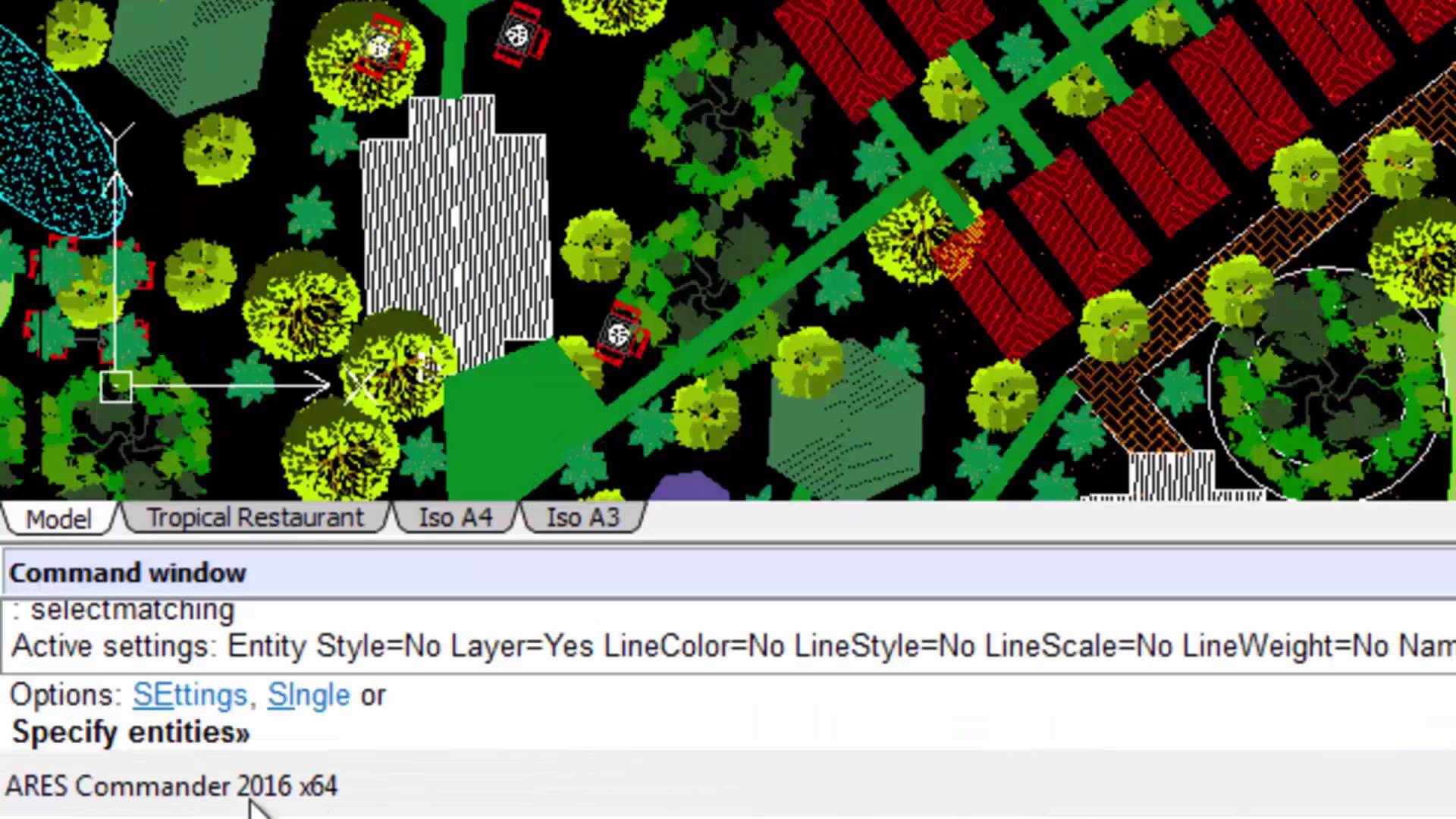
Smart & Fast Selection Methods Searching for a smart & fast way to use CAD? ARES Commander offers a quick way to select objects in a drawing with Smart & Fast Selection Methods. 1 00:00:09,660 –> 00:00:15,140 Ares Commander 2016 offers a quick way to select objects in a drawing. 2 00:00:15,820 –> 00:00:21,800 For example, if we want to select all the entities that are similar to this one, we select it, 3 00:00:22,440 –> 00:00:26,640 press the right mouse button and choose SELECT MATCHING. 4 00:00:27,900 –> 00:00:32,140 As you can see, all the similar entities in the drawing have been selected, 5 00:00:32,200 –> 00:00:34,240 so that you can work with them. 6 00:00:34,500 –> 00:00:37,240 This function complements the tool SMART SELECT 7 00:00:37,500 –> 00:00:41,920 that ARES Commander was already offering in previous versions. 8 00:00:42,280 –> 00:00:47,371 Smart Select allows filtering and selecting objects in the

ARES Commander 2016 introduces the new “Heads Up” floating palette Are you looking for Productivity Boost in CAD? Ares Commander 2016 introduces the new “Heads Up” floating palette. This new contextual toolbar appears next to your cursor when you select entities. Shortcuts include zoom to selection, change entity layer, change LineStyle or LineWidth, and the possibility to create a dimension or a block from the selection. 1 00:00:09,80 –> 00:00:14,80 Ares Commander 2016 is introducing the new “Heads Up” floating palette 2 00:00:14,520 –> 00:00:18,560 that appears when you select one or more entities. 3 00:00:19,20 –> 00:00:23,220 It offers some shortcuts to change the line type, line weight 4 00:00:24,20 –> 00:00:27,820 or to open directly from there the Layer Manager. 5 00:00:28,640 –> 00:00:32,980 You may also assign the current layer to the selected entities. 6 00:00:33,300 –> 00:00:34,760 For instance… 7 00:00:35,60 –> 00:00:37,980 at the moment we

Convert DGN to DWG ARES Commander 2016 offers two ways to maintain an optimal workflow with DGN files and the many users of Bentley Microstation; “Import DGN” And “Attach DGN” Command. 1 00:00:09,460 –> 00:00:15,40 ARES Commander 2016 can work with DGN files from Microstation. 2 00:00:15,49 –> 00:00:21,320 We can go to the INSERT tab, where we find the command IMPORTDGN. 3 00:00:21,320 –> 00:00:25,400 The dialog box is similar to the one for block insertion. 4 00:00:25,400 –> 00:00:31,189 We browse for the file that we want to import, click open, and define the insertion point. 5 00:00:31,860 –> 00:00:36,800 We can write the coordinate or specify it directly in the drawing. 6 00:00:37,840 –> 00:00:40,780 We also determine the scale and rotation. 7 00:00:41,140 –> 00:00:44,800 If required, we can even choose the view we want to insert. 8 00:00:45,380 –> 00:00:48,380 In this case, we only have one to

Working With QUICK INPUT ARES Commander 2016 gives us information about the command that we are using directly at the pointer. At the same time, it offers us the coordinates of the position of the pointer. By clicking on a point, the Quick Input options appear. This is a new feature in ARES Commander that can be activated or deactivated here. When activated, contextual information appears about the angles and distance from the starting point. In this case, I can write a distance, for example. Then after pressing the TAB key, we can also change the angle, in this case adding degrees. Press ‘Enter’ to confirm the changes and to create the new point. Now we can let the polyline end perpendicular to this rectangular shape here. But when the pointer moves, we can see that many entity snaps appear. That’s why we should use the snap filter by combining

Ares Commander 2015 presents “PowerTrim” Trim and extend CAD entities on the fly with the PowerTrim feature in ARESCommander. 0:00:08.720,0:00:15.200 ARES Commander 2015 presents “PowerTrim” to trim and extend better and faster 0:00:15.200,0:00:18.000 than in any other CAD software before. 0:00:18.120,0:00:19.980 Let’s see this example 0:00:20.040,0:00:23.280 Find the tool here in this drop down menu. 0:00:23.420,0:00:25.040 Click on the screen, 0:00:25.120,0:00:28.260 keep the button pressed and drag it. 0:00:29.040,0:00:33.480 This line lets you trim easily on the fly. 0:00:34.140,0:00:40.120 In addition, if we keep the SHIFT key pressed, TRIM turns into EXTEND. 0:00:40.560,0:00:43.660 So we can also extend easily. 0:00:44.460,0:00:50.340 In another example, select PowerTrim, click on the screen, keep the button pressed … 0:00:50.500,0:00:55.920 and drag to trim. Drop, and position the cursor somewhere else. 0:00:56.080,0:00:59.920 Press and drag with the mouse. 0:01:00.740,0:01:04.100 Keep SHIFT pressed to extend. 0:01:04.960,0:01:10.420 Finally, with PowerTrim, we can also clean corners. 0:01:18.640,0:01:20.100 Thanks for

Learn 3D Drawing Basics 1 00:00:09,660 –> 00:00:15,180 To create this part in 3D, we will simply need polylines. 2 00:00:15,980 –> 00:00:20,360 You will see in this video how they will be converted into three-dimensional elements 3 00:00:20,360 –> 00:00:23,820 with commands such as Extrude and Revolve. 4 00:00:24,260 –> 00:00:27,620 In this example, we can see several rectangles. 5 00:00:27,860 –> 00:00:31,439 A rectangle is a certain kind of a closed polyline. 6 00:00:31,600 –> 00:00:33,160 Here is one, 7 00:00:33,320 –> 00:00:34,460 here another … 8 00:00:34,580 –> 00:00:38,180 and here are more rectangles – in total we have six. 9 00:00:38,240 –> 00:00:40,160 Here we have a circle 10 00:00:41,680 –> 00:00:45,920 and on the other side we have two closed polylines. 11 00:00:47,20 –> 00:00:49,500 Let’s now create this part in 3D. 12 00:00:51,80 –> 00:00:55,300 We first work with this rectangle, whose corners should
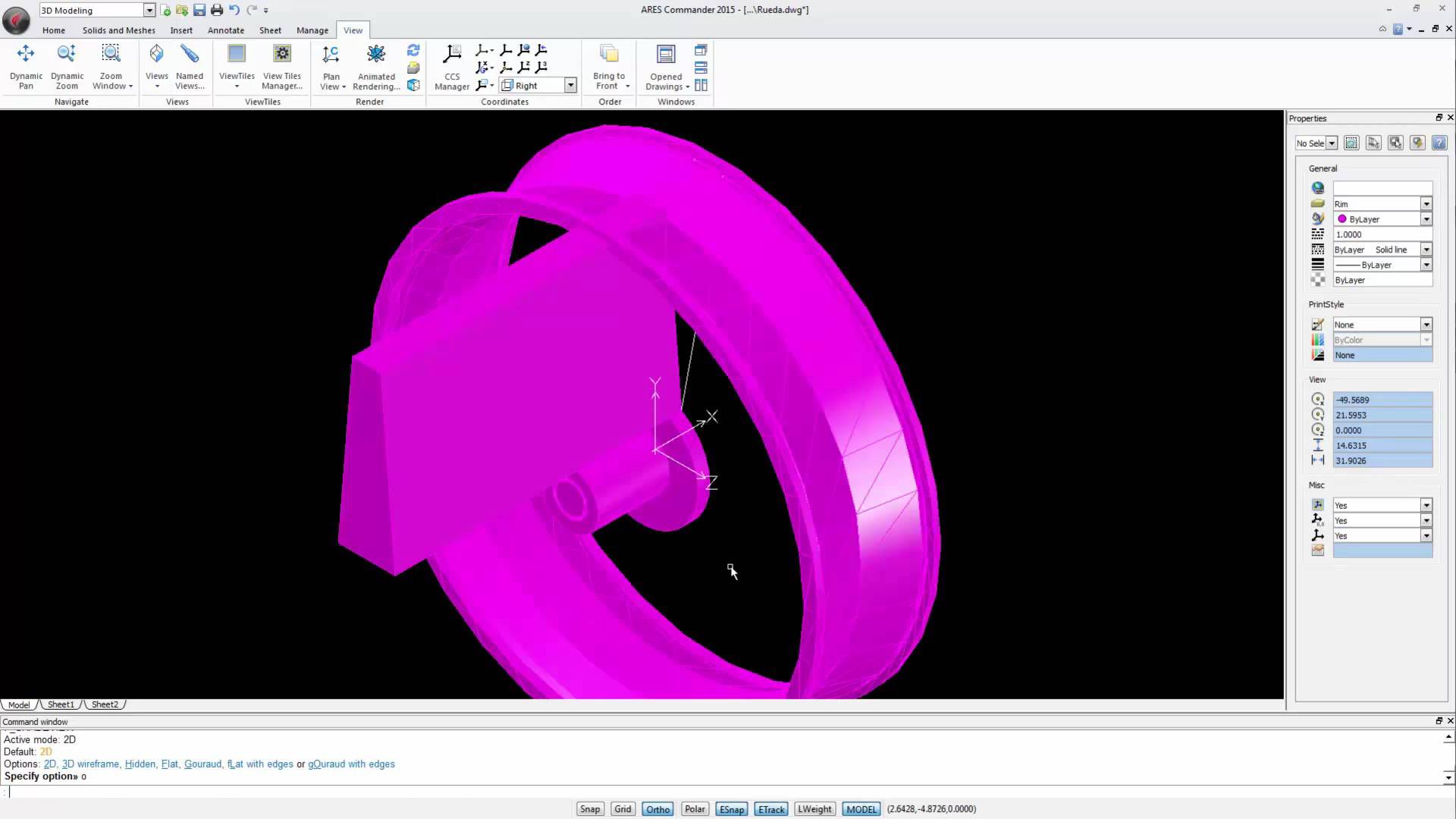
Watch the videos divided into 4 parts to learn more about 3D modeling in ARES Commander. Make changes to the external drawing 1 00:00:08,920 –> 00:00:10,720 We are working with this wooden bike 2 00:00:10,840 –> 00:00:14,420 which is not only a toy, but also a mechanical project. 3 00:00:14,580 –> 00:00:19,80 In previous videos, we saw how to create the saddle and its structure 4 00:00:19,280 –> 00:00:21,340 as well as wheels, 5 00:00:23,140 –> 00:00:26,380 frame, fork, and handlebar of this bike. 6 00:00:26,600 –> 00:00:30,620 The wheels are inserted in this drawing as external references. 7 00:00:30,700 –> 00:00:35,379 But the remaining parts of the bicycle are created directly in this drawing. 8 00:00:35,800 –> 00:00:42,80 To finalize the wheel we will open the wheel file to make the changes directly in this external drawing (XREF). 9 00:00:42,240 –> 00:00:47,720 As a result, the changes will appear
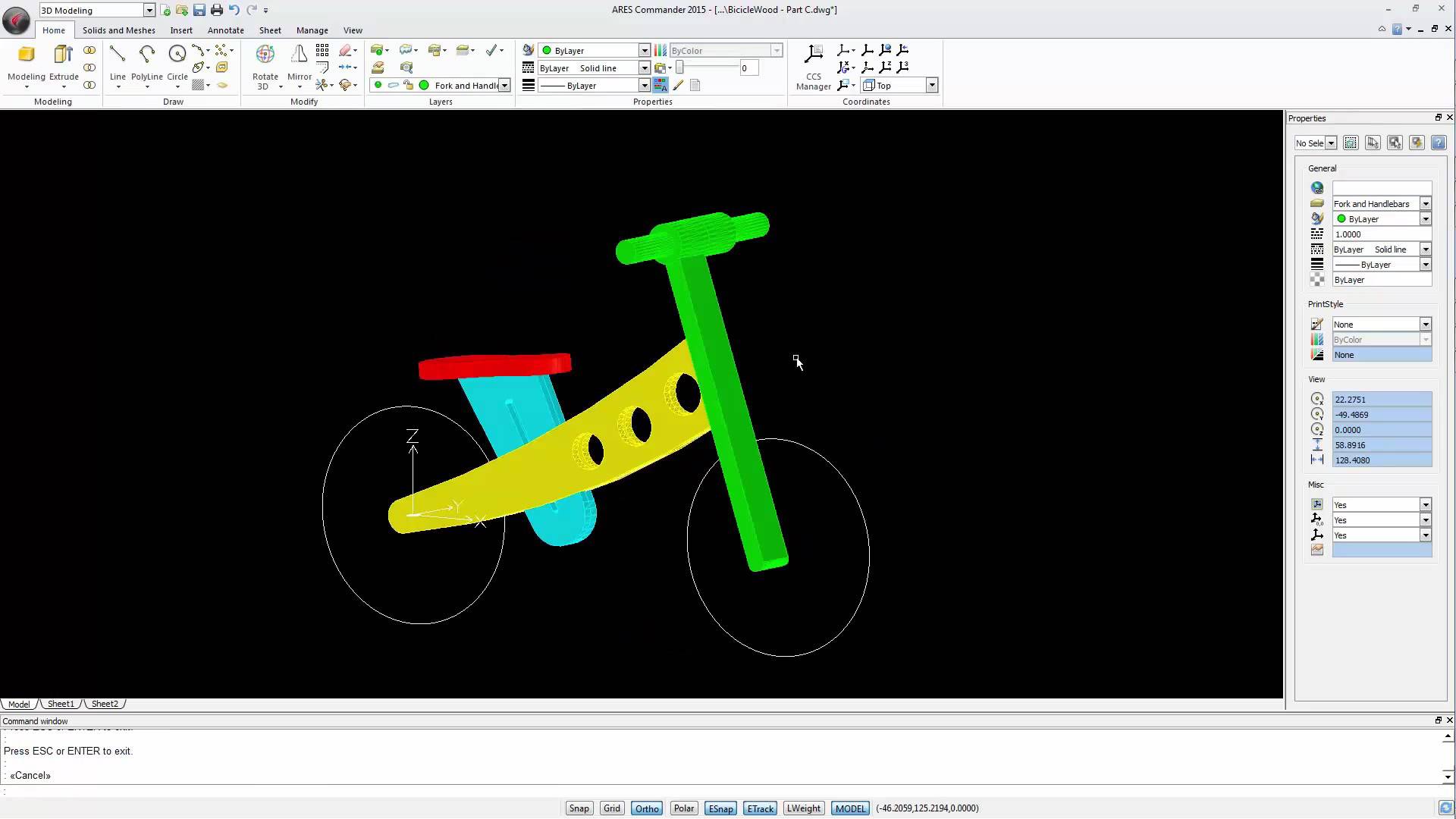
Watch the videos divided into 4 parts to learn more about 3D modeling in ARES Commander. Working with the Frame of 3D Model 1 00:00:09,340 –> 00:00:14,40 In this video we will create the frame and the fork of the wooden bicycle. 2 00:00:15,660 –> 00:00:22,360 To create this part of the structure we just need a closed polyline describing the outline of this shape. 3 00:00:22,700 –> 00:00:26,119 And then these circles to create the holes in it. 4 00:00:26,320 –> 00:00:31,160 The method we will use here is to redraw the outline of this figure. 5 00:00:31,880 –> 00:00:34,540 So, let’s select the polyline function. 6 00:00:35,180 –> 00:00:37,171 We can start here. 7 00:00:38,980 –> 00:00:42,199 In this case we need an arc in this section. 8 00:00:42,820 –> 00:00:46,420 For that we chose the option ARC with the “A” key 9 00:00:47,100 –> 00:00:49,380 and simply

Watch the videos divided into 4 parts to learn more about 3D modeling in ARES Commander. Create 3D Solids with the REVOLVE command 1 00:00:08,540 –> 00:00:13,719 In this video, we concentrate on the wheel. We will build it in 2 stages. 2 00:00:13,920 –> 00:00:19,800 This video is focused on the first stage, that is to say the design of the “rim” and the “tire” – 3 00:00:19,940 –> 00:00:23,180 two solids created with the command REVOLVE. 4 00:00:23,540 –> 00:00:28,480 To create these solids by revolution we need 2 closed polylines. 5 00:00:30,160 –> 00:00:34,20 One closed polyline will be used to create the rim 6 00:00:34,200 –> 00:00:37,50 and another one to create the tire. 7 00:00:37,120 –> 00:00:43,290 To create these polylines, we use the basic drawing and editing 2D commands. 8 00:00:43,290 –> 00:00:48,390 We start by creating a graphical reference – a rectangle. 9

Watch the videos divided into 4 parts to learn more about 3D modeling in ARES Commander. Getting started With 3D modeling 1 00:00:09,80 –> 00:00:14,40 This video is one out of four explaining how to create this wooden toy. 2 00:00:14,220 –> 00:00:20,620 This series will illustrate how to potentially create any 3D element – especially with solids. 3 00:00:21,20 –> 00:00:26,720 In this drawing we see the scheme of the wooden toy that we’re creating in 3D. 4 00:00:26,920 –> 00:00:32,120 These are simple entities such as rectangles, circles and ellipses 5 00:00:32,420 –> 00:00:40,200 There are also some more complex figures which combine lines and arcs to create closed polylines of singular shapes. 6 00:00:40,440 –> 00:00:45,59 The goal of each shape is to create a single closed polyline. 7 00:00:45,280 –> 00:00:51,760 This is crucial to create a three dimensional solid – using commands such as Extrude

Did you know that ARES Touch, our mobile DWG Viewer & Editor, is available for both Android and iOS?