STAY TUNED!
Subscribe to our newsletter and get the 600+ pages eBook Inside ARES:

Use your ARES Commander license on other computers with LicenseToGo After activating a license on a principal computer, LicenseToGo enables you to reuse that license on an additional PC – for a limited period of time. LicenseToGo – How to Use Your ARES License on Several Computers NB: The LicenseToGo system was replaced from ARES Commander 2017 by the login / log out mechanism and the Customer Portal. LicenseToGo was first introduced in ARES Commander Edition 2014 SP2 and further enhanced in ARES Commander 2015. This feature allows you to work with the same license on other computers. It is available on the Perpetual license and Annual Plan for the duration of your Graebert subscription (see after) but not available on the Flex licenses (network licenses) where it is replaced by another mechanism that is quite similar (borrow a license from the network). First of all, LicenseToGo is not an “export”
PDFs are usually not editable like files with a .dwg extension. Graebert offers a simple solution; ARES Commander helps you to converts a PDF file into an editable DWG drawing. How to convert a PDF file to a DWG drawing with ARES Commander PDF files are often an important resource in a technical office. They are the quickest and most effective way to display and save a project for customers. Over time, it can happen that we lack the DWG version of an old project and we have only saved it as a PDF version. When you open the PDF project (created from CAD), it is common to have the layers of the original project. For this reason, a PDF reader can show or hide the different layers of the project. However, a PDF is not editable. At least not like files with a .dwg extension. The good news: ARES Commander
Great Tutorials, Info Videos & More Great tutorials, info videos & more in our Youtube Channel GraebertTV. To learn more about ARES Commander, visit our Youtube Channel: GraebertTV Have fun watching!

Increase productivity with the zoom & pan function in ARES Touch. Get a full version of ARES Touch on Google Play free for 30 days. Let’s learn about the ARES Touch gestures You can pitch the screen to Zoom in or out. Pan can also be done by moving one or more fingers on the screen. but most likely you would like to combine Zoom and Pan to quickly navigate in your drawing. Finally, you may double tap at any time for a Zoom-Extend. To learn more about ARES Commander, visit our YouTube Channel: GraebertTV
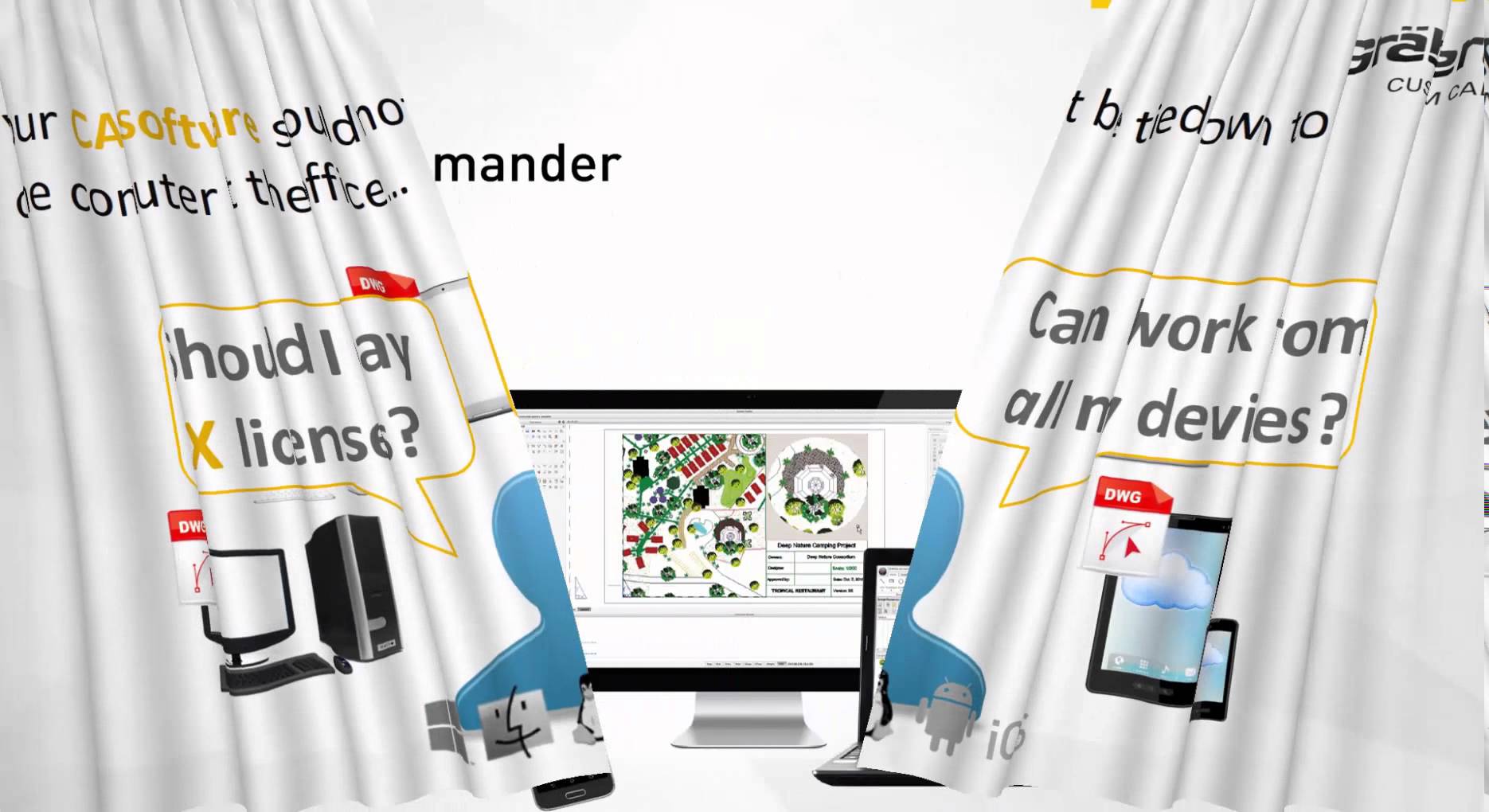
ARES Commander – One of the most innovative CAD programs Nowadays, we see each of us is using an increasing number of devices for our work, at the office at home and on the go. The same user, the same company may now use different computers, potentially running on different operating systems. We also use more and more mobile devices such as tablets and smartphones. So, naturally, you would like to be able to create and modify your DWG drawings on all your devices but, of course, without paying a license for each. That’s what we call the Cross-Device CAD Experience. Ares Commander is much more than a cost-effective alternative for CAD in DWG. Let’s have a look together. Our CAD software runs on Windows, Mac, and Linux and we introduced ARES Touch for Android. With ARES Commander you will not only save money on your license you will also

Ares Commander 2016 offers new tools to improve our productivity Some of them are grouped in the new “XtraTools” tab.In previous videos, we have seen how “Curved Text” and “Hatch Pattern” work. The “XtraTools” section offers nine more commands. You will gradually discover more XtraTools commands in the future versions of ARES Commander. The “Break Line” command allows you to draw a line containing a symbol, in this example, a break-out line. But it could be another file in DWG format, for example, to indicate a specific type of cable or a symbol containing the word “gas” to indicate a gas pipe or any other use we wish to assign or any other use we wish to assign. We simply load a DWG file and the symbol will be integrated into the line we’re going to draw. From this area, we will be able to control the size of the
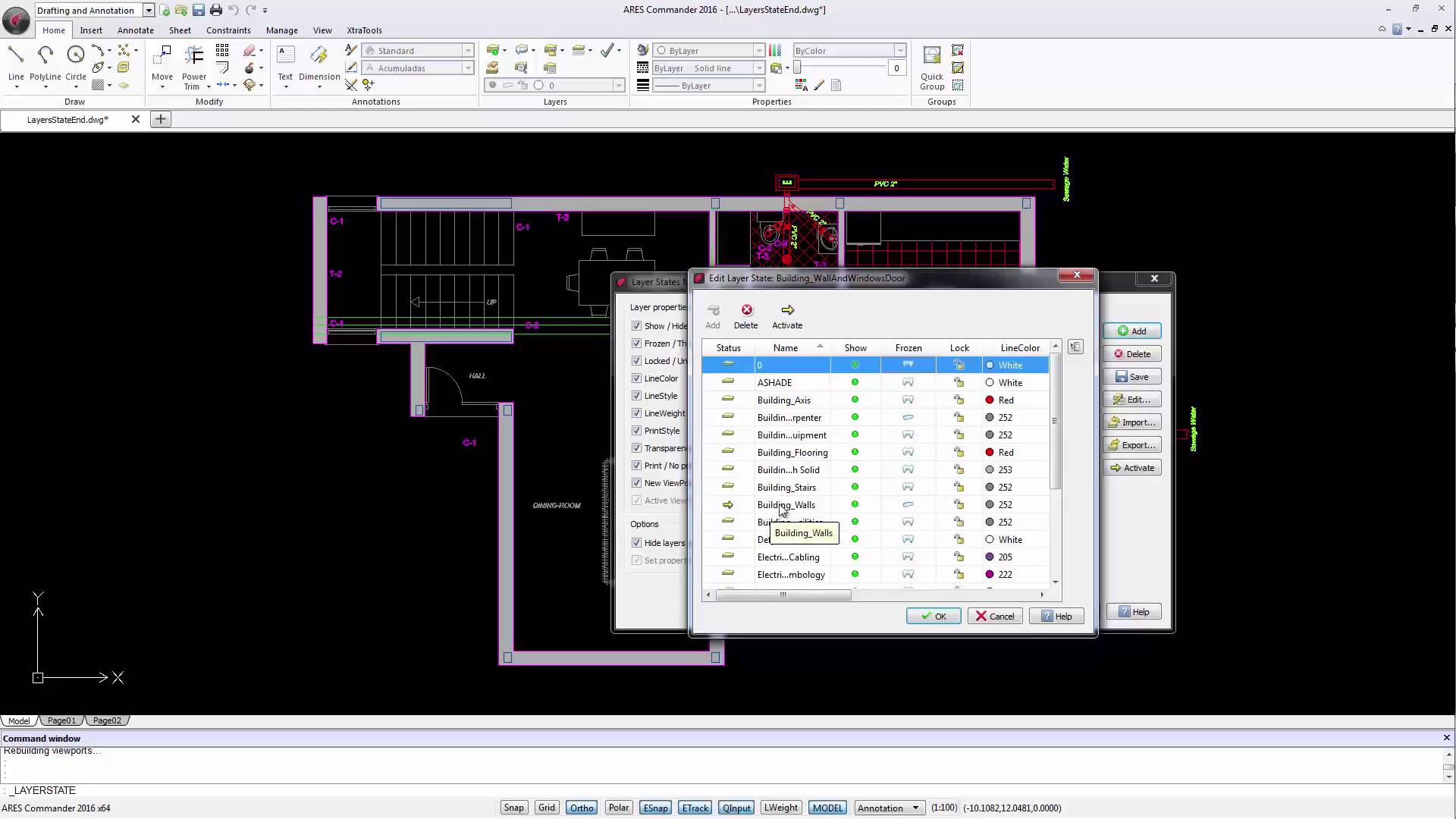
Group different layers in ARES commander. The new layer state manager allows users to create layer groups, that we can easily control. Discovering New Layer State Manager 1 00:00:09,360 –> 00:00:14,100 When we draw a project in CAD we need to create many layers. 2 00:00:14,820 –> 00:00:17,860 Until the previous version of Ares Commander, 3 00:00:18,380 –> 00:00:21,840 if we needed to work on the structural design of a project, 4 00:00:22,120 –> 00:00:28,460 we would have most likely frozen the layers, that were not required, one by one. 5 00:00:39,20 –> 00:00:40,900 A slow process, isn’t it? 6 00:00:41,20 –> 00:00:47,260 And it can always lead to errors, maybe because we accidentally left a layer “frozen” that should be active, 7 00:00:47,260 –> 00:00:50,760 or we left one active when it had to be “frozen”. 8 00:00:50,920 –> 00:00:56,000 ARES Commander 2016 is introducing the new LAYER STATE MANAGER.
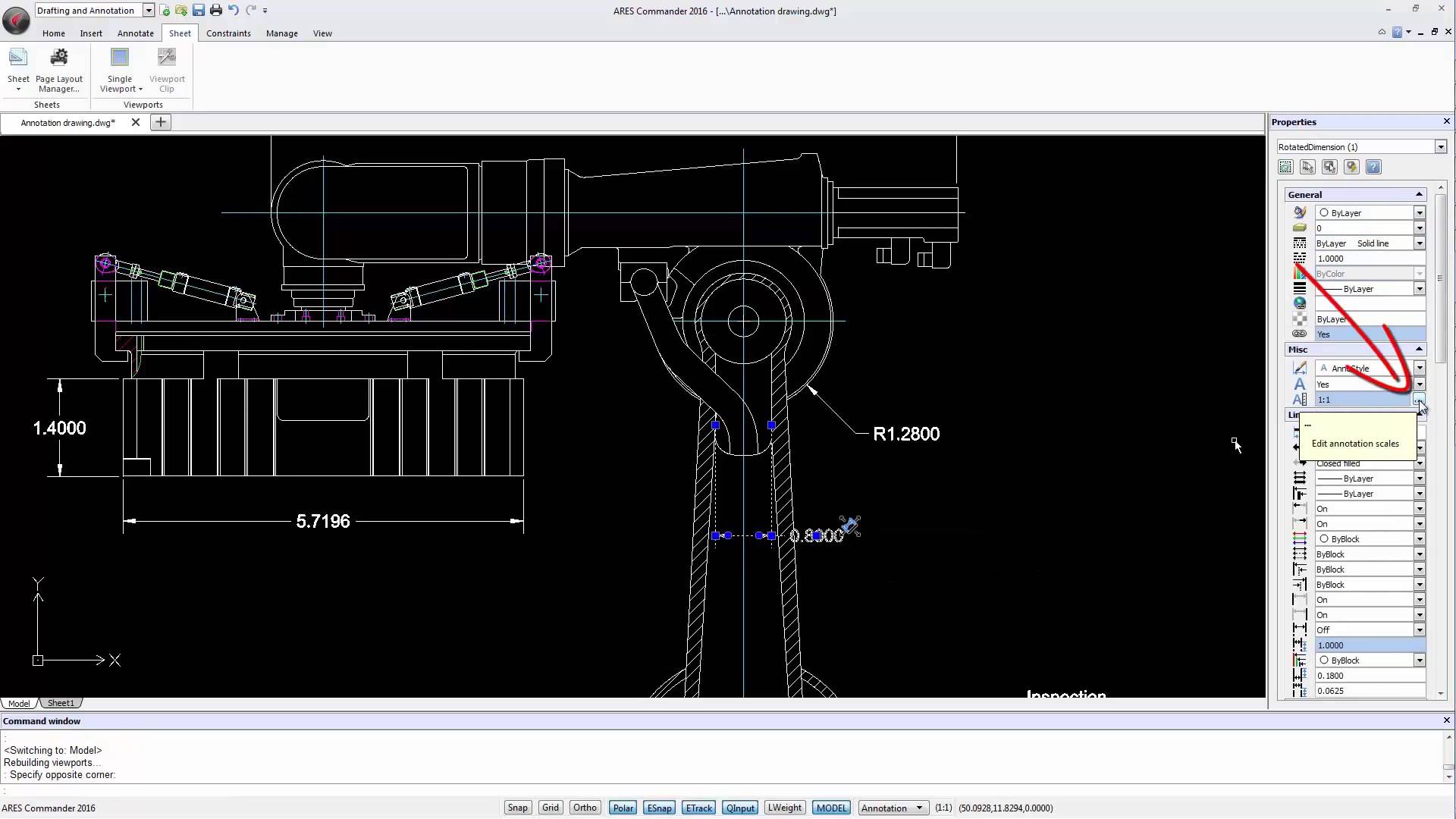
With Annotative Scaling, Ares Commander 2016 Introduces a Great Improvement For Dimensions, Text, Hatches, And Blocks 1 00:00:08,920 –> 00:00:13,370 One of the most important elements in a technical drawing are the annotations. 2 00:00:14,000 –> 00:00:19,279 With Annotative Scaling, ARES Commander 2016 introduces a great improvement 3 00:00:19,279 –> 00:00:22,590 for dimensions, text, hatches, and blocks. 4 00:00:22,590 –> 00:00:27,480 Note that the annotative scale properties are not restricted to dimensions. 5 00:00:27,480 –> 00:00:31,640 We will also find texts, hatches, and blocks with annotative scaling. 6 00:00:31,800 –> 00:00:35,380 But first, let’s focus on the dimensions. 7 00:00:35,580 –> 00:00:38,19 In this picture, we see a layout sheet, 8 00:00:38,20 –> 00:00:41,860 where three viewports have been created with different scales. 9 00:00:42,240 –> 00:00:49,120 However, the values of the coordinates, the text size and arrow size are equal in all viewports. 10 00:00:49,320 –> 00:00:52,000 Look
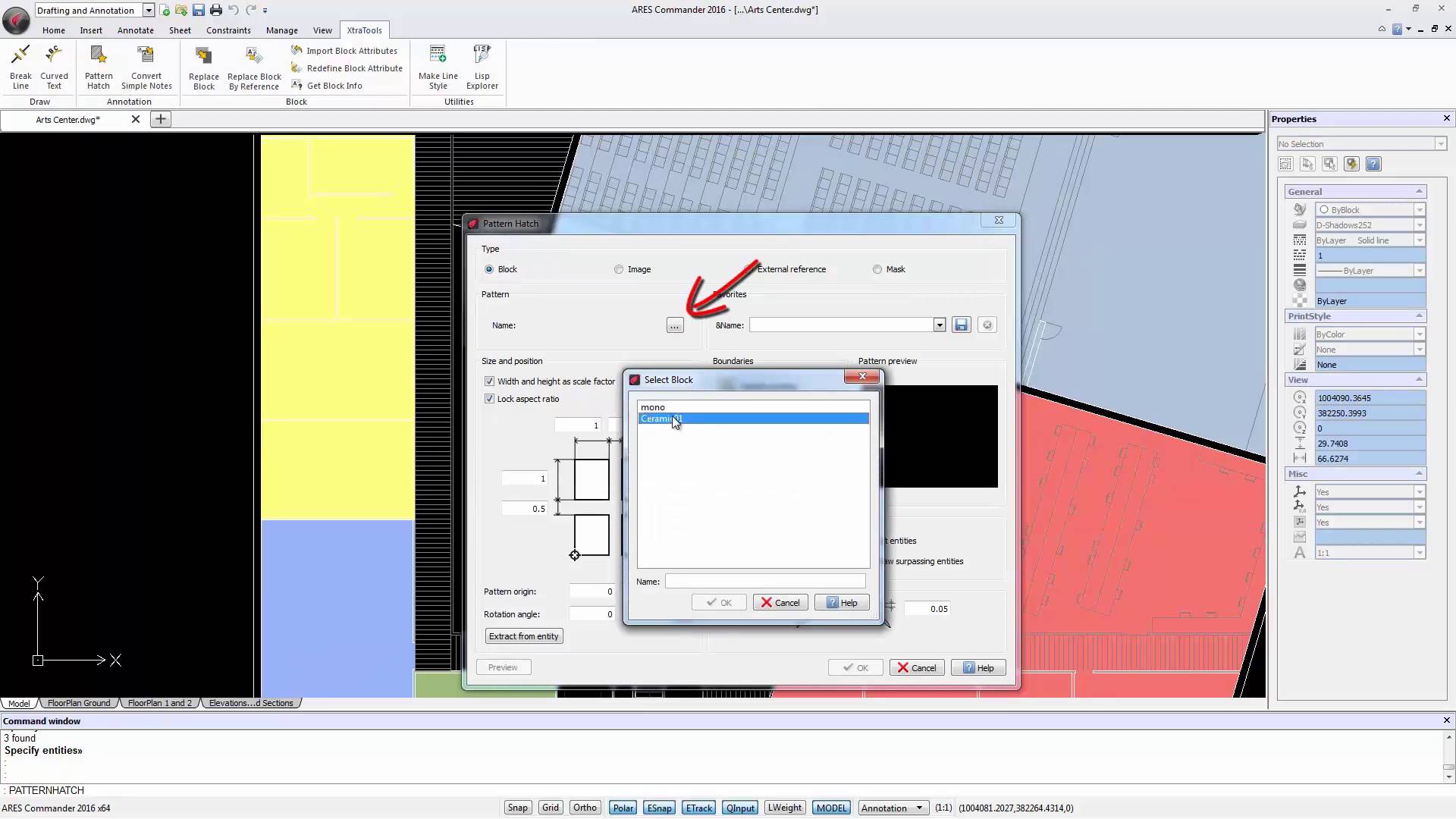
The new “Pattern Hatch” command (found in the “XtraTools”) allows us to create a custom HATCH, based on “blocks”, “images”, “External References” or “masks”. From Hatch command to Pattern Hatch 1 00:00:09,640 –> 00:00:12,820 Besides working with the traditional HATCH command, 2 00:00:12,880 –> 00:00:20,600 Ares Commander 2016 features a new command called “Pattern Hatch” (found here in the “XtraTools”). 3 00:00:21,300 –> 00:00:24,400 This command allows us to create a custom HATCH, 4 00:00:24,430 –> 00:00:30,590 based on “blocks”, “images”, “External References” or “masks”. 5 00:00:30,960 –> 00:00:33,460 Let’s try first with an “image”. 6 00:00:33,500 –> 00:00:36,660 Click on this button and select the image. 7 00:00:36,660 –> 00:00:43,120 This is an image representing elements which size in real life is 100×100 cm. 8 00:00:43,160 –> 00:00:44,309 Click OPEN. 9 00:00:44,340 –> 00:00:49,80 To insert a Hatch we need an enclosed area or a closed shape. 10 00:00:49,740 –>

Learn about “Drawing TABs” “Drawing TABs” allow us to quickly move from one open drawing to another, regardless of whether it is 2D or 3D. 1 00:00:09,240 –> 00:00:16,20 ARES Commander 2016 offers us new features such as the “Drawing TABs”. 2 00:00:16,400 –> 00:00:24,60 They allow us to quickly move from one open drawing to another, regardless of whether it is 2D or 3D. 3 00:00:24,780 –> 00:00:26,840 But not only that. 4 00:00:27,60 –> 00:00:35,440 We can also position the “pointer” over one of the tabs, and Ares Commander 2016 offers all views available in this drawing, 5 00:00:37,540 –> 00:00:42,780 either model space or “Layouts” that are configured in paper space. 6 00:00:43,840 –> 00:00:49,140 Allowing also to go directly to one of those layouts by clicking on them. 7 00:00:49,680 –> 00:00:56,380 We can also change the order of the opened drawings, simply by dragging a tab to

Did you know that ARES Touch, our mobile DWG Viewer & Editor, is available for both Android and iOS?