STAY TUNED!
Subscribe to our newsletter and get the 600+ pages eBook Inside ARES:


Layer Preview in ARES Commander ARES Commander brings some interesting features that allow us to manipulate and organize layers with greater productivity. Highlighting among them is the command LAYER PREVIEW, which is exclusive to ARES Commander. This command allows us to select layers and visualize their contents and even select groups of layers. Navigate through the Layer Preview Command Select layers, and use the Zoom and Pan command to take a closer look. Press ESC to return to the dialog box. The “RESTORE LAYERS STATE WHEN EXIT” option, when it is active, determines if the previous layer state will be restored after closing the LAYER PREVIEW command. Pay attention, at this point, it says it will restore it. Press CLOSE and the drawing will return to the previous configuration. Layer Configuration with Layer Preview Now, let’s try the opposite. Select a group of layers, and deselect the box. Press CLOSE.

Learn how to make linetypes and linetype files with CAD Software ARES Commander. In this article, we will explain how to create line styles using an easy to use CAD program. When working on a CAD drawing, we need different line types or line type files also known as “line styles” in ARES Commander. Opening the LINE STYLE Dialog Box In the video above, for example, the circular viewport. Contains a line using a CONTINUOUS line style. We could change this to dots. It is also possible to load other types of line. For that, we can use the last option in the linestyle drop-down, which says ‘Other…’ or on the icon next to the linestyle drop-down menu . Both will take you to the LINE STYLE dialog box, where you can load the line types. Press LOAD, and note that several options appear. The line styles definitions are included in a filename with
ARES Commander allows us to create custom line types. In this video, we will learn to create a custom line style for CAD with a series of lines of different sizes. All of this in a very simple way. Line Types and Line Styles Line types in ARES are also known as “line styles”. Here, for example, we have a series of lines of different sizes, and we will create a line style with it. Our new line style pattern will start at this point and end at this other end. The vertical line is simply a reference element so that you can easily select the end point. The last space will be included in our line style. Now, from XTRATOOLS press the command MAKE LINESTYLE Define a name (without spaces) and add a description. After pressing OK, we have to select the start point and then indicate the end
Learn how to create Custom Linestyles in CAD Software ARES Commander easily. Custom Linestyes can be created either directly from a drawing pattern with the command MAKELINESTYLE, or the traditional way, with a text file ending in a .lin extension, (as shown in the video). Press LOAD, in the LINE STYLE dialog, and it will open a new dialog called LOAD LINESTYLES, which shows the contents of the .lin file. You’ll notice that it has a name and a description. Wondering how they are created? Simple, click on BROWSE and it directs you to the folder containing the file. You can see that the .LIN file has a simple structure when you open it using NOTEPAD (available in Windows). Be careful, any changes you make here will affect the .LIN file. In the video above, the file is called ‘MM.LIN’. The double M is short for millimeter, as it groups the line

1 00:00:08,860 –> 00:00:14,049 In this video we will see some of the tools that help you work faster with CAD layers 2 00:00:14,049 –> 00:00:15,480 in ARES Commander. 3 00:00:15,480 –> 00:00:20,640 For example, we can hide a layer, just by selecting an entity located on that 4 00:00:20,640 –> 00:00:21,640 layer. 5 00:00:21,640 –> 00:00:24,270 Or, activate all layers at once. 6 00:00:24,270 –> 00:00:28,680 We can even lock a layer, just by selecting an entity that belongs to 7 00:00:28,680 –> 00:00:29,680 it. 8 00:00:29,680 –> 00:00:35,300 Of course, we can also unlock layers by selecting one or more entities at a time. 9 00:00:35,300 –> 00:00:39,680 All of these Layer tools help us to work faster with layers in ARES Commander Isolate Layer Command 10 00:00:39,680 –> 00:00:42,740 One of my favorites is the Isolate Layer command 11 00:00:42,740 –> 00:00:47,000 that allows isolating the layer

More XtraTools™ Commands More power features to help you solve tedious tasks – Now also on Mac and Linux Take a look at the XtraTools menu or ribbon tab and you will discover many new features to manage layouts viewports, import/export dimension styles, create nice text labels, scale blocks, define draw order by color, and more. ARES Commander significantly increases the number of tools in the XtraTools tab. The same features are now also available for Mac and Linux. For your reference, this was the XtraTools tab in the previous version of ARES Commander. The number of tools is significantly higher if you compare with the new XtraTools tab. Using the command “Viewport Scale Ratio“ Let’s have a look, when we set up a sheet in PAPER SPACE and create the viewports, we might forget the scale of that view. With XtraTools and the command “Viewport Scale Ratio“, ARES Commander will

Dynamic Print Preview The Print settings dialog has been redesigned to improve productivity Enjoy a reorganized dialog for Print settings with a dynamic preview representing your drawing as it would be printed. You no longer need to switch between settings and preview to adjust your print configuration. ARES Commander has a new print dialog box. It has been redesigned to have a preview – in real time – of what we are going to print. Here, we see how it will be printed. In this dialog we find all the necessary parameters to configure our printing correctly. Options with Dynamic Print Preview We can choose the printer, the number of copies, and even the paper size, and of course, we can rotate it. We can also configure the scale among other parameters. Any changes that we make in this box, we can apply directly to our tab in paper space.

Advanced Block Attributes Editing New dialog for advanced editing of block attributes and properties Select one or more block insertions and use this new dialog to edit one or more attributes but also block properties such as a layer, line style, color, text style and more. ARES Commander offers a new dialog that allows to quickly change the attributes of a block. Not only the information that contains the attribute but also some of its properties. In this example (Video), we will modify the name and after pressing APPLY we see the change. Block with attributes properties We can also vary the height of the text, its color, and any other properties we see here. In this example, there are some labels that we will modify. Because it is a block with attributes, you can insert it again or copy an existing one. The new dialog of ARES Commander makes it
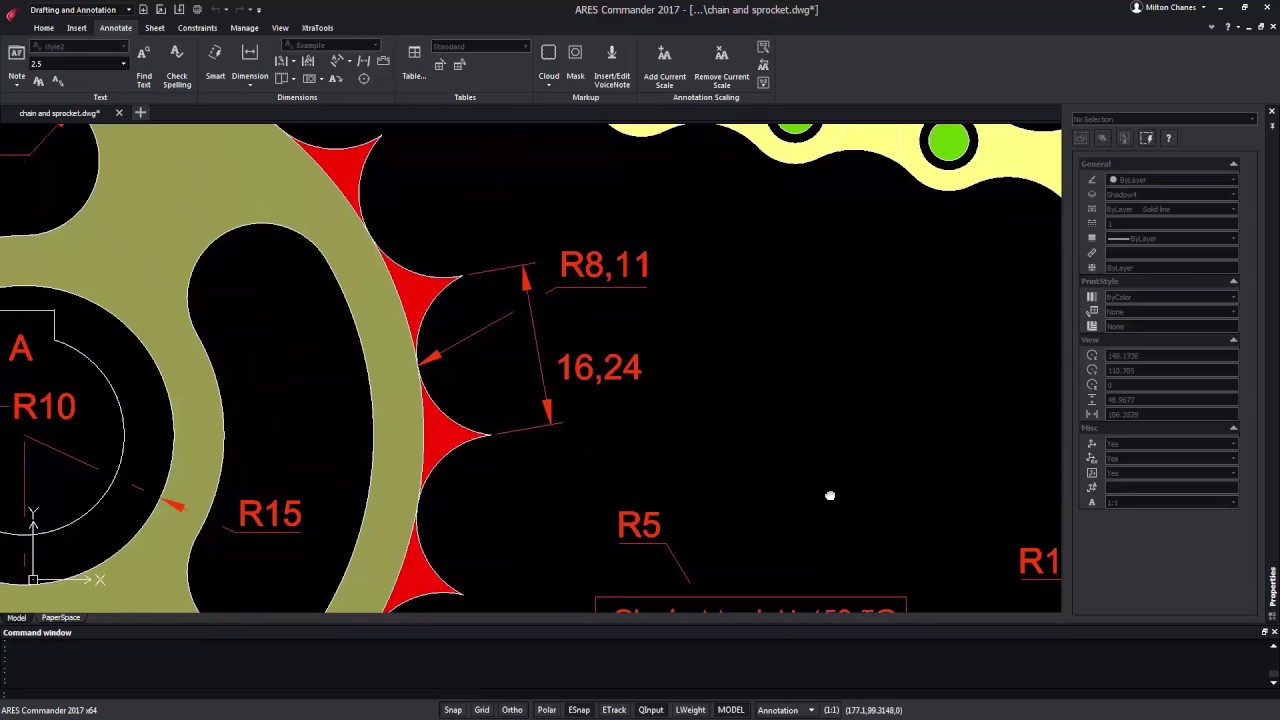
Split Dimension Lines Split Dimension lines and extension lines to avoid any overlap Improve the readability of your annotations, when a dimension line or an extension line is overlapping another entity the command, SPLITDIMENSION will help you split them with a default or manual distance without breaking the associativity. ARES Commander offers us a new tool called SPLIT DIMENSION. It allows us to solve the meetings and crossings of lines and extensions for dimensions and leaders. Working with Split Dimension Let’s see how it works. In the ANNOTATE tab find the SPLIT DIMENSION command. Select the dimension and press ENTER. As we can see, ARES commander automatically resolves the crossings to prevent the dimension lines from passing over the drawing. Let’s try this example. Select the command SPLIT DIMENSION, select the arrow of the leader and press ENTER. As you can see, it appears clearly separated. By pressing ENTER we accepted
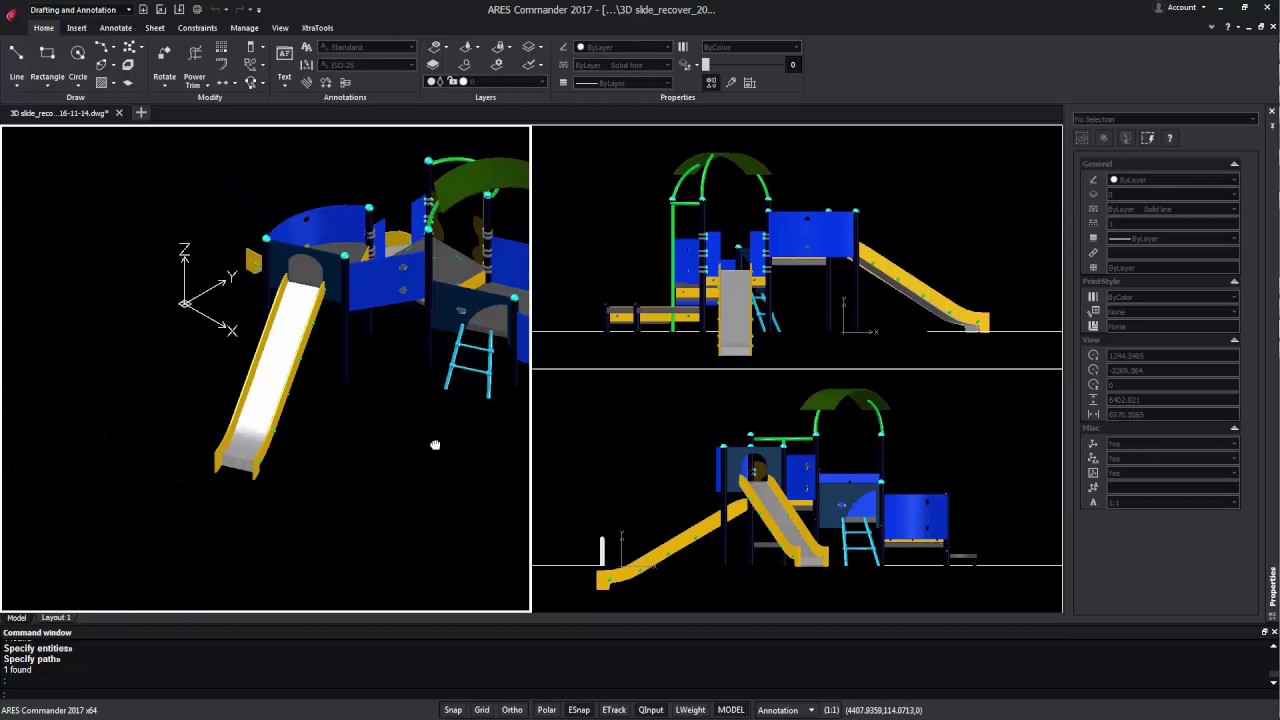
Pattern Along Any Path Copy entities along a path defined by another entity Array multiple copies of a chosen entity along a line, polyline, arc, circle, ellipse or spline. Different options let you define the distance and a total number of insertions but also how to align each insertion with the chosen path. ARES Commander now lets you copy entities along a path. Here (watch video), we have a rectangle and an arc. Using the PATTERN command, we can now choose the new function “PATH”, where we select the entity and the path. Press OK. We can see how the rectangle has been copied along with the arc. We can control how the elements will be copied along with the path. How to copy elements along any path For example, we can divide the path for a given amount of entities. As an example, I make 15 copies We can also determine

Did you know that ARES Touch, our mobile DWG Viewer & Editor, is available for both Android and iOS?