STAY TUNED!
Subscribe to our newsletter and get the 600+ pages eBook Inside ARES:

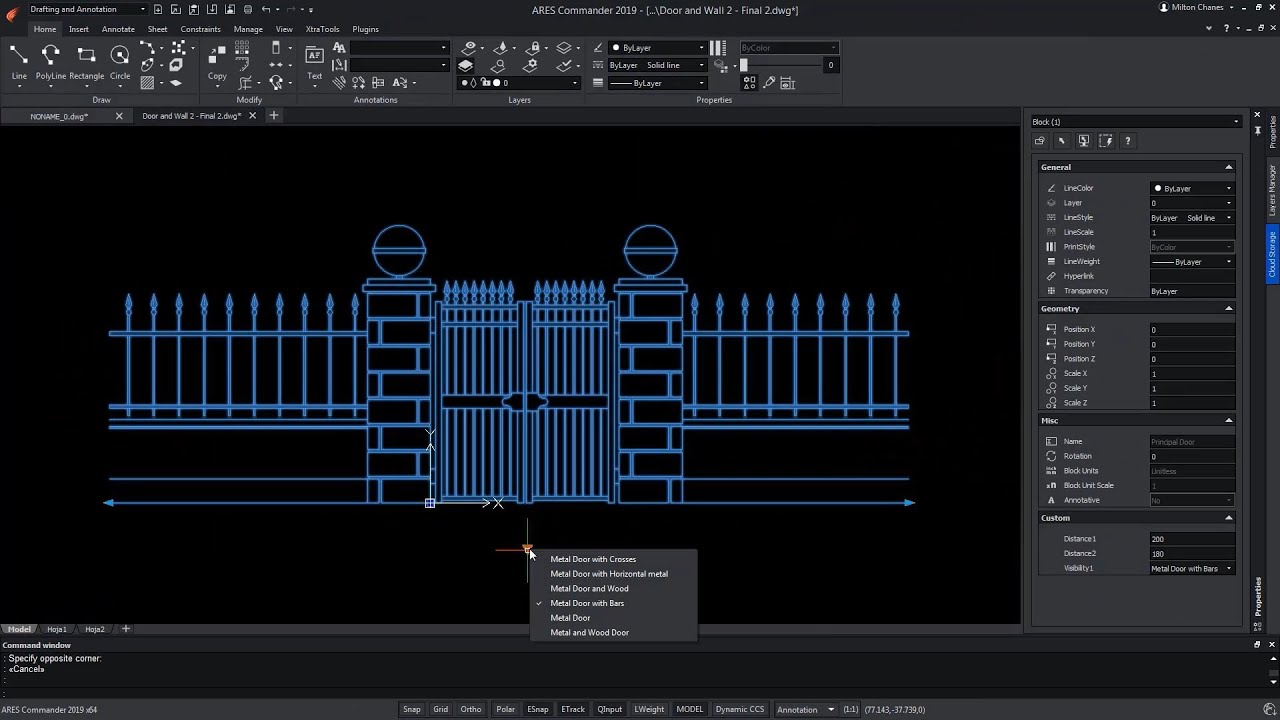
The new Custom Block Editor of ARES Commander helps you to create smarter blocks. In this video we show how to use grips and parametric actions such as Move, Scale, Stretch, Rotate, Pattern, or Mirror. You can also create custom blocks with different states having elements that are hidden or shown. Combining multiple of these grips and actions allows you to create much smarter blocks. One custom block may replace tens of the blocks you currently use which will significantly increase your productivity.

In continuation of our first tutorial on custom blocks, we would like to introduce further features for customizable blocks with a second tutorial. At first, we focus on creating a customizable block that can be mirrored after insertion by clicking on a special handle and later, to create two different variants of a block using the visibility state.
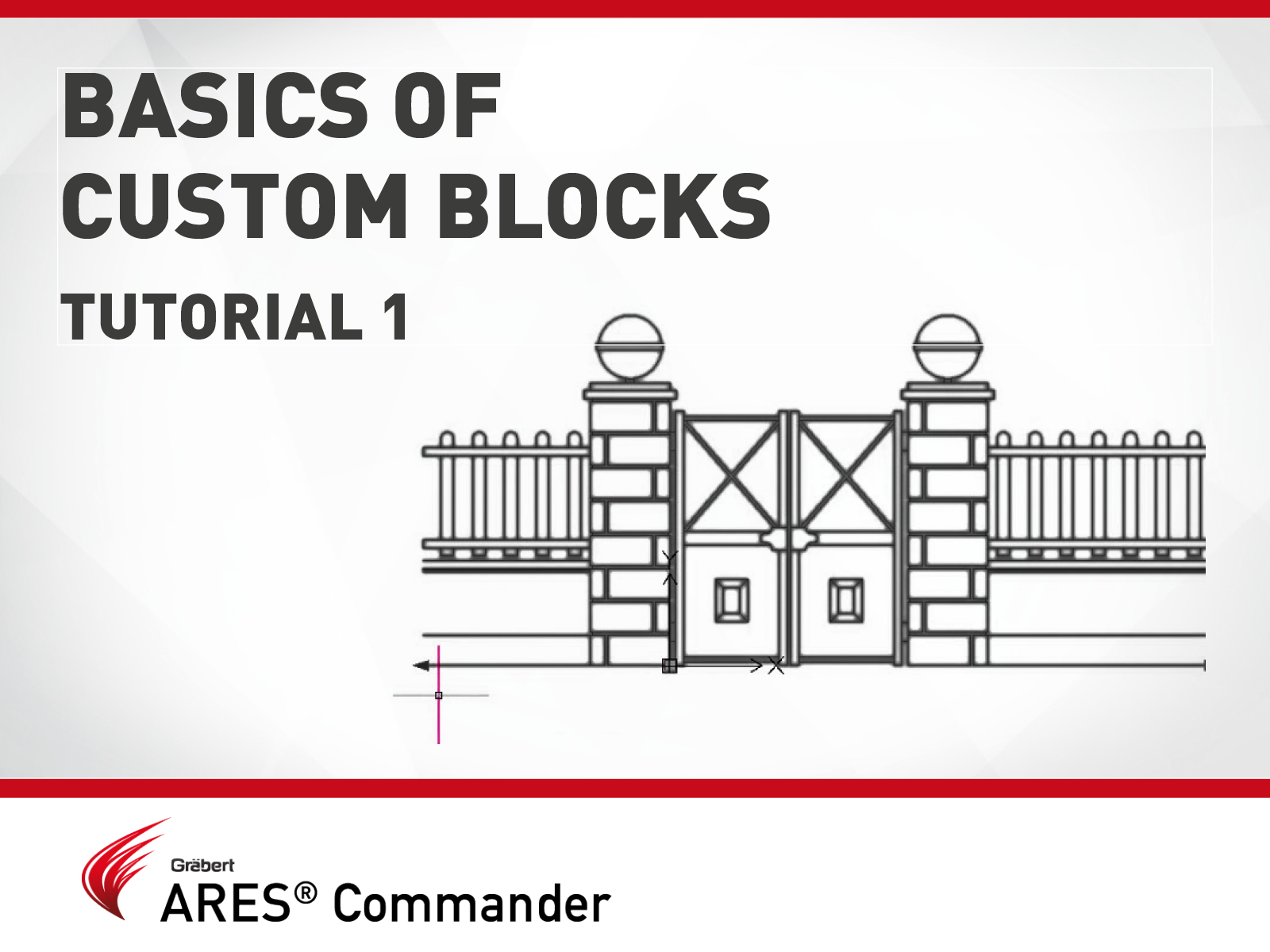
Custom blocks are blocks for which you can define rules and constraints that allow you to quickly change their size, shape, and appearance.

In this video, we will learn how to use the “Visibility” parameter in order to change between the 6 types of doors that can be seen here.
When we create a drawing, it is common to have to share it with clients or colleagues who are working on the same project.
In this video we will see how to share a link, which allows these people to follow the project online.
Always with access to the latest version of the project.
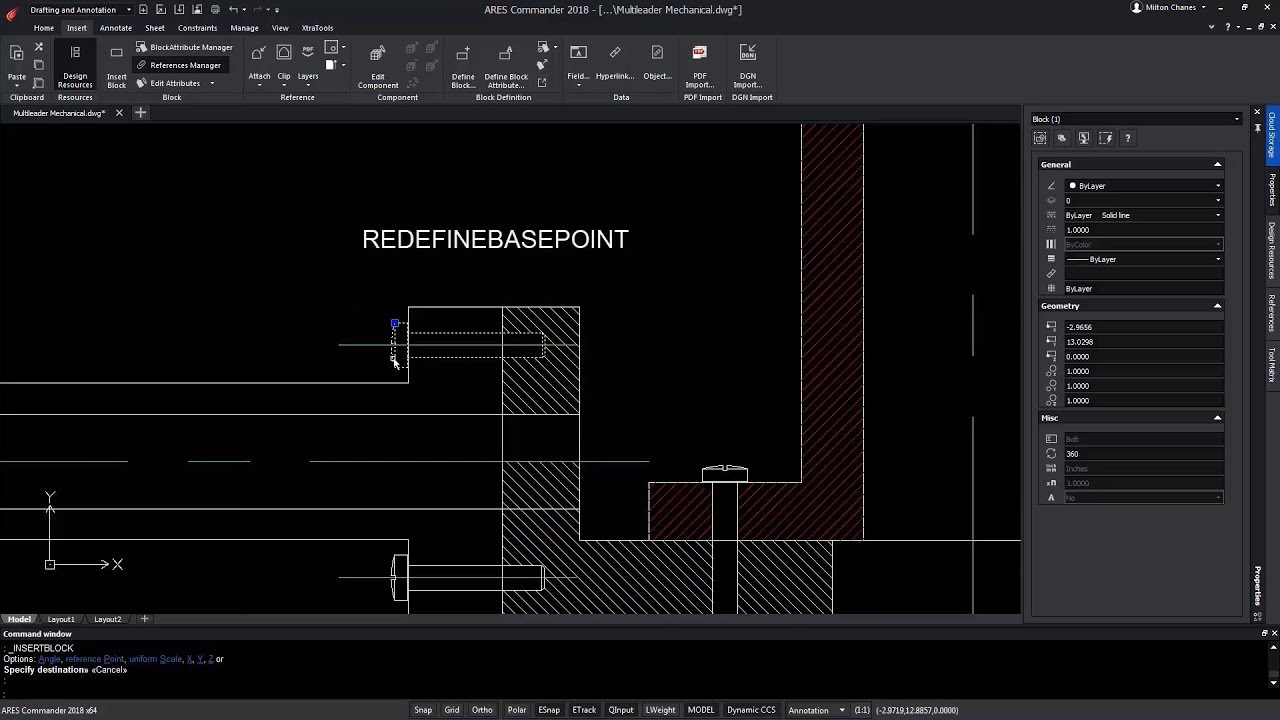
ARES Commander allows you to Redefine Base Point of a Block by changing the insertion point of a block without the need to edit it, through the REDEFINEBASEPOINT command. Let’s see how it works. In this slit, we want to add a BOLT. For this, we use the INSERT BLOCK command. We select the “bolt” we have created and we choose that the position is determined directly in the drawing. After pressing OK, we are ready to insert the block. However, the insertion point is located in a place on the bolt that does not correspond to the references we have in the drawing. We would have to place it in a known place, for example, and then move it to the correct position. In this case, it is a single bolt. But if the mechanical part has several bolts, that small mishap would imply a more tedious work and lead
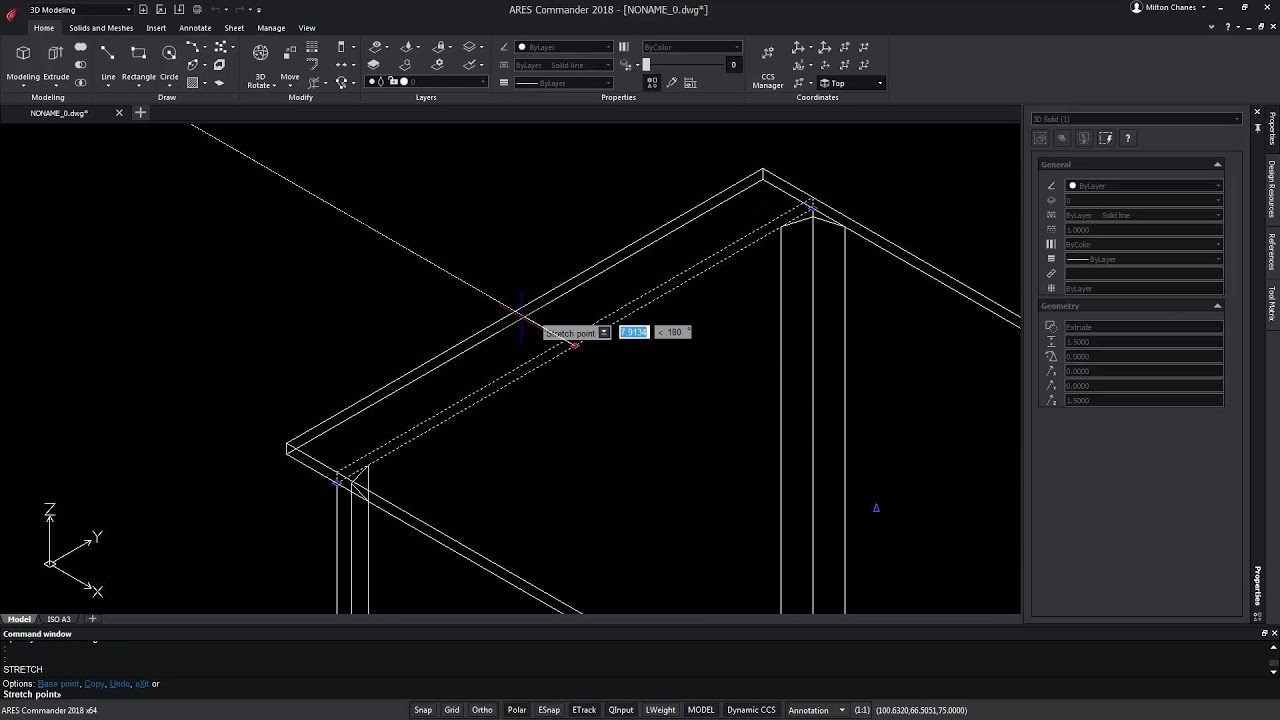
It is very important for designers to be able to work with “free forms”. ARES Commander allows you to select a solid and modify, for example, its height, through its grips. Also, being selected, we can vary that height through the properties palette. We could even add an angle to their faces. We will also see in this video, how the new dynamic CCS facilitates our work in 3D. By simply positioning the pointer on the face of one of these solids, the CCS is automatically positioned by changing the reference of the work plane. We are going to create a table. To do this, we will draw a rectangle with specific measures to then extrude it.Now, we are going to create a modern leg, so now we are going to edit its shape through the grips. We’re going to a top view. We are going to symmetrize it. Now,
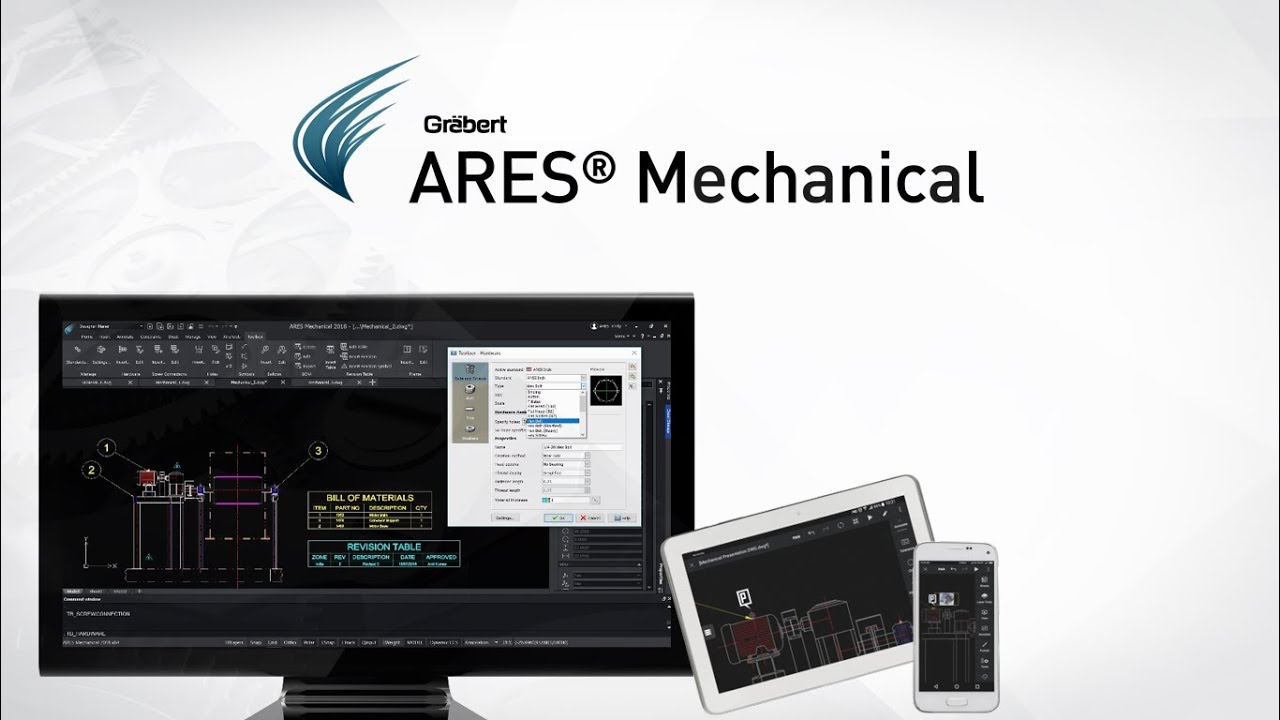
In this video, I will introduce to you ARES Mechanical, Graebert’s vertical solution for 2D Mechanical design in DWG format. Starting with Standards, the product includes ANSI Inch, ANSI Metric, BSI, DIN, ISO and JIS Standards. The Standards can be either set while the drawing is started or while the blocks are inserted from the libraries. Let us insert a Screw Connection and make a couple of Holes for the same drawing on the other views as well. The Screw Connections toolbox has all the list of available screw connections that can be inserted at any available sizes from the library, with or without the washers & nuts and also with a thread display of user’s requirement. The material thickness can be chosen from the input value or by selecting start and end point in the drawing. Here is an example of the Hex Bolt we defined inserted into the

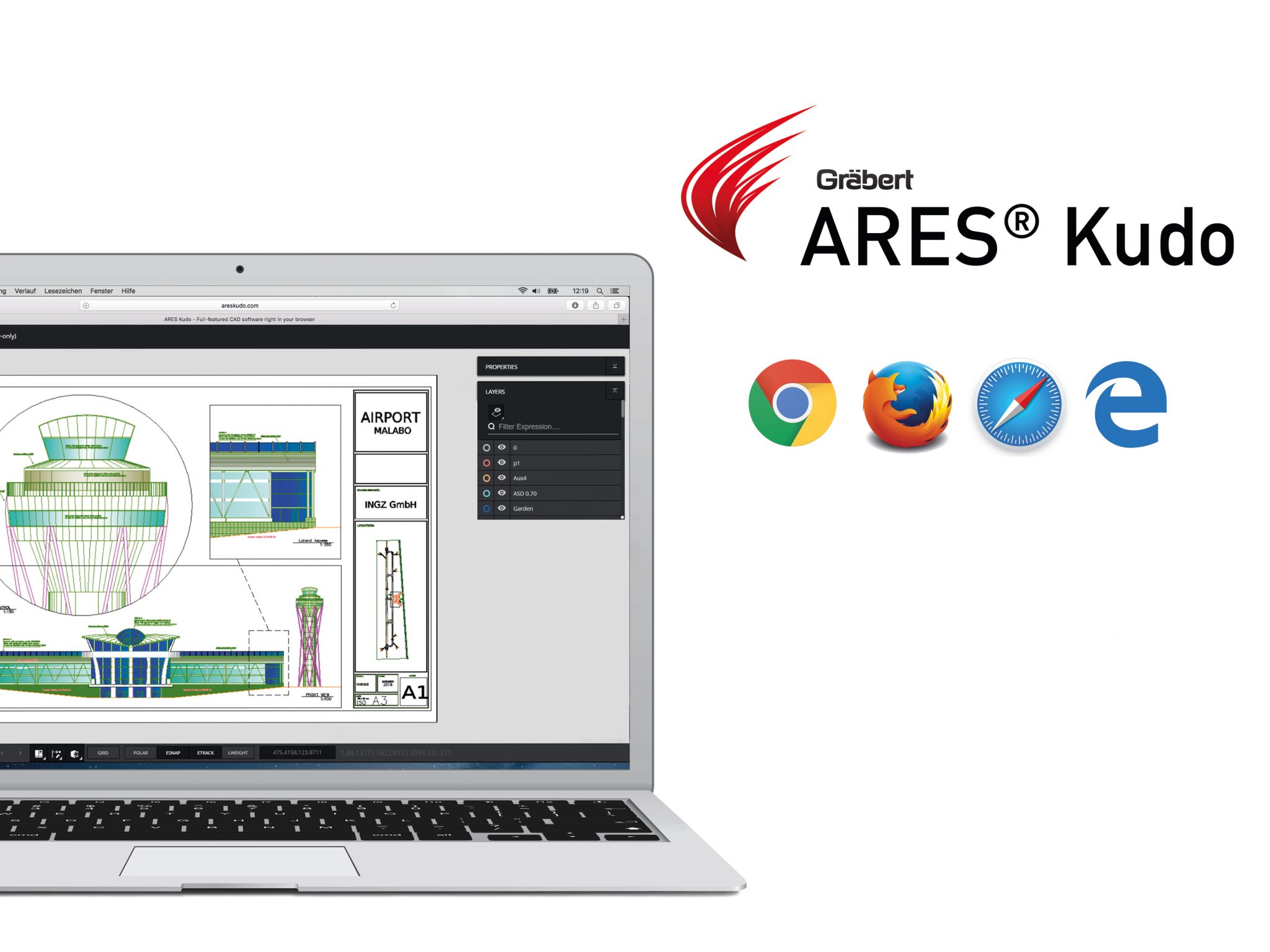
The ARES Trinity of CAD Software combines the best of what each platform has to offer: Desktop, Mobile and Cloud are combined into a unique user experience generating high synergies across all your devices. ARES Kudo is our cloud based solution. It makes it easy for you to access your drawings on any device as ARES Kudo runs in your internet browser. It includes similar CAD features but it is not specifically aiming at replacing ARES Commander, the goal is rather to bring the agility of the cloud to ARES Commander and ARES Touch. Through our usual browser, we can access ARES Kudo. From CLOUD STORAGE we can connect more cloud storage services. In this way ARES Kudo becomes a “hub” that allows us to search, any file, within the cloud storage services that we have open. If we want, we can even create a new drawing. We choose the
With ARES Kudo we can potentially log in on any computer and access to our drawings online….

Did you know that ARES Touch, our mobile DWG Viewer & Editor, is available for both Android and iOS?