STAY TUNED!
Subscribe to our newsletter and get the 600+ pages eBook Inside ARES:


Amit Kumar from CADblogbyAMit works with the Clean Command in ARES Commander “ARES Commander’s Clean command removes unused references from the drawing. You can remove Block definitions, EntityGroups, Layers, defined drafting styles (such as LineStyles, TextStyles, DimensionStyles, and RichLineStyles), and other references as long as they are not referenced by other definitions or entities in the drawing file.” Read the full article on CADBlogbyAmit here.
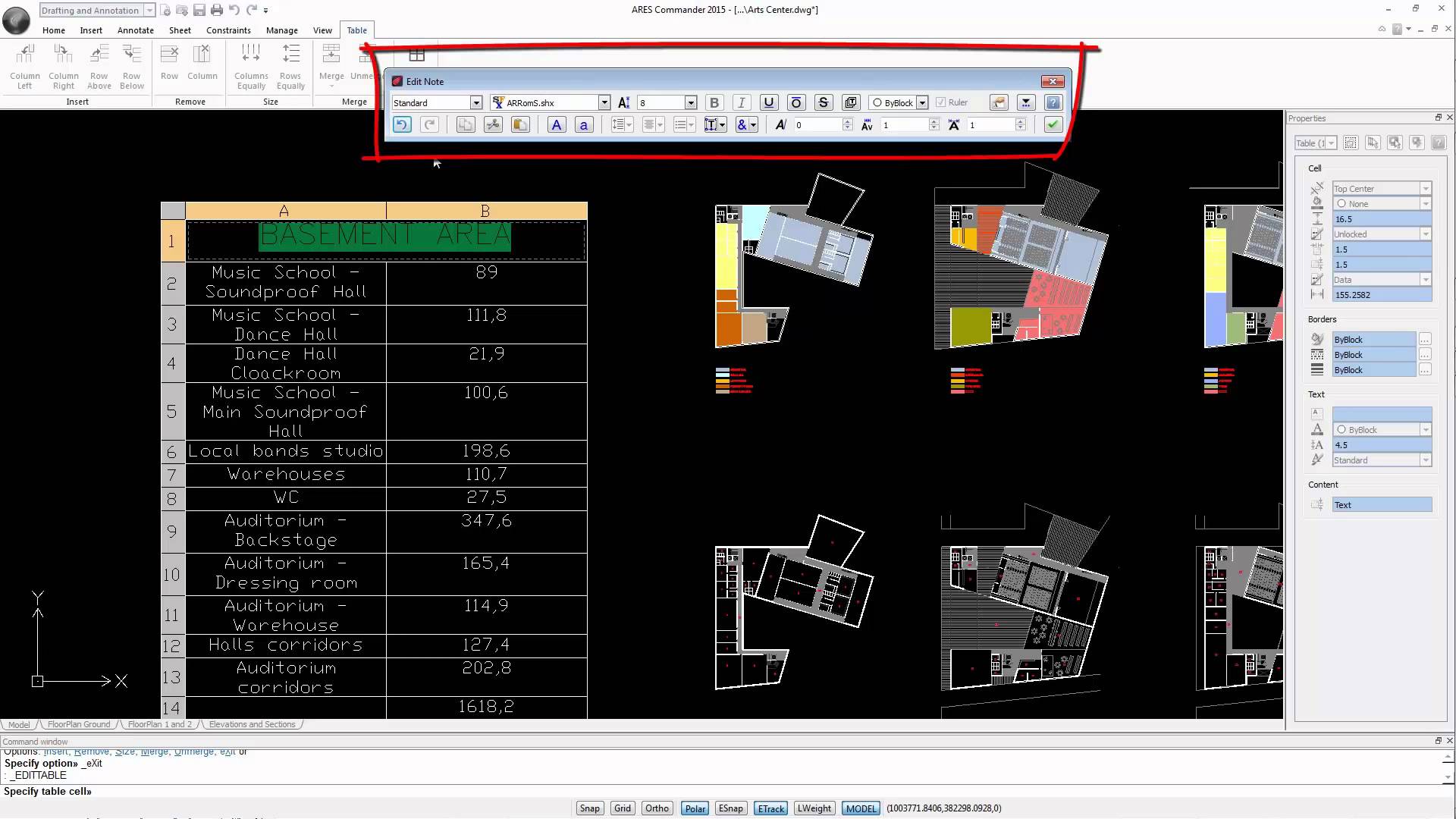
Editing tables interactively Interactive Table Editing is one of the new features in ARES Commander 2015. Get a free trial of this dwg-based CAD software on https://www.graebert.com. See how easy you can create and edit tables directly in your dwg drawings. 1 00:00:08,520 –> 00:00:14,379 ARES Commander 2015 gives us the ability of editing tables interactively. 2 00:00:14,549 –> 00:00:18,70 Thanks to the table editing tools and text editing, 3 00:00:18,70 –> 00:00:21,690 that are combined to help us improve the appearance of tables. 4 00:00:22,000 –> 00:00:25,259 Today, we will not talk today about the existing table options, 5 00:00:25,380 –> 00:00:28,720 when using the command INSERT TABLE. 6 00:00:29,360 –> 00:00:32,659 But about what we can do when we edit an existing table 7 00:00:32,800 –> 00:00:35,360 or import a table from another software 8 00:00:35,360 –> 00:00:38,570 such as Excel or other similar software 9 00:00:38,570 –>
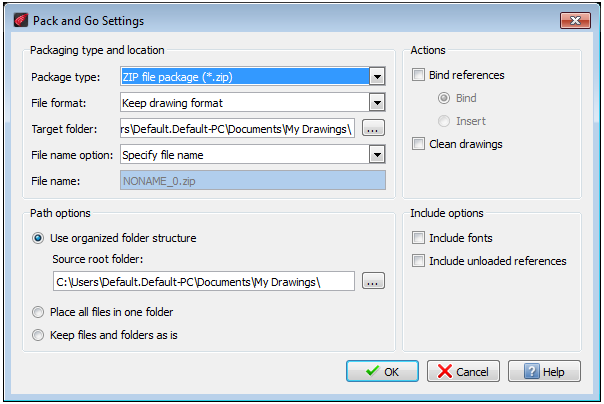
Amit Kumar from CADblogbyAmit talks about PackAndGo “ARES Commander Offers a feature PackAndGo to create a package containing the current drawing and its dependent files such as References, referenced images, referenced PDF files, font files, font mapping files, PrintStyle files, and Print Configuration files.” Read the full article on CADBlogbyAmit here.
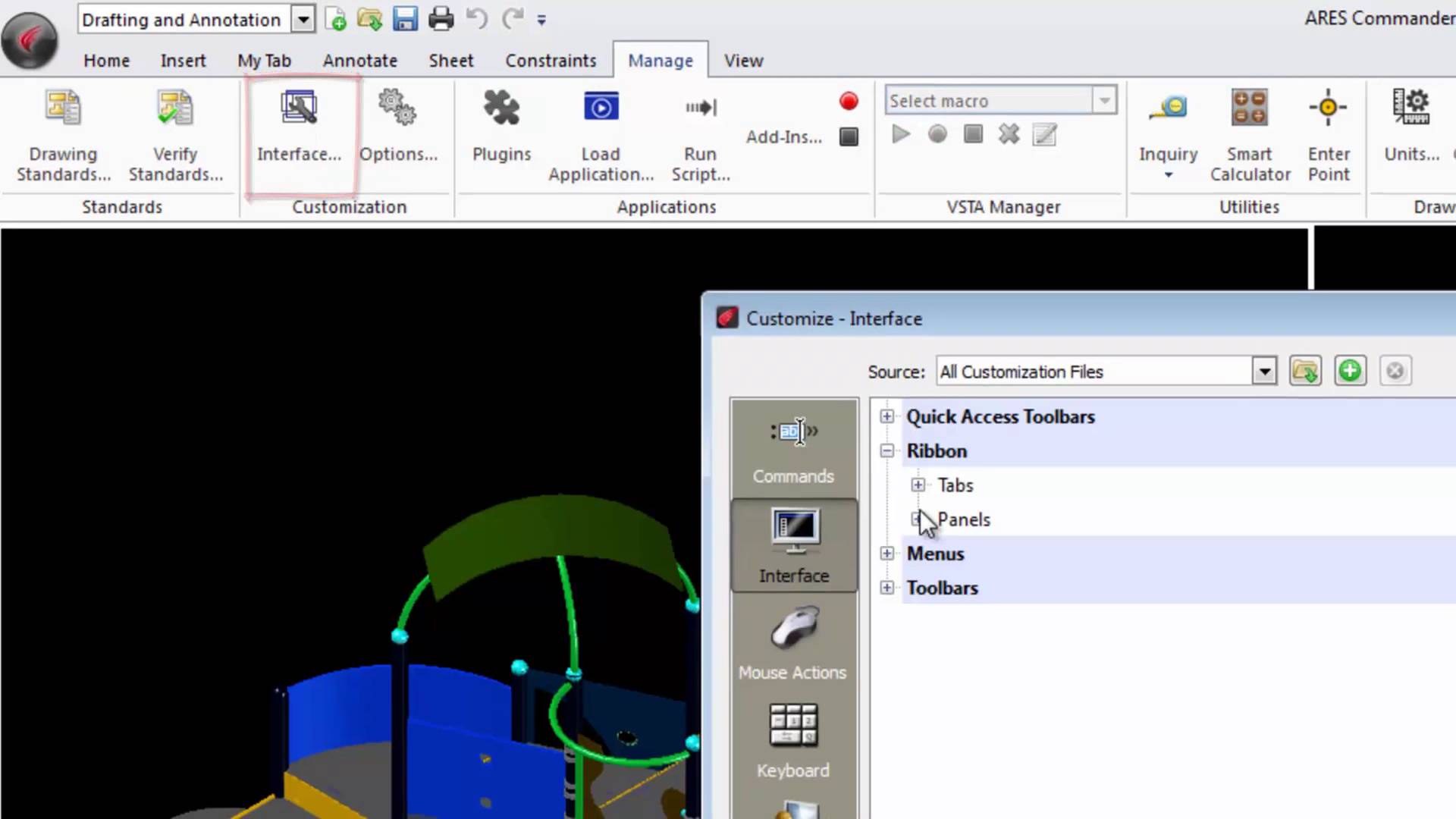
Working with Commands Grouped in Panels ARES Commander allows you to add or modify panels in the Ribbon according to your needs. 1 00:00:08,920 –> 00:00:13,840 The Ribbon allows access to commands that are grouped in panels. 2 00:00:14,420 –> 00:00:17,80 The panel group is part of a tab. 3 00:00:17,460 –> 00:00:23,140 Ares Commander 2015 allows us to change the distribution of the panels and tabs, 4 00:00:23,140 –> 00:00:28,300 so we can customize the organization of the Ribbon according to our taste. 5 00:00:28,300 –> 00:00:31,40 At the moment the Ribbon is showing its default appearance 6 00:00:31,120 –> 00:00:33,980 with the Workspace “Drafting and Annotation”. 7 00:00:34,140 –> 00:00:39,860 If we go to the tab “MANAGE” and select “INTERFACE” in the “CUSTOMIZATION” section, 8 00:00:40,530 –> 00:00:46,719 we can go to the options of the Ribbon where all the 2D and 3D tabs are displayed. 9 00:00:48,760
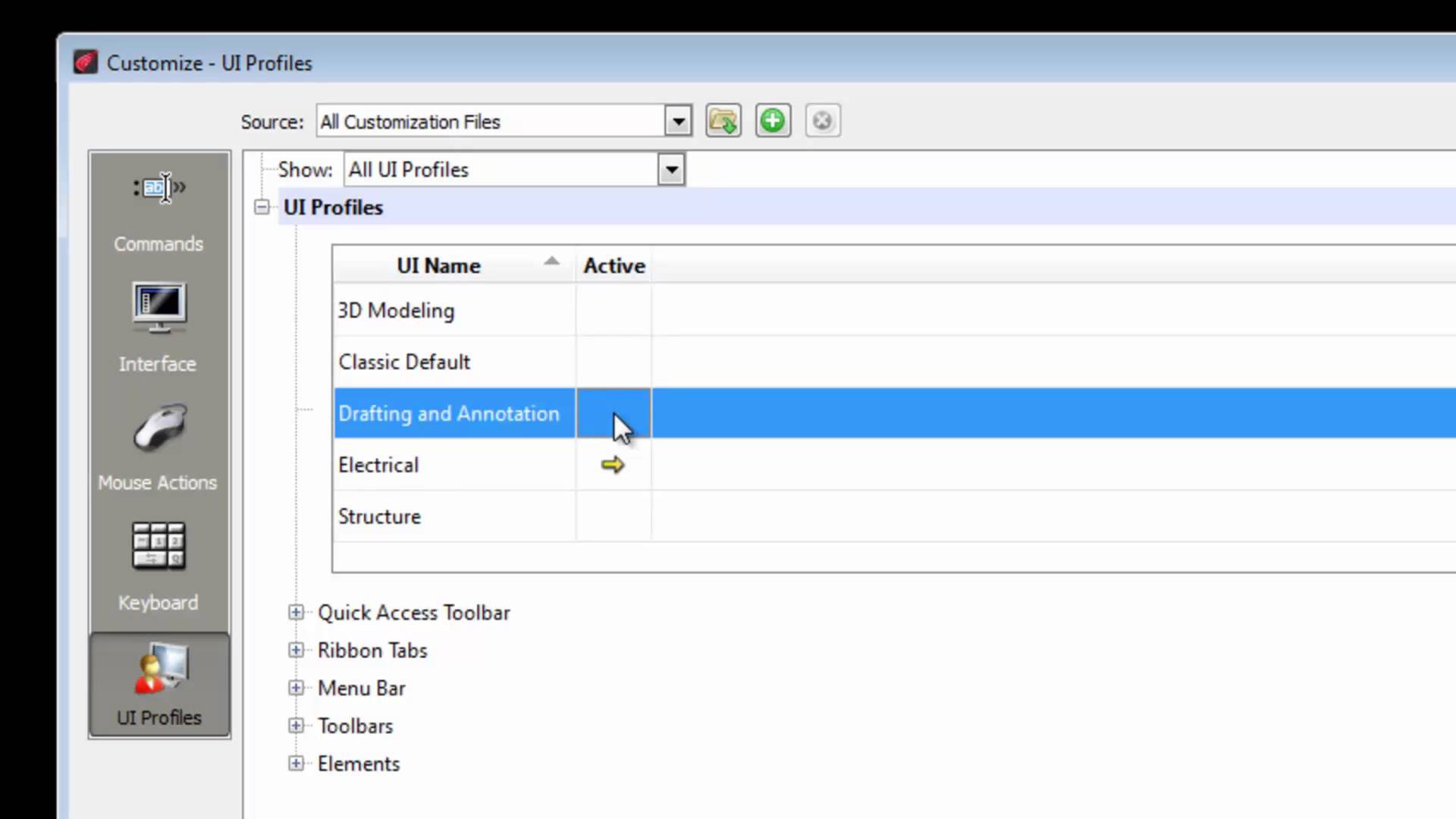
Working with Default Workspaces 1 00:00:09,000 –> 00:00:15,998 ARES Commander 2015 provides three default workspaces that we see here. 2 00:00:16,000 –> 00:00:19,900 However, depending on the type of work that we have to do, 3 00:00:20,140 –> 00:00:23,260 it can be required to customize the workspace 4 00:00:23,260 –> 00:00:31,460 to suit better the needs for specific activities such as electricity, architecture, structure etc. 5 00:00:32,740 –> 00:00:36,480 For example, when we select the workspace “3D MODELING”, 6 00:00:37,760 –> 00:00:42,940 the program will give priority to tools that will allow us to work in 3D. 7 00:00:43,140 –> 00:00:49,180 By using the option “DRAFTING AND ANNOTATION”, we are prioritizing the 2D tools. 8 00:00:49,200 –> 00:00:52,520 We can also return to the “classic” look, 9 00:00:53,400 –> 00:00:57,160 without Ribbon but with drop-down menus and toolbars. 10 00:00:57,160 –> 00:01:01,640 But … how do we create a customized

Deleting Duplicate drawings in ARES Commander DiscardDuplicate is one of the new commands of ARES Commander. With this new feature, you can clean your dwg drawings and delete duplicates with advanced options. 1 00:00:09,000 –> 00:00:15,200 When we make drawings in CAD It is possible that at any time we have duplicate entities. 2 00:00:15,520 –> 00:00:18,919 Just like in this case where there is apparently 1 circle. 3 00:00:19,280 –> 00:00:22,540 However, when we make a window selection of this “circle” 4 00:00:22,720 –> 00:00:26,439 we can see in the properties palette that there are 4. 5 00:00:26,640 –> 00:00:32,800 ARES Commander 2015 easily eliminates the entities that are duplicated. 6 00:00:33,280 –> 00:00:38,740 To select these entities we come here to the dropdown icon, where we find DELETE. 7 00:00:39,300 –> 00:00:42,480 Choose the command: Discard Duplicates. 8 00:00:42,480 –> 00:00:45,980 Where it says ‘ignore entity properties’ select
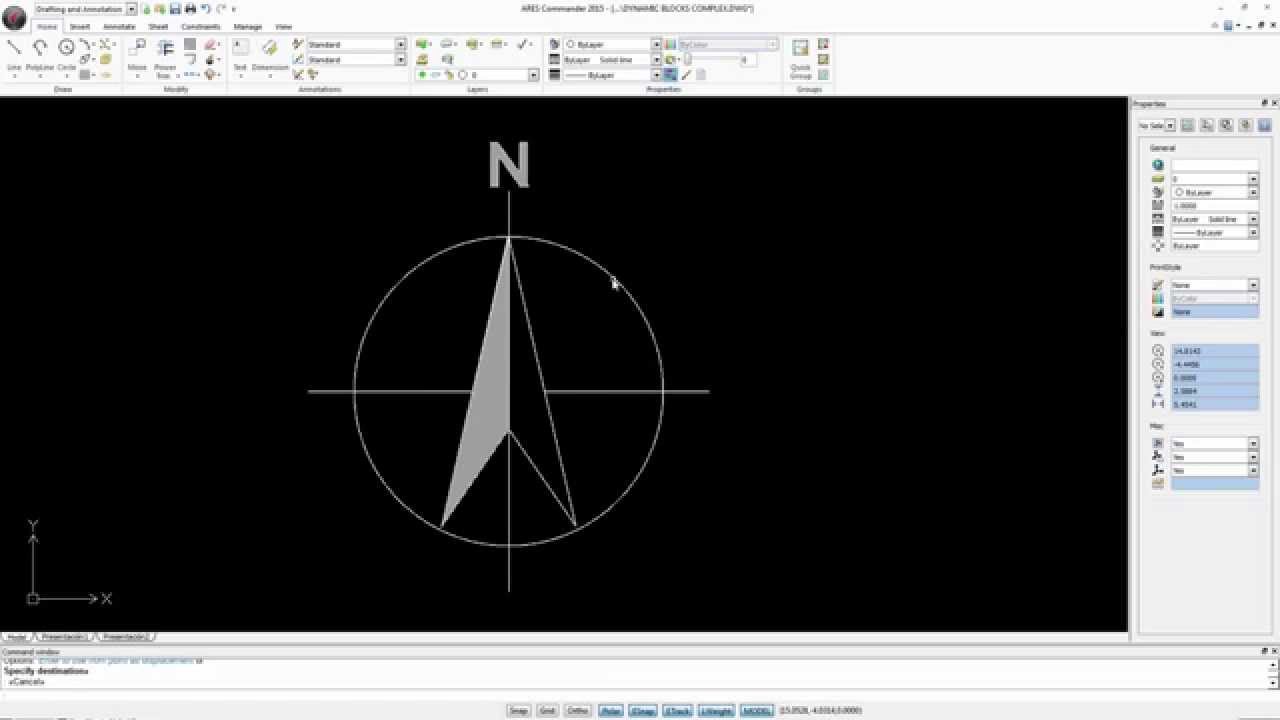
Working with Dynamic Blocks ARES Commander is introducing Dynamic Blocks Editing. You can now edit these smart blocks and configure them using grips and options. 1 00:00:09,40 –> 00:00:13,919 ARES Commander 2015 can work with dynamic blocks. 2 00:00:14,260 –> 00:00:17,60 A dynamic block differs from a traditional block 3 00:00:17,500 –> 00:00:22,200 because it has assigned parameters allowing it to change shape … 4 00:00:30,40 –> 00:00:36,19 … in several drawings within the same file, or change its proportions through grips. 5 00:00:39,400 –> 00:00:41,920 In this example, the scale. 6 00:00:42,120 –> 00:00:45,339 Here, the length … 7 00:00:45,800 –> 00:00:49,400 … and here we modify how far the thread goes. 8 00:00:51,340 –> 00:00:53,700 In this example you see a tree. 9 00:00:53,880 –> 00:00:54,760 When selected, 10 00:00:56,480 –> 00:01:03,580 you can choose between an appearance with foliage, without foliage or a schematic look. 11 00:01:04,280

Block with Attributes ExplodeBlockX is one of the new commands of ARES Commander. With this new feature, you can explode a block with attributes and convert attributes in the text. 1 00:00:09,220 –> 00:00:12,719 During a project, we sometimes use a block with attributes. 2 00:00:12,960 –> 00:00:18,740 ARES Commander 2015 allows us to edit these blocks without losing the content. 3 00:00:18,860 –> 00:00:21,700 Here, for example, there is a block with attributes. 4 00:00:22,100 –> 00:00:25,780 We can select the block and reposition the attributes. 5 00:00:33,50 –> 00:00:37,250 And we even have a grip that will allow us to reposition the block. 6 00:00:38,329 –> 00:00:42,9 We can also change the content of a block with attributes. 7 00:00:42,580 –> 00:00:44,739 Simply double click it. 8 00:00:45,290 –> 00:00:50,170 The attribute values appear with which we can make the changes we need. 9 00:00:50,540 –> 00:00:54,600 For
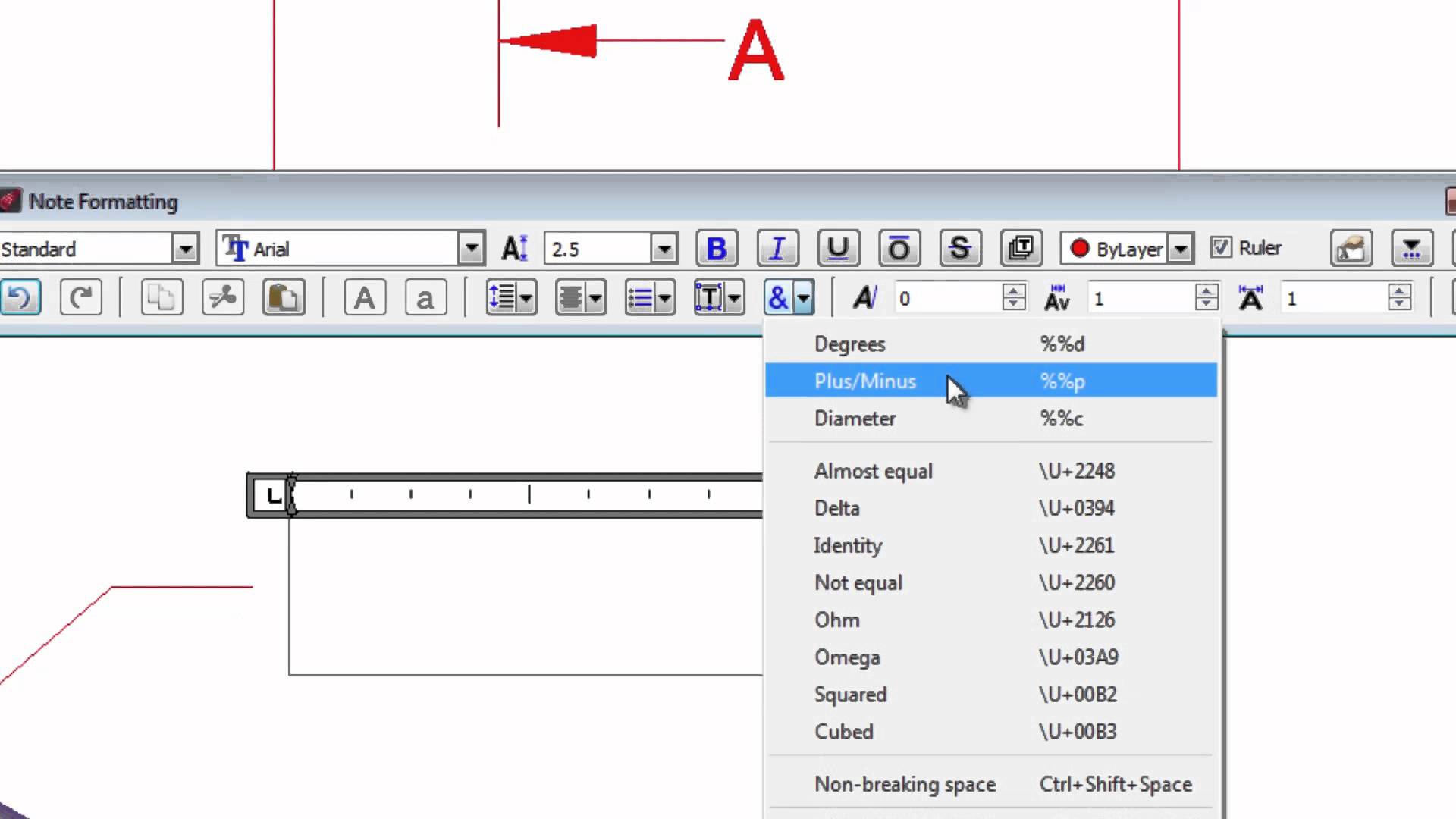
Editing Text in Drawings In-place Text Editing is one of the new features of ARES Commander 2015. With this new text editor, you can now edit texts like in a word processor. 1 00:00:08,840 –> 00:00:12,580 Create and edit text very easily in your drawings 2 00:00:12,580 –> 00:00:16,900 thanks to the tools offered by Ares Commander 2015. 3 00:00:16,900 –> 00:00:20,288 To edit a text, we can for example double-click 4 00:00:20,840 –> 00:00:22,420 and this editor opens. 5 00:00:22,680 –> 00:00:25,140 Its tools are similar to a word processor 6 00:00:25,620 –> 00:00:31,000 where we can select the text and convert it into uppercase or lowercase. 7 00:00:31,380 –> 00:00:36,100 We can even select several letters and convert to uppercase very easily. 8 00:00:39,000 –> 00:00:41,720 We can also select and change the color, 9 00:00:43,560 –> 00:00:47,320 convert to “Bold”, “Italic” or “Underlined”. 10 00:00:48,240 –>
Amit Kumar discusses useful innovations in ARES Commander 2015 “TSPACEFAC. Sets the line spacing distance specified as a text height factor for Notes.TSPACETYPE. Sets the type of line spacing used within Notes. I am sure you will find these Commands, Features, and System Variables very useful.” Read the full article on CADBlogbyAmit here.

Did you know that ARES Touch, our mobile DWG Viewer & Editor, is available for both Android and iOS?