STAY TUNED!
Subscribe to our newsletter and get the 600+ pages eBook Inside ARES:

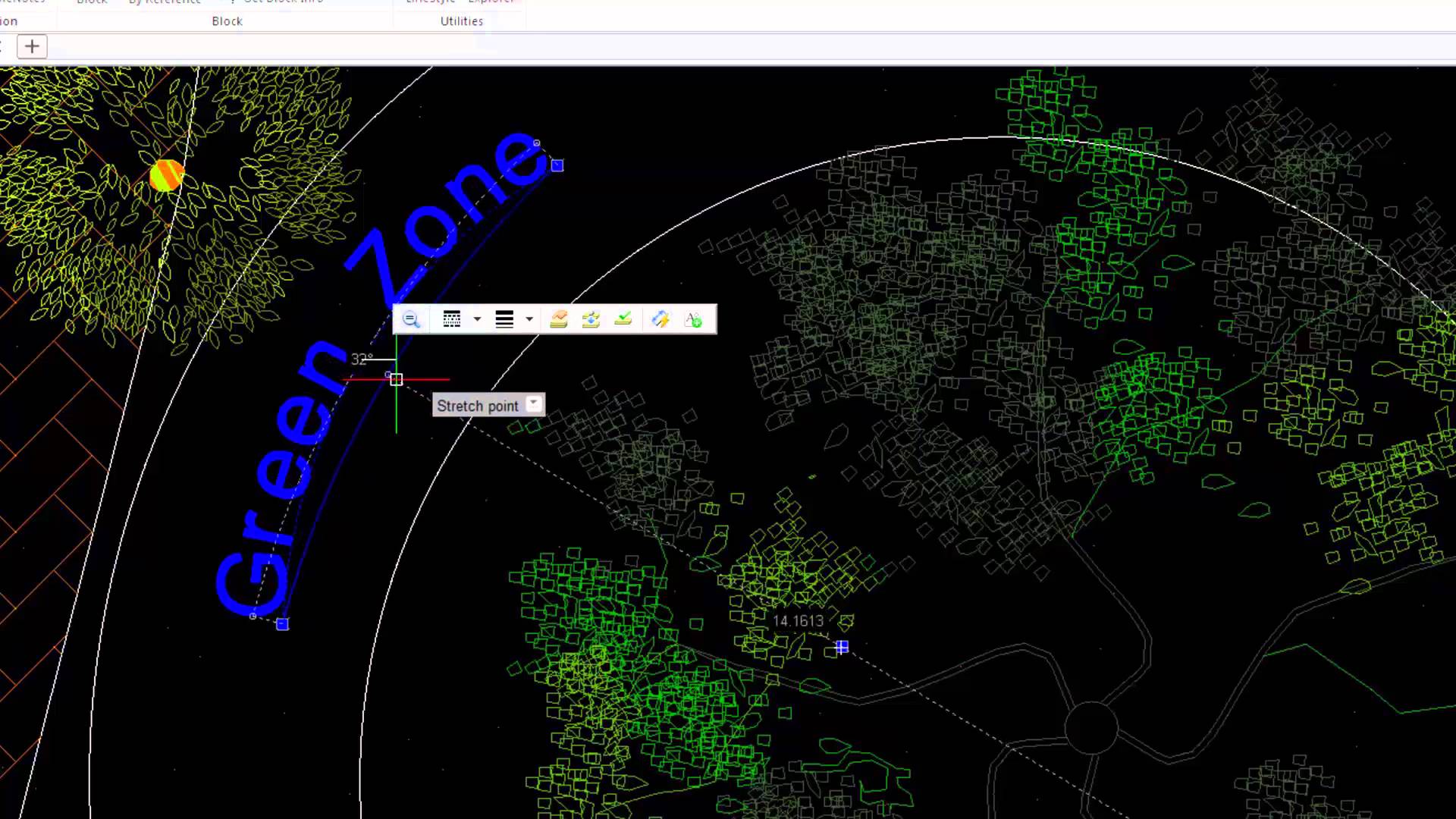
Curved Text from Ares Commander collection of extra tools ARES Commander 2016 offers us a collection of extra tools which allow us to perform tasks that weren’t possible before. “Curved Text” is one of them. 1 00:00:09,180 –> 00:00:13,120 Ares Commander 2016 offers us a collection of extra tools 2 00:00:13,200 –> 00:00:17,200 which allow us to perform tasks that weren’t possible before. 3 00:00:17,740 –> 00:00:20,20 For example “curved text.” 4 00:00:20,140 –> 00:00:23,330 For this, we need an arc. A circle would not help 5 00:00:23,330 –> 00:00:28,990 because it is required to have a starting and end point to adjust the text. 6 00:00:29,860 –> 00:00:36,40 We draw an arc defined in this case by three points, and select “curved text.” 7 00:00:40,220 –> 00:00:42,260 We click on the arc. 8 00:00:42,780 –> 00:00:49,380 Ares Commander 2016 then uses the arc as a reference to write a
Amit Kumar tries out the ‘Repeat Command’ on CADblogbyAmit “If you want to use a command multiple times and don’t want to press enter key again and again after using command every time then you can use REPEAT command to keep command running in an infinite loop” Read the full article on CADBlogbyAmit.

Building information modeling (BIM) is how architects today design buildings — or at least that is the hope of CAD software firms. Because of how BIM software is implemented, it is highly incompatible with competitors, and so this effectively locks in entire regions to a single supplier. When one CAD vendor gains a significant foothold in the region with its BIM software, clients and customers need to use the exact same software or else suffer the inability to land work. The following article is an abstract of the eBook ‘Best CAD Practices’ by Ralph Grabowski. Graebert is happy to share with you some of the experience accumulated by Ralph as a CAD expert and as compiled in his eBook for which the reference can be found at the bottom of the page. Feel free to share feedback in the comment section below. There is a solution: IFC. Industry foundation classes are

Ares Commander 2015 presents “PowerTrim” Trim and extend CAD entities on the fly with the PowerTrim feature in ARESCommander. 0:00:08.720,0:00:15.200 ARES Commander 2015 presents “PowerTrim” to trim and extend better and faster 0:00:15.200,0:00:18.000 than in any other CAD software before. 0:00:18.120,0:00:19.980 Let’s see this example 0:00:20.040,0:00:23.280 Find the tool here in this drop down menu. 0:00:23.420,0:00:25.040 Click on the screen, 0:00:25.120,0:00:28.260 keep the button pressed and drag it. 0:00:29.040,0:00:33.480 This line lets you trim easily on the fly. 0:00:34.140,0:00:40.120 In addition, if we keep the SHIFT key pressed, TRIM turns into EXTEND. 0:00:40.560,0:00:43.660 So we can also extend easily. 0:00:44.460,0:00:50.340 In another example, select PowerTrim, click on the screen, keep the button pressed … 0:00:50.500,0:00:55.920 and drag to trim. Drop, and position the cursor somewhere else. 0:00:56.080,0:00:59.920 Press and drag with the mouse. 0:01:00.740,0:01:04.100 Keep SHIFT pressed to extend. 0:01:04.960,0:01:10.420 Finally, with PowerTrim, we can also clean corners. 0:01:18.640,0:01:20.100 Thanks for

Learn 3D Drawing Basics 1 00:00:09,660 –> 00:00:15,180 To create this part in 3D, we will simply need polylines. 2 00:00:15,980 –> 00:00:20,360 You will see in this video how they will be converted into three-dimensional elements 3 00:00:20,360 –> 00:00:23,820 with commands such as Extrude and Revolve. 4 00:00:24,260 –> 00:00:27,620 In this example, we can see several rectangles. 5 00:00:27,860 –> 00:00:31,439 A rectangle is a certain kind of a closed polyline. 6 00:00:31,600 –> 00:00:33,160 Here is one, 7 00:00:33,320 –> 00:00:34,460 here another … 8 00:00:34,580 –> 00:00:38,180 and here are more rectangles – in total we have six. 9 00:00:38,240 –> 00:00:40,160 Here we have a circle 10 00:00:41,680 –> 00:00:45,920 and on the other side we have two closed polylines. 11 00:00:47,20 –> 00:00:49,500 Let’s now create this part in 3D. 12 00:00:51,80 –> 00:00:55,300 We first work with this rectangle, whose corners should
Amit Kumar talks about the ExplodeX Command in CADblogbyamit “With the ExplodeX command in ARES Commander, you can convert Ellipses and Splines into PolyLines. The command is useful to prepare drawings to export to other software programs that do not support Ellipses or Splines.” Read the full article on CADBlogbyamit here.
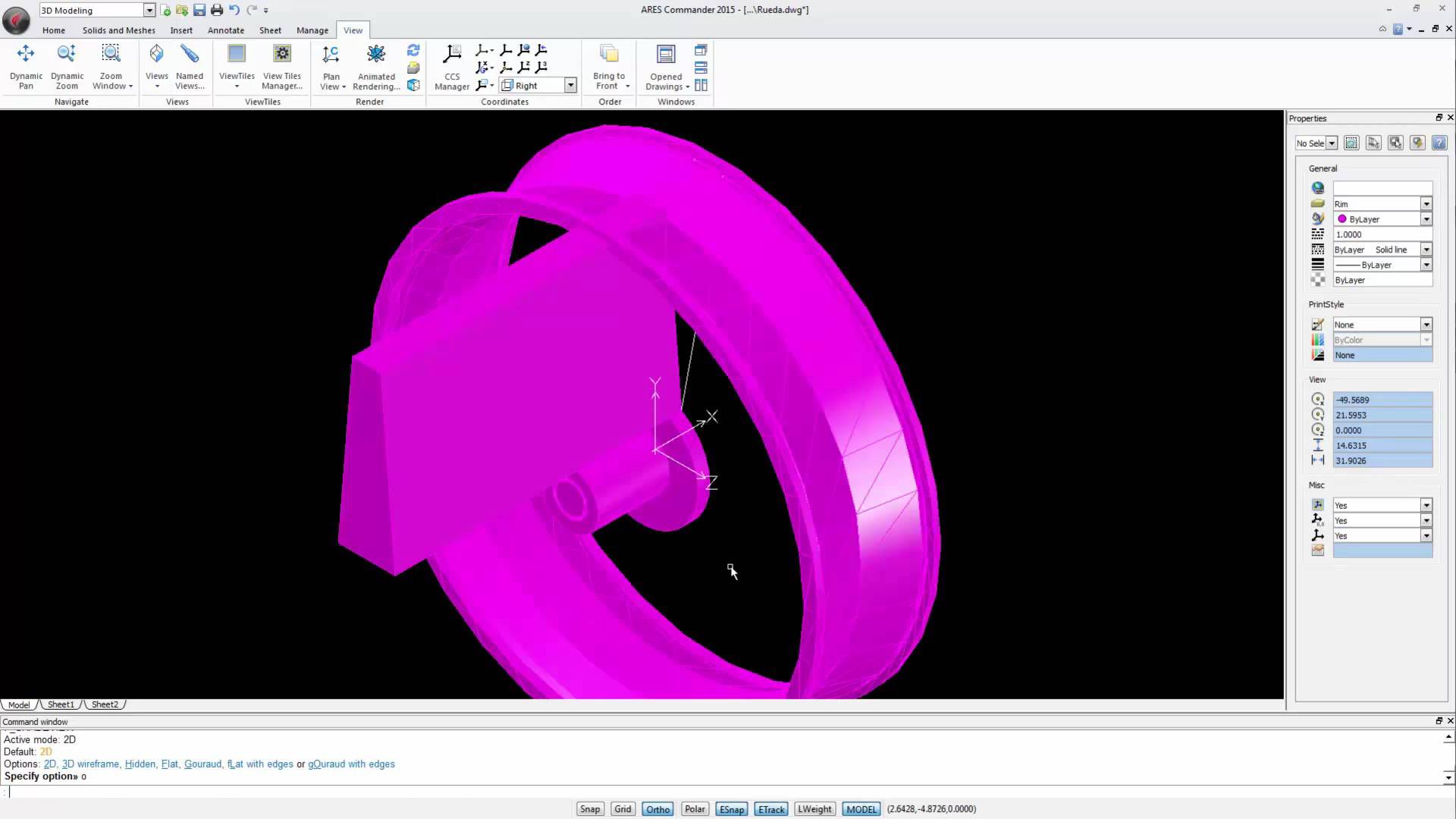
Watch the videos divided into 4 parts to learn more about 3D modeling in ARES Commander. Make changes to the external drawing 1 00:00:08,920 –> 00:00:10,720 We are working with this wooden bike 2 00:00:10,840 –> 00:00:14,420 which is not only a toy, but also a mechanical project. 3 00:00:14,580 –> 00:00:19,80 In previous videos, we saw how to create the saddle and its structure 4 00:00:19,280 –> 00:00:21,340 as well as wheels, 5 00:00:23,140 –> 00:00:26,380 frame, fork, and handlebar of this bike. 6 00:00:26,600 –> 00:00:30,620 The wheels are inserted in this drawing as external references. 7 00:00:30,700 –> 00:00:35,379 But the remaining parts of the bicycle are created directly in this drawing. 8 00:00:35,800 –> 00:00:42,80 To finalize the wheel we will open the wheel file to make the changes directly in this external drawing (XREF). 9 00:00:42,240 –> 00:00:47,720 As a result, the changes will appear
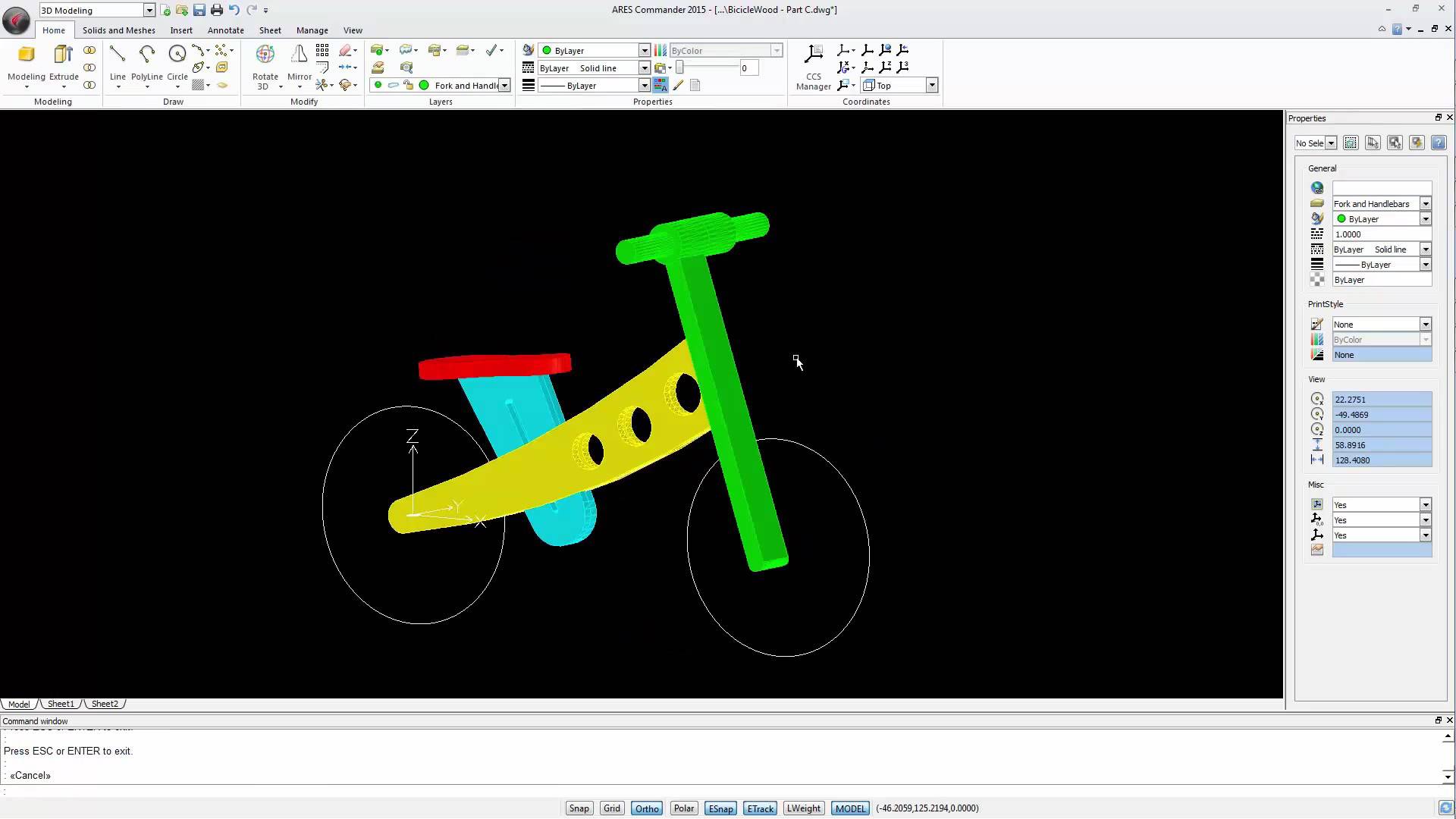
Watch the videos divided into 4 parts to learn more about 3D modeling in ARES Commander. Working with the Frame of 3D Model 1 00:00:09,340 –> 00:00:14,40 In this video we will create the frame and the fork of the wooden bicycle. 2 00:00:15,660 –> 00:00:22,360 To create this part of the structure we just need a closed polyline describing the outline of this shape. 3 00:00:22,700 –> 00:00:26,119 And then these circles to create the holes in it. 4 00:00:26,320 –> 00:00:31,160 The method we will use here is to redraw the outline of this figure. 5 00:00:31,880 –> 00:00:34,540 So, let’s select the polyline function. 6 00:00:35,180 –> 00:00:37,171 We can start here. 7 00:00:38,980 –> 00:00:42,199 In this case we need an arc in this section. 8 00:00:42,820 –> 00:00:46,420 For that we chose the option ARC with the “A” key 9 00:00:47,100 –> 00:00:49,380 and simply

Watch the videos divided into 4 parts to learn more about 3D modeling in ARES Commander. Create 3D Solids with the REVOLVE command 1 00:00:08,540 –> 00:00:13,719 In this video, we concentrate on the wheel. We will build it in 2 stages. 2 00:00:13,920 –> 00:00:19,800 This video is focused on the first stage, that is to say the design of the “rim” and the “tire” – 3 00:00:19,940 –> 00:00:23,180 two solids created with the command REVOLVE. 4 00:00:23,540 –> 00:00:28,480 To create these solids by revolution we need 2 closed polylines. 5 00:00:30,160 –> 00:00:34,20 One closed polyline will be used to create the rim 6 00:00:34,200 –> 00:00:37,50 and another one to create the tire. 7 00:00:37,120 –> 00:00:43,290 To create these polylines, we use the basic drawing and editing 2D commands. 8 00:00:43,290 –> 00:00:48,390 We start by creating a graphical reference – a rectangle. 9

Watch the videos divided into 4 parts to learn more about 3D modeling in ARES Commander. Getting started With 3D modeling 1 00:00:09,80 –> 00:00:14,40 This video is one out of four explaining how to create this wooden toy. 2 00:00:14,220 –> 00:00:20,620 This series will illustrate how to potentially create any 3D element – especially with solids. 3 00:00:21,20 –> 00:00:26,720 In this drawing we see the scheme of the wooden toy that we’re creating in 3D. 4 00:00:26,920 –> 00:00:32,120 These are simple entities such as rectangles, circles and ellipses 5 00:00:32,420 –> 00:00:40,200 There are also some more complex figures which combine lines and arcs to create closed polylines of singular shapes. 6 00:00:40,440 –> 00:00:45,59 The goal of each shape is to create a single closed polyline. 7 00:00:45,280 –> 00:00:51,760 This is crucial to create a three dimensional solid – using commands such as Extrude

Did you know that ARES Touch, our mobile DWG Viewer & Editor, is available for both Android and iOS?