STAY TUNED!
Subscribe to our newsletter and get the 600+ pages eBook Inside ARES:

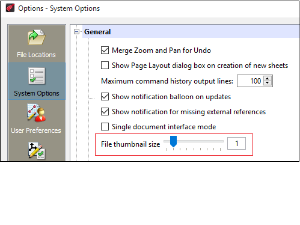
Amit Kumar discusses the New feature ‘Thumbsize’ in CADblogbyamit. “ARES Commander 2016 SP1 has changed the method of controlling the display resolution in pixels for all thumbnail preview images. Now it has a slider bar for controlling in Options dialog box. These raster thumbnail images (previews) are stored inside drawing files. You can quickly display better pictures of the contents of your drawings.” Read the full article on Cadblogbyamit here. Quickly display better pictures of the contents of your drawings in ARES commander. Use this feature now! Download the trial of ARES Commander 2016 as soon as possible.

Amit Kumar Works with the New Feature ‘Dimension Snap’ in Cadblogbyamit “ARES Commander 2016 offers the new feature DIMENSION SNAP. It increases your efficiency and helps you to place all dimensions symmetrically.” Read the full article on Cadblogbyamit here.
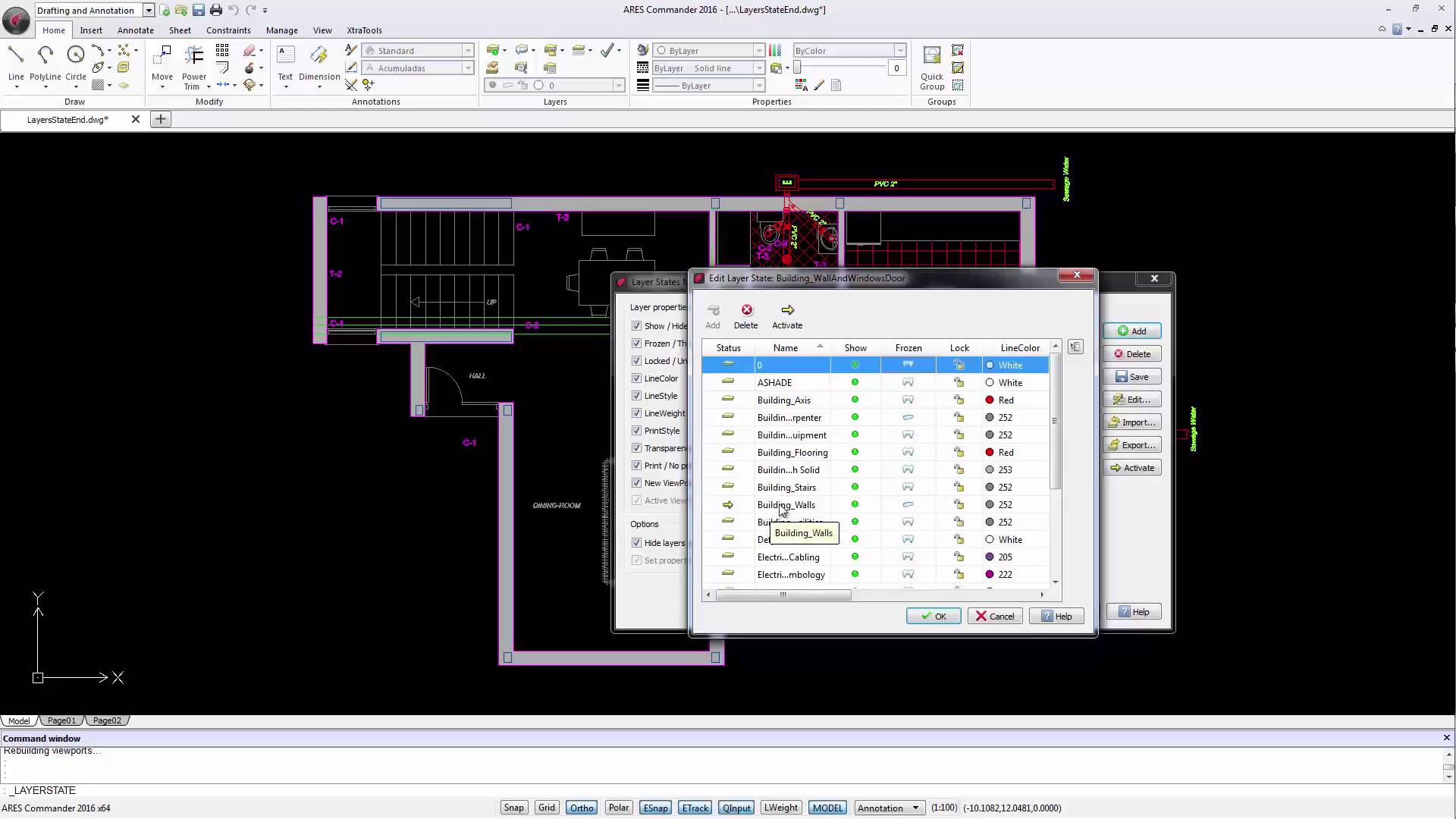
Group different layers in ARES commander. The new layer state manager allows users to create layer groups, that we can easily control. Discovering New Layer State Manager 1 00:00:09,360 –> 00:00:14,100 When we draw a project in CAD we need to create many layers. 2 00:00:14,820 –> 00:00:17,860 Until the previous version of Ares Commander, 3 00:00:18,380 –> 00:00:21,840 if we needed to work on the structural design of a project, 4 00:00:22,120 –> 00:00:28,460 we would have most likely frozen the layers, that were not required, one by one. 5 00:00:39,20 –> 00:00:40,900 A slow process, isn’t it? 6 00:00:41,20 –> 00:00:47,260 And it can always lead to errors, maybe because we accidentally left a layer “frozen” that should be active, 7 00:00:47,260 –> 00:00:50,760 or we left one active when it had to be “frozen”. 8 00:00:50,920 –> 00:00:56,000 ARES Commander 2016 is introducing the new LAYER STATE MANAGER.
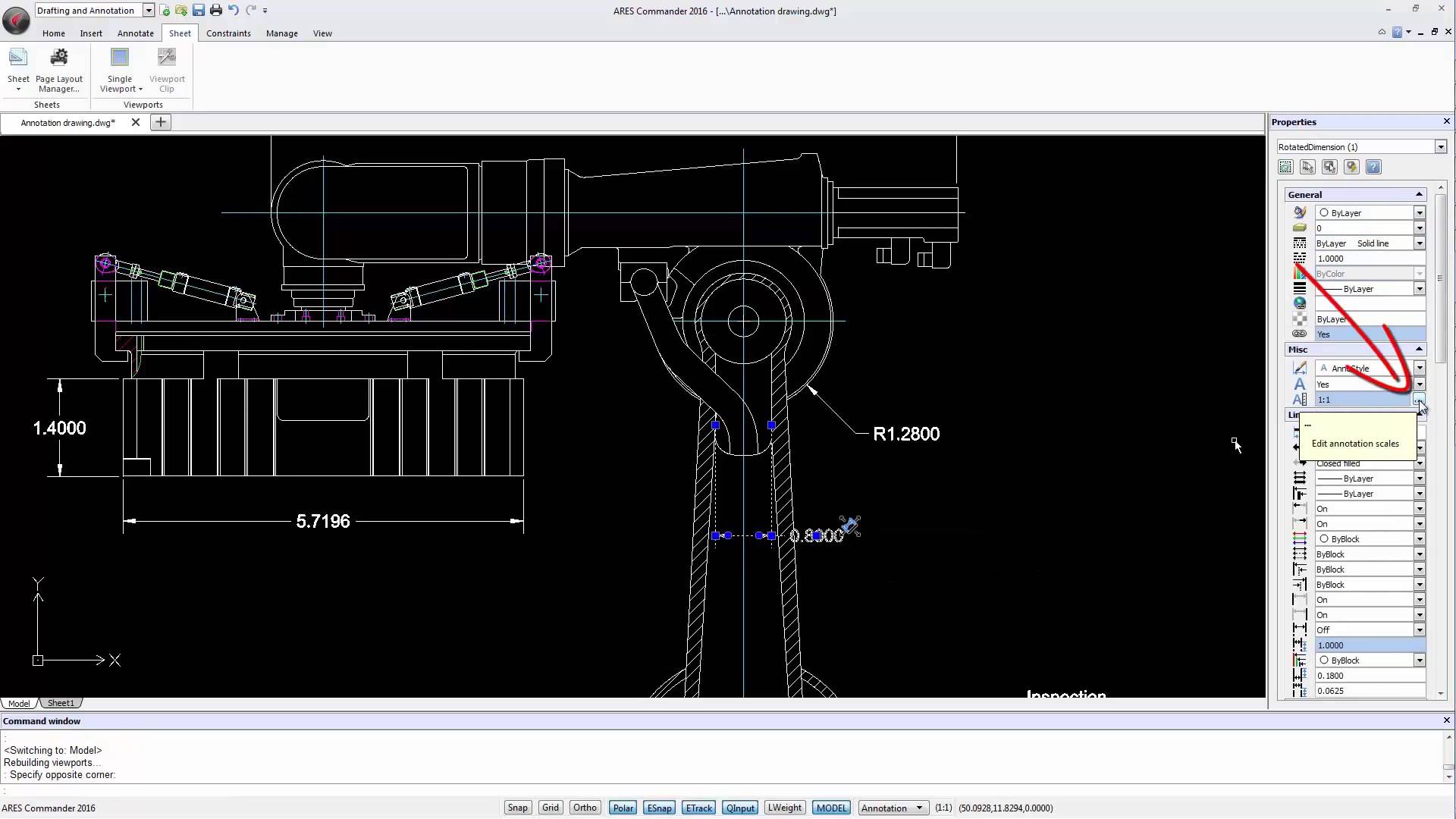
With Annotative Scaling, Ares Commander 2016 Introduces a Great Improvement For Dimensions, Text, Hatches, And Blocks 1 00:00:08,920 –> 00:00:13,370 One of the most important elements in a technical drawing are the annotations. 2 00:00:14,000 –> 00:00:19,279 With Annotative Scaling, ARES Commander 2016 introduces a great improvement 3 00:00:19,279 –> 00:00:22,590 for dimensions, text, hatches, and blocks. 4 00:00:22,590 –> 00:00:27,480 Note that the annotative scale properties are not restricted to dimensions. 5 00:00:27,480 –> 00:00:31,640 We will also find texts, hatches, and blocks with annotative scaling. 6 00:00:31,800 –> 00:00:35,380 But first, let’s focus on the dimensions. 7 00:00:35,580 –> 00:00:38,19 In this picture, we see a layout sheet, 8 00:00:38,20 –> 00:00:41,860 where three viewports have been created with different scales. 9 00:00:42,240 –> 00:00:49,120 However, the values of the coordinates, the text size and arrow size are equal in all viewports. 10 00:00:49,320 –> 00:00:52,000 Look
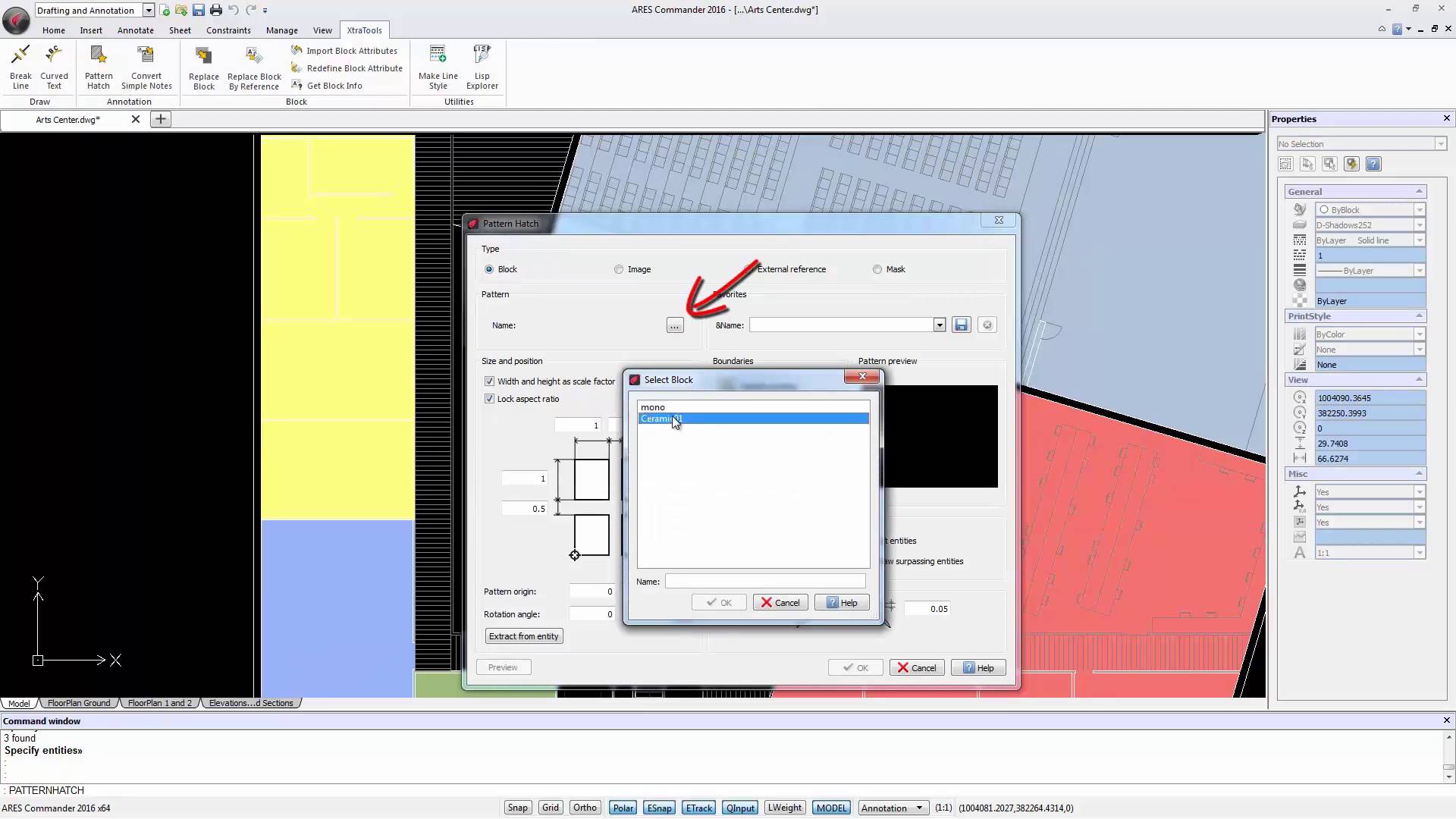
The new “Pattern Hatch” command (found in the “XtraTools”) allows us to create a custom HATCH, based on “blocks”, “images”, “External References” or “masks”. From Hatch command to Pattern Hatch 1 00:00:09,640 –> 00:00:12,820 Besides working with the traditional HATCH command, 2 00:00:12,880 –> 00:00:20,600 Ares Commander 2016 features a new command called “Pattern Hatch” (found here in the “XtraTools”). 3 00:00:21,300 –> 00:00:24,400 This command allows us to create a custom HATCH, 4 00:00:24,430 –> 00:00:30,590 based on “blocks”, “images”, “External References” or “masks”. 5 00:00:30,960 –> 00:00:33,460 Let’s try first with an “image”. 6 00:00:33,500 –> 00:00:36,660 Click on this button and select the image. 7 00:00:36,660 –> 00:00:43,120 This is an image representing elements which size in real life is 100×100 cm. 8 00:00:43,160 –> 00:00:44,309 Click OPEN. 9 00:00:44,340 –> 00:00:49,80 To insert a Hatch we need an enclosed area or a closed shape. 10 00:00:49,740 –>

Learn about “Drawing TABs” “Drawing TABs” allow us to quickly move from one open drawing to another, regardless of whether it is 2D or 3D. 1 00:00:09,240 –> 00:00:16,20 ARES Commander 2016 offers us new features such as the “Drawing TABs”. 2 00:00:16,400 –> 00:00:24,60 They allow us to quickly move from one open drawing to another, regardless of whether it is 2D or 3D. 3 00:00:24,780 –> 00:00:26,840 But not only that. 4 00:00:27,60 –> 00:00:35,440 We can also position the “pointer” over one of the tabs, and Ares Commander 2016 offers all views available in this drawing, 5 00:00:37,540 –> 00:00:42,780 either model space or “Layouts” that are configured in paper space. 6 00:00:43,840 –> 00:00:49,140 Allowing also to go directly to one of those layouts by clicking on them. 7 00:00:49,680 –> 00:00:56,380 We can also change the order of the opened drawings, simply by dragging a tab to
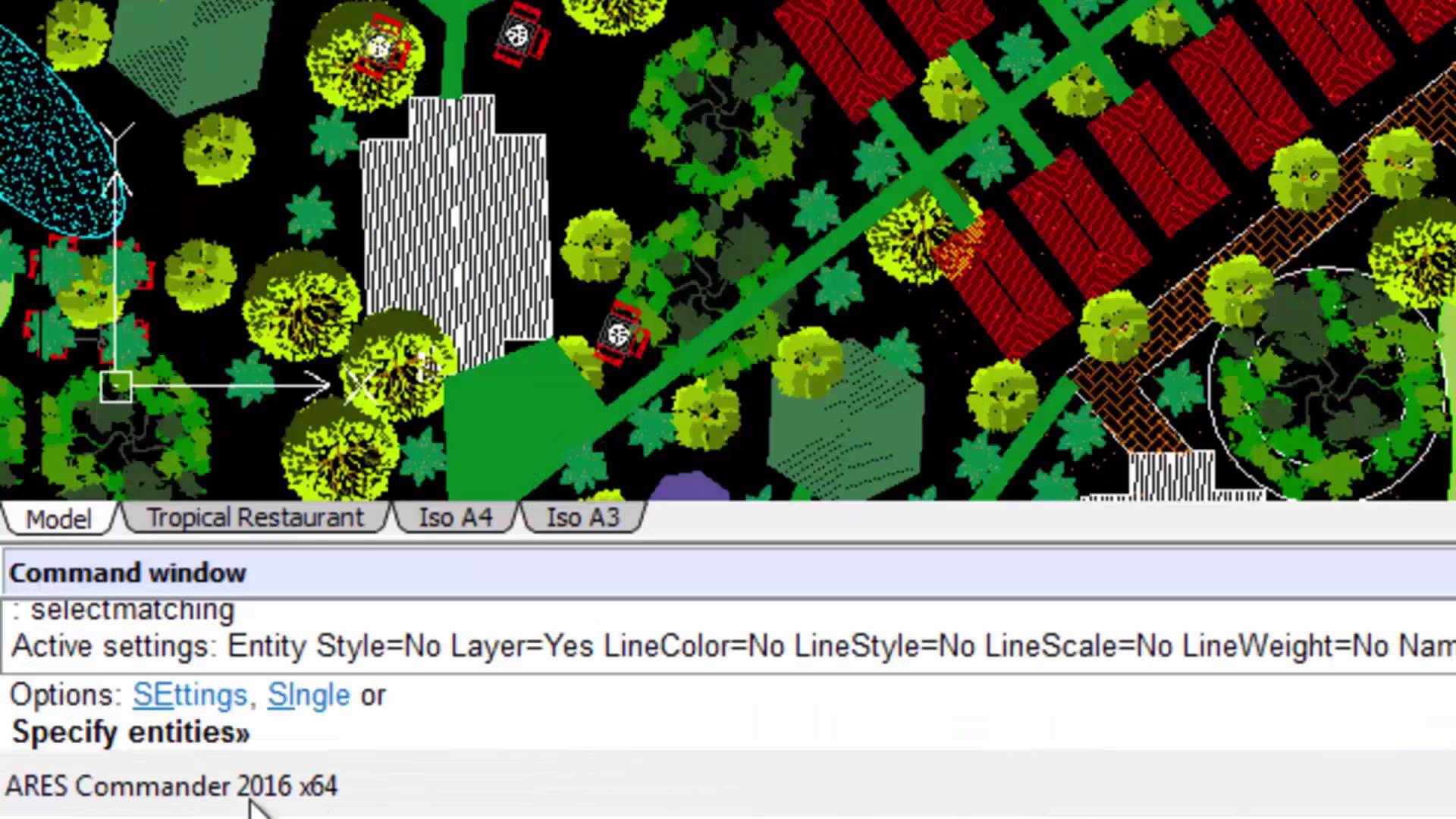
Smart & Fast Selection Methods Searching for a smart & fast way to use CAD? ARES Commander offers a quick way to select objects in a drawing with Smart & Fast Selection Methods. 1 00:00:09,660 –> 00:00:15,140 Ares Commander 2016 offers a quick way to select objects in a drawing. 2 00:00:15,820 –> 00:00:21,800 For example, if we want to select all the entities that are similar to this one, we select it, 3 00:00:22,440 –> 00:00:26,640 press the right mouse button and choose SELECT MATCHING. 4 00:00:27,900 –> 00:00:32,140 As you can see, all the similar entities in the drawing have been selected, 5 00:00:32,200 –> 00:00:34,240 so that you can work with them. 6 00:00:34,500 –> 00:00:37,240 This function complements the tool SMART SELECT 7 00:00:37,500 –> 00:00:41,920 that ARES Commander was already offering in previous versions. 8 00:00:42,280 –> 00:00:47,371 Smart Select allows filtering and selecting objects in the

IFCs attempt to define every aspect of a building: walls, doors, heating ducts, and more. In BIM models, walls, doors, and heating ducts have information attached to them: their location (which floor), their position, their size, their properties, and so on. The following article is an abstract of the eBook ‘Best CAD Practices’ by Ralph Grabowski. Graebert is happy to share with you some of the experience accumulated by Ralph as a CAD expert and as compiled in his eBook for which the reference can be found at the bottom of the page. Feel free to share feedback in the comment section below. IFCs do not concern themselves with aspects of CAD that we traditionally think are important. IFCs ignore low level information, such as the names and properties of layer, colors, and linetypes. The reason for the difference is that CAD deals with entities that are independent of each other,

ARES Commander 2016 introduces the new “Heads Up” floating palette Are you looking for Productivity Boost in CAD? Ares Commander 2016 introduces the new “Heads Up” floating palette. This new contextual toolbar appears next to your cursor when you select entities. Shortcuts include zoom to selection, change entity layer, change LineStyle or LineWidth, and the possibility to create a dimension or a block from the selection. 1 00:00:09,80 –> 00:00:14,80 Ares Commander 2016 is introducing the new “Heads Up” floating palette 2 00:00:14,520 –> 00:00:18,560 that appears when you select one or more entities. 3 00:00:19,20 –> 00:00:23,220 It offers some shortcuts to change the line type, line weight 4 00:00:24,20 –> 00:00:27,820 or to open directly from there the Layer Manager. 5 00:00:28,640 –> 00:00:32,980 You may also assign the current layer to the selected entities. 6 00:00:33,300 –> 00:00:34,760 For instance… 7 00:00:35,60 –> 00:00:37,980 at the moment we

Convert DGN to DWG ARES Commander 2016 offers two ways to maintain an optimal workflow with DGN files and the many users of Bentley Microstation; “Import DGN” And “Attach DGN” Command. 1 00:00:09,460 –> 00:00:15,40 ARES Commander 2016 can work with DGN files from Microstation. 2 00:00:15,49 –> 00:00:21,320 We can go to the INSERT tab, where we find the command IMPORTDGN. 3 00:00:21,320 –> 00:00:25,400 The dialog box is similar to the one for block insertion. 4 00:00:25,400 –> 00:00:31,189 We browse for the file that we want to import, click open, and define the insertion point. 5 00:00:31,860 –> 00:00:36,800 We can write the coordinate or specify it directly in the drawing. 6 00:00:37,840 –> 00:00:40,780 We also determine the scale and rotation. 7 00:00:41,140 –> 00:00:44,800 If required, we can even choose the view we want to insert. 8 00:00:45,380 –> 00:00:48,380 In this case, we only have one to

Did you know that ARES Touch, our mobile DWG Viewer & Editor, is available for both Android and iOS?