STAY TUNED!
Subscribe to our newsletter and get the 600+ pages eBook Inside ARES:


Anthony Frausto-Robledo from Architosh talks about Graebert “Berlin’s Graebert is showing the CAD world that it has some serious software brilliance” Read the full article on Architosh here.
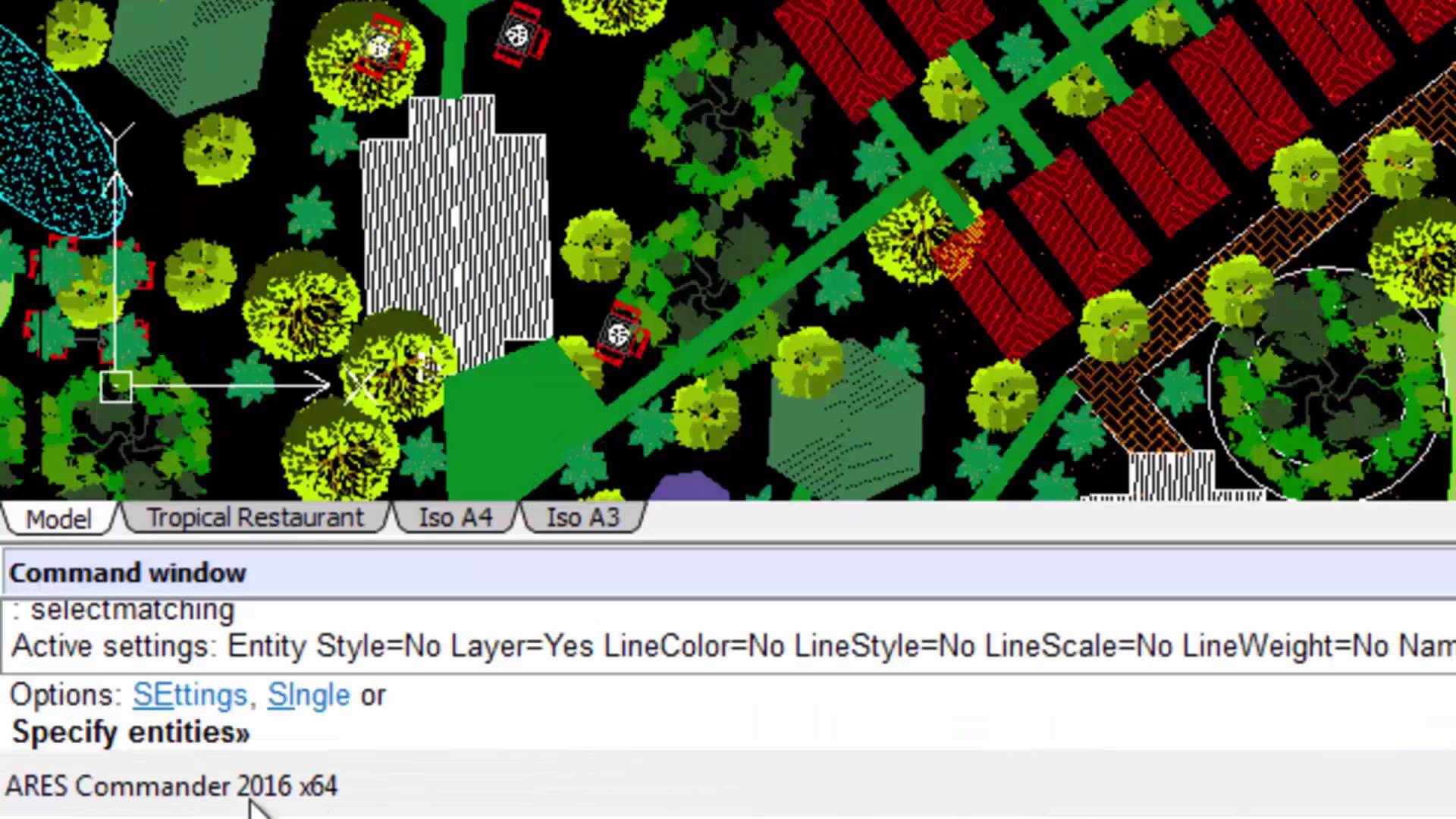
Smart & Fast Selection Methods Searching for a smart & fast way to use CAD? ARES Commander offers a quick way to select objects in a drawing with Smart & Fast Selection Methods. 1 00:00:09,660 –> 00:00:15,140 Ares Commander 2016 offers a quick way to select objects in a drawing. 2 00:00:15,820 –> 00:00:21,800 For example, if we want to select all the entities that are similar to this one, we select it, 3 00:00:22,440 –> 00:00:26,640 press the right mouse button and choose SELECT MATCHING. 4 00:00:27,900 –> 00:00:32,140 As you can see, all the similar entities in the drawing have been selected, 5 00:00:32,200 –> 00:00:34,240 so that you can work with them. 6 00:00:34,500 –> 00:00:37,240 This function complements the tool SMART SELECT 7 00:00:37,500 –> 00:00:41,920 that ARES Commander was already offering in previous versions. 8 00:00:42,280 –> 00:00:47,371 Smart Select allows filtering and selecting objects in the
ARES Commander 2016 upgrade If you have an ARES Commander license and your subscription has not expired you should have received your free upgrade. The new product keys were sent via e-mail on January 28-29. If you haven’t received your product key(s) yet, please check your emails and SPAM. Otherwise feel free to contact us at support@graebert.com

ARES Commander 2016 introduces the new “Heads Up” floating palette Are you looking for Productivity Boost in CAD? Ares Commander 2016 introduces the new “Heads Up” floating palette. This new contextual toolbar appears next to your cursor when you select entities. Shortcuts include zoom to selection, change entity layer, change LineStyle or LineWidth, and the possibility to create a dimension or a block from the selection. 1 00:00:09,80 –> 00:00:14,80 Ares Commander 2016 is introducing the new “Heads Up” floating palette 2 00:00:14,520 –> 00:00:18,560 that appears when you select one or more entities. 3 00:00:19,20 –> 00:00:23,220 It offers some shortcuts to change the line type, line weight 4 00:00:24,20 –> 00:00:27,820 or to open directly from there the Layer Manager. 5 00:00:28,640 –> 00:00:32,980 You may also assign the current layer to the selected entities. 6 00:00:33,300 –> 00:00:34,760 For instance… 7 00:00:35,60 –> 00:00:37,980 at the moment we

GRAEBERT-WEBINAR 2016 Learn what’s new in ARES Commander 2016. 17th Feb – 3.30 PM India Time. Register for free here!

Convert DGN to DWG ARES Commander 2016 offers two ways to maintain an optimal workflow with DGN files and the many users of Bentley Microstation; “Import DGN” And “Attach DGN” Command. 1 00:00:09,460 –> 00:00:15,40 ARES Commander 2016 can work with DGN files from Microstation. 2 00:00:15,49 –> 00:00:21,320 We can go to the INSERT tab, where we find the command IMPORTDGN. 3 00:00:21,320 –> 00:00:25,400 The dialog box is similar to the one for block insertion. 4 00:00:25,400 –> 00:00:31,189 We browse for the file that we want to import, click open, and define the insertion point. 5 00:00:31,860 –> 00:00:36,800 We can write the coordinate or specify it directly in the drawing. 6 00:00:37,840 –> 00:00:40,780 We also determine the scale and rotation. 7 00:00:41,140 –> 00:00:44,800 If required, we can even choose the view we want to insert. 8 00:00:45,380 –> 00:00:48,380 In this case, we only have one to

Ralph Grabowski from WorldCAD Access talks about Graebert products “Graebert GmbH is now the first CAD vendor that will be providing a drafting program on all viable platforms” Read the full article on WorldCADAccess here.

January 31-February 3, 2016 Booth 835 Kay Bailey Hutchison Convention Center Dallas, Texas, United States Read more.
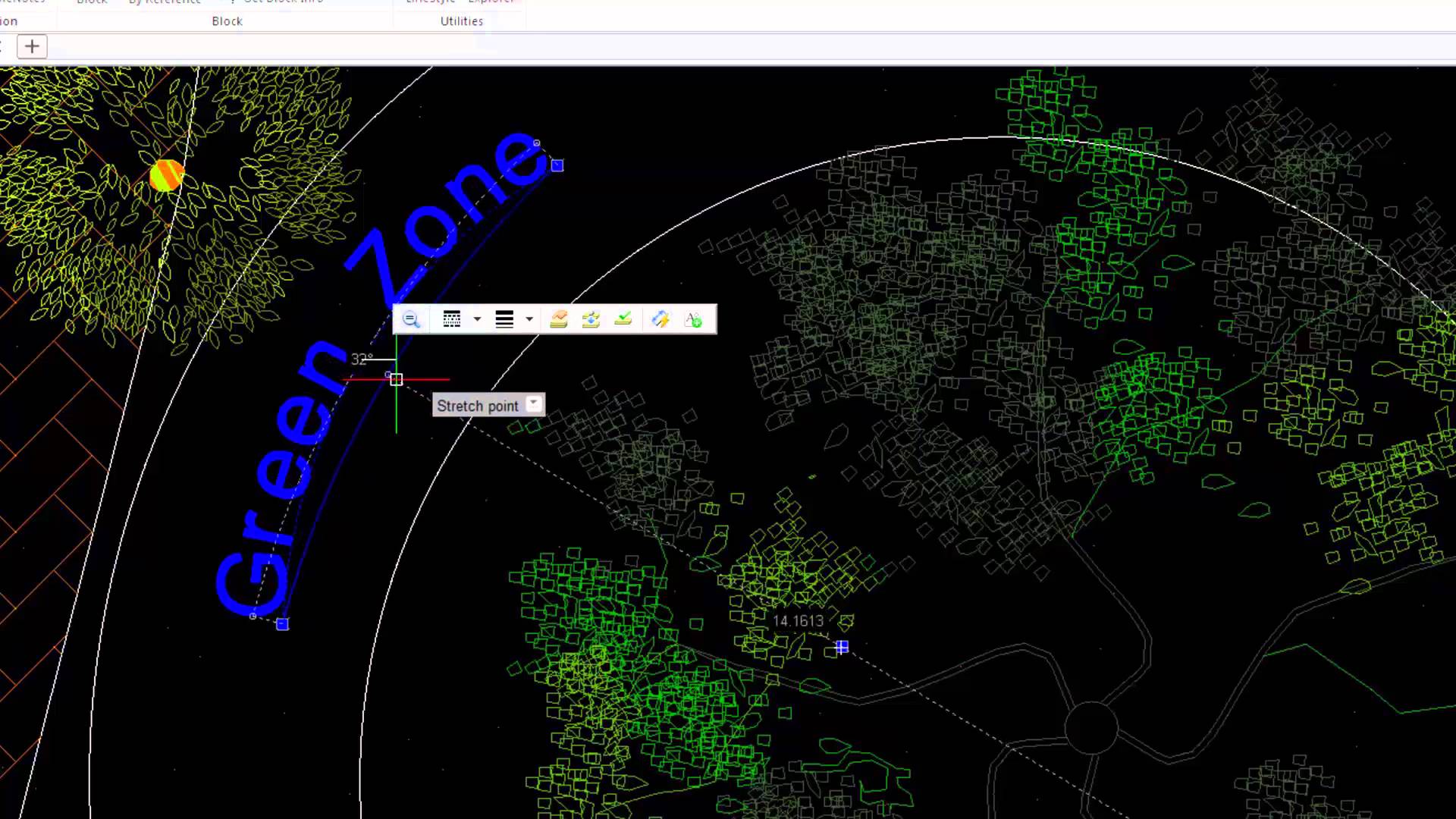
Curved Text from Ares Commander collection of extra tools ARES Commander 2016 offers us a collection of extra tools which allow us to perform tasks that weren’t possible before. “Curved Text” is one of them. 1 00:00:09,180 –> 00:00:13,120 Ares Commander 2016 offers us a collection of extra tools 2 00:00:13,200 –> 00:00:17,200 which allow us to perform tasks that weren’t possible before. 3 00:00:17,740 –> 00:00:20,20 For example “curved text.” 4 00:00:20,140 –> 00:00:23,330 For this, we need an arc. A circle would not help 5 00:00:23,330 –> 00:00:28,990 because it is required to have a starting and end point to adjust the text. 6 00:00:29,860 –> 00:00:36,40 We draw an arc defined in this case by three points, and select “curved text.” 7 00:00:40,220 –> 00:00:42,260 We click on the arc. 8 00:00:42,780 –> 00:00:49,380 Ares Commander 2016 then uses the arc as a reference to write a
Amit Kumar tries out the ‘Repeat Command’ on CADblogbyAmit “If you want to use a command multiple times and don’t want to press enter key again and again after using command every time then you can use REPEAT command to keep command running in an infinite loop” Read the full article on CADBlogbyAmit.

Did you know that ARES Touch, our mobile DWG Viewer & Editor, is available for both Android and iOS?