STAY TUNED!
Subscribe to our newsletter and get the 600+ pages eBook Inside ARES:

Anthony Frausto-Robledo from Architosh writes about Graebert’s increased capabilities “ARES Commander 2015 was already a very feature rich 2/3D CAD program for its price point. In version 2016, Graebert continues to increase its capabilities.” Read the full article on Architosh here
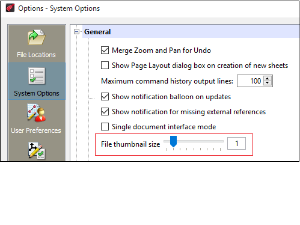
Amit Kumar discusses the New feature ‘Thumbsize’ in CADblogbyamit. “ARES Commander 2016 SP1 has changed the method of controlling the display resolution in pixels for all thumbnail preview images. Now it has a slider bar for controlling in Options dialog box. These raster thumbnail images (previews) are stored inside drawing files. You can quickly display better pictures of the contents of your drawings.” Read the full article on Cadblogbyamit here. Quickly display better pictures of the contents of your drawings in ARES commander. Use this feature now! Download the trial of ARES Commander 2016 as soon as possible.

Anthony Frausto-Robledo from Architosh writes a product review about ARES Commander “For the purposes of this section, and within the context of a review, it may be worthy to point out some differences in ARES Commander 2016 compared to AutoCAD and other important clones. With respect to AutoCAD, we mean to compare AutoCAD for Mac versus ARES Commander 2016 for Mac” Read the full article on Architosh here
Machow2.com reviews ARES Commander and other CAD softwares “ARES Commander is another industry leading CAD DWG German-based software that was finally released for Mac in 2015” Read the full article on Machow2 here

Amit Kumar Works with the New Feature ‘Dimension Snap’ in Cadblogbyamit “ARES Commander 2016 offers the new feature DIMENSION SNAP. It increases your efficiency and helps you to place all dimensions symmetrically.” Read the full article on Cadblogbyamit here.
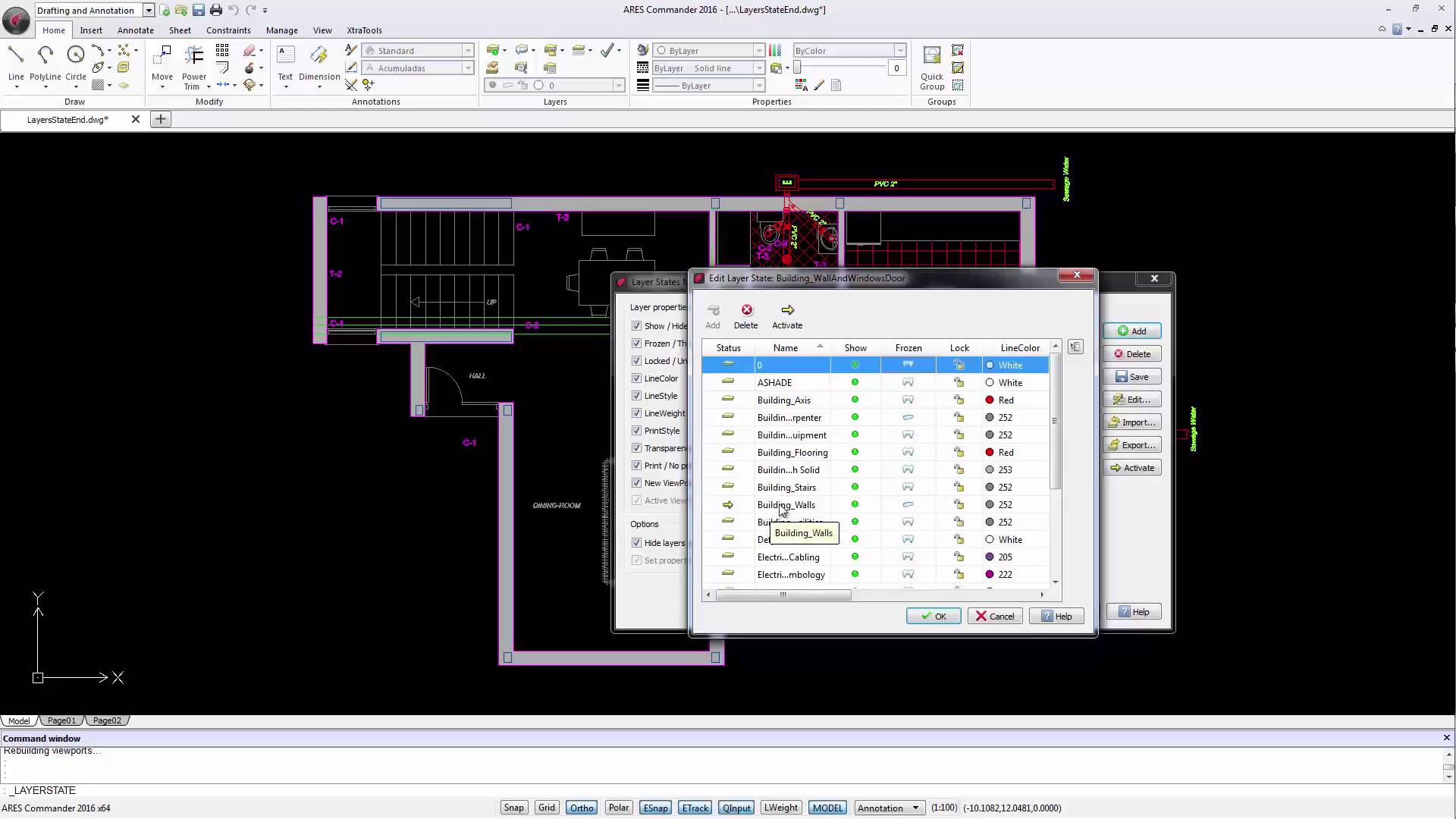
Group different layers in ARES commander. The new layer state manager allows users to create layer groups, that we can easily control. Discovering New Layer State Manager 1 00:00:09,360 –> 00:00:14,100 When we draw a project in CAD we need to create many layers. 2 00:00:14,820 –> 00:00:17,860 Until the previous version of Ares Commander, 3 00:00:18,380 –> 00:00:21,840 if we needed to work on the structural design of a project, 4 00:00:22,120 –> 00:00:28,460 we would have most likely frozen the layers, that were not required, one by one. 5 00:00:39,20 –> 00:00:40,900 A slow process, isn’t it? 6 00:00:41,20 –> 00:00:47,260 And it can always lead to errors, maybe because we accidentally left a layer “frozen” that should be active, 7 00:00:47,260 –> 00:00:50,760 or we left one active when it had to be “frozen”. 8 00:00:50,920 –> 00:00:56,000 ARES Commander 2016 is introducing the new LAYER STATE MANAGER.

Business Wire Talks About Graebert CAD Solutions “Graebert, one of the leading custom CAD solution providers in Germany” Read the full article on BusinessWire here.
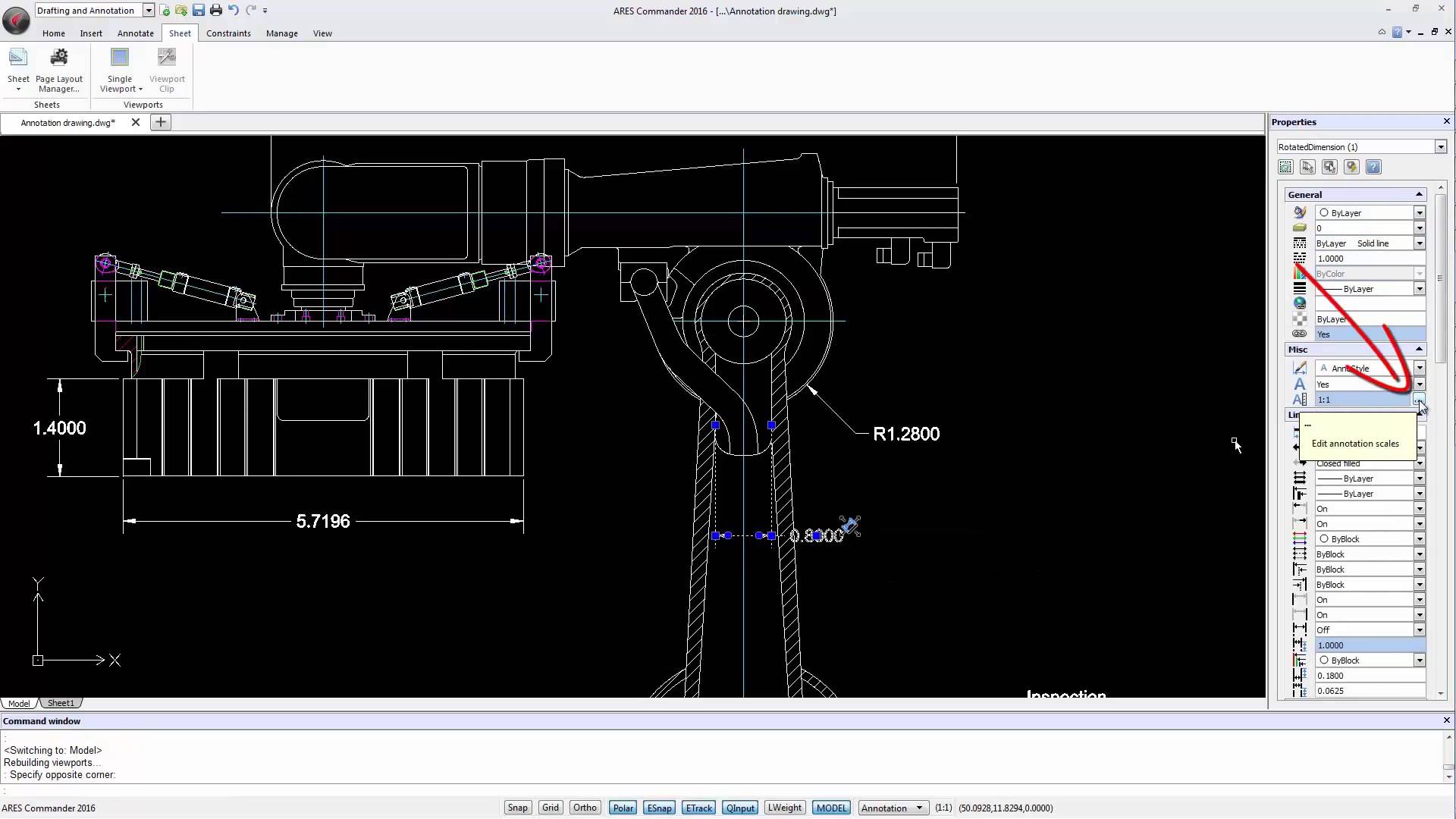
With Annotative Scaling, Ares Commander 2016 Introduces a Great Improvement For Dimensions, Text, Hatches, And Blocks 1 00:00:08,920 –> 00:00:13,370 One of the most important elements in a technical drawing are the annotations. 2 00:00:14,000 –> 00:00:19,279 With Annotative Scaling, ARES Commander 2016 introduces a great improvement 3 00:00:19,279 –> 00:00:22,590 for dimensions, text, hatches, and blocks. 4 00:00:22,590 –> 00:00:27,480 Note that the annotative scale properties are not restricted to dimensions. 5 00:00:27,480 –> 00:00:31,640 We will also find texts, hatches, and blocks with annotative scaling. 6 00:00:31,800 –> 00:00:35,380 But first, let’s focus on the dimensions. 7 00:00:35,580 –> 00:00:38,19 In this picture, we see a layout sheet, 8 00:00:38,20 –> 00:00:41,860 where three viewports have been created with different scales. 9 00:00:42,240 –> 00:00:49,120 However, the values of the coordinates, the text size and arrow size are equal in all viewports. 10 00:00:49,320 –> 00:00:52,000 Look
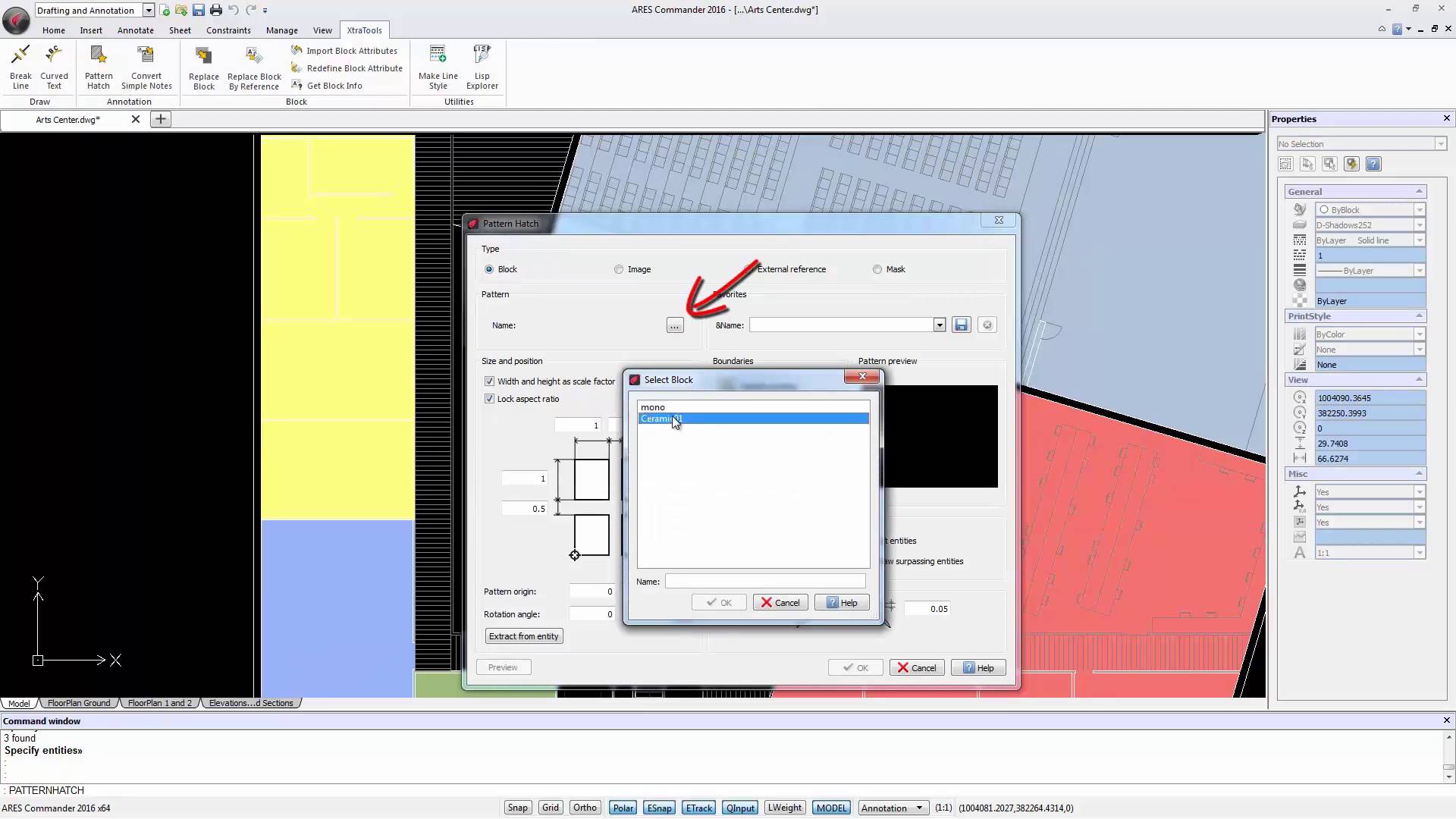
The new “Pattern Hatch” command (found in the “XtraTools”) allows us to create a custom HATCH, based on “blocks”, “images”, “External References” or “masks”. From Hatch command to Pattern Hatch 1 00:00:09,640 –> 00:00:12,820 Besides working with the traditional HATCH command, 2 00:00:12,880 –> 00:00:20,600 Ares Commander 2016 features a new command called “Pattern Hatch” (found here in the “XtraTools”). 3 00:00:21,300 –> 00:00:24,400 This command allows us to create a custom HATCH, 4 00:00:24,430 –> 00:00:30,590 based on “blocks”, “images”, “External References” or “masks”. 5 00:00:30,960 –> 00:00:33,460 Let’s try first with an “image”. 6 00:00:33,500 –> 00:00:36,660 Click on this button and select the image. 7 00:00:36,660 –> 00:00:43,120 This is an image representing elements which size in real life is 100×100 cm. 8 00:00:43,160 –> 00:00:44,309 Click OPEN. 9 00:00:44,340 –> 00:00:49,80 To insert a Hatch we need an enclosed area or a closed shape. 10 00:00:49,740 –>

Learn about “Drawing TABs” “Drawing TABs” allow us to quickly move from one open drawing to another, regardless of whether it is 2D or 3D. 1 00:00:09,240 –> 00:00:16,20 ARES Commander 2016 offers us new features such as the “Drawing TABs”. 2 00:00:16,400 –> 00:00:24,60 They allow us to quickly move from one open drawing to another, regardless of whether it is 2D or 3D. 3 00:00:24,780 –> 00:00:26,840 But not only that. 4 00:00:27,60 –> 00:00:35,440 We can also position the “pointer” over one of the tabs, and Ares Commander 2016 offers all views available in this drawing, 5 00:00:37,540 –> 00:00:42,780 either model space or “Layouts” that are configured in paper space. 6 00:00:43,840 –> 00:00:49,140 Allowing also to go directly to one of those layouts by clicking on them. 7 00:00:49,680 –> 00:00:56,380 We can also change the order of the opened drawings, simply by dragging a tab to

Did you know that ARES Touch, our mobile DWG Viewer & Editor, is available for both Android and iOS?