STAY TUNED!
Subscribe to our newsletter and get the 600+ pages eBook Inside ARES:


Exploring The Layer Manager Technical drawings are characterized by using LAYERS. It’s easy to organize drawings using layers. In this video, we will learn how to create and configure layers in technical drawings. For that, we need to click on LAYER MANAGER. Then press NEW. Name the layer. Determine if that layer is going to be visible or not. If it will be blocked. Or assign a color. We can also determine the line type known in ARES as “line style”. Or you may also load a specific line style. Layers may have a line thickness configured. Note however that, at the time of printing, there is the possibility to use a print style to change these parameters. In such a way that we can keep the thickness of the drawing, or we can make a new configuration according to the colors. Layer Options A layer can be transparent or
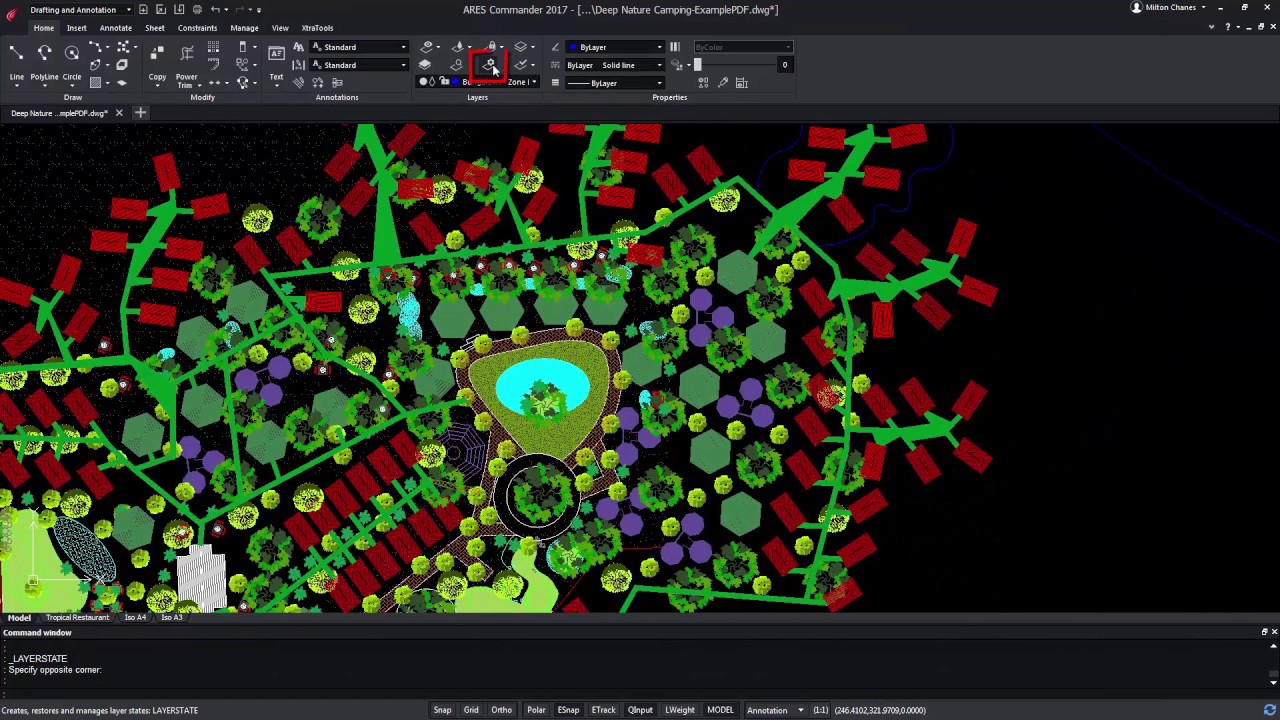
What Are Layer States in CAD Drawings? Working with a file with multiple layers can be time-consuming, especially if we frequently have to enable and disable multiple layers. Even if this drop-down menu is helping us. It is clear that, as we move forward in such a project, we will have to frequently activate and deactivate layers, or groups of layers. For example, to separate those that are related to nature, from others like the layers related to the buildings of this project. ARES Commander allows us to save the properties of the layers, in what is called “LAYER STATES”. From the LAYER STATES MANAGER box, we can create a new state with a custom name. Now, we edit the new layer state. In the edit dialog box, we will choose to make visible all layers related to vegetation. Hiding Layers We want the remaining layers to stay hidden. It

In this video, we will be sharing with you our Top five pieces of advice to work better and faster with CAD layers. Let’s begin a countdown starting with bottom-up… Number 5 Make sure to create a well-organized layer structure. They should be easy to group. For that purpose, we start with an “A” all the layers related to ANNOTATIONS. We could use “F” for layers related to furniture. “P” for PLAN, and some others like the “S” for STRUCTURE. We could even use the “X” for everything that has to do with the pages, title blocks, and frames in the layouts. Thus, by alphabetical order, it will become easier to find a layer within a specific group. Keeping this advice in mind, create a configuration of the layers you most frequently use and save them inside a custom DWT template. This way you will save time each time you start a new

Layer Preview in ARES Commander ARES Commander brings some interesting features that allow us to manipulate and organize layers with greater productivity. Highlighting among them is the command LAYER PREVIEW, which is exclusive to ARES Commander. This command allows us to select layers and visualize their contents and even select groups of layers. Navigate through the Layer Preview Command Select layers, and use the Zoom and Pan command to take a closer look. Press ESC to return to the dialog box. The “RESTORE LAYERS STATE WHEN EXIT” option, when it is active, determines if the previous layer state will be restored after closing the LAYER PREVIEW command. Pay attention, at this point, it says it will restore it. Press CLOSE and the drawing will return to the previous configuration. Layer Configuration with Layer Preview Now, let’s try the opposite. Select a group of layers, and deselect the box. Press CLOSE.
Randall Newton comments on trends in CAD technology industry on Consilia Vektor ‘In this season when many CAD users are taking a close look at how they buy and manage their CAD technology, Graebert offers a unique technology proposition and a compelling value proposition.’ Read the full article by Randall Newton on Consilia Vektor

Ralph Grabowski writes about the API application programming interface in ARES systems in UpFrontEzine ‘Given the hardware and OS differences, it is difficult to provide the same API [application programming interface] for all, and so here is an overview of which APIs work with cloud, mobile, and desktop. Notice that LISP, C++, DCL, and Qt are common to all three (ARES) systems.’ Read the full article by Ralph Grabowski on upFrontezine

Pete Evan Comments on the Japanese CAD market ‘The market doubled in Japan for Graebert and that 3 of the top 5 contractors were using Graebert products.’ Read the full article by Pete Evans on Architosh here.

‘ARES Kudo offers an easy path for developers willing to migrate their Windows-based applications to the Cloud’ Read the full article on CIM Data.
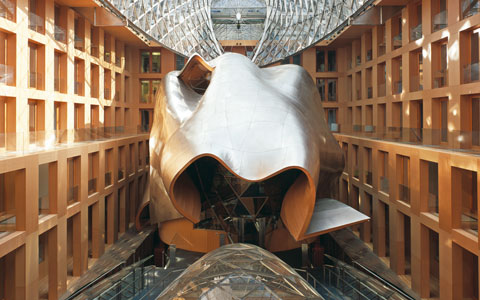
The Graebert Annual Meeting takes place in Berlin on October 18th and 19th, 2017. Follow #Graebert17 on twitter & Stay tuned for latest CAD trends for desktop, mobile, and cloud. Experience How Desktop, Mobile, and Cloud Can Converge Into a Unique CAD Ecosystem In the meeting, you will find CAD experts from all over the World for a highly productive event combining one day for keynotes, testimonies and product news followed by another extra day to dig further in private meetings. Can’t join us? No problem. Follow #Graebert17 for live updates about key announcements. © axica / Nicole Fortin This year we are thrilled to organize our keynotes in the Plenum of the AXICA conference center. Designed by the famous architect Frank Gehry it is also very close to the Brandenburg gate, one of the best-known landmarks of Germany. Follow #Graebert17 on twitter for updates. Learn more about the event: https://www.graebert.com/graebert17/
Anthony Frausto-Robledo Talks About Dwg 2018 File Support by Graebert on Architosh ‘Graebert is offering industry-first support of DWG 2018, the very latest DWG file format for optimal and complete compatibility with DWG-based workflows that include files from multiple sources including Autodesk’s AutoCAD software.’ Read the full article by Anthony Frausto-Robledo on Architosh

Did you know that ARES Touch, our mobile DWG Viewer & Editor, is available for both Android and iOS?