STAY TUNED!
Subscribe to our newsletter and get the 600+ pages eBook Inside ARES:

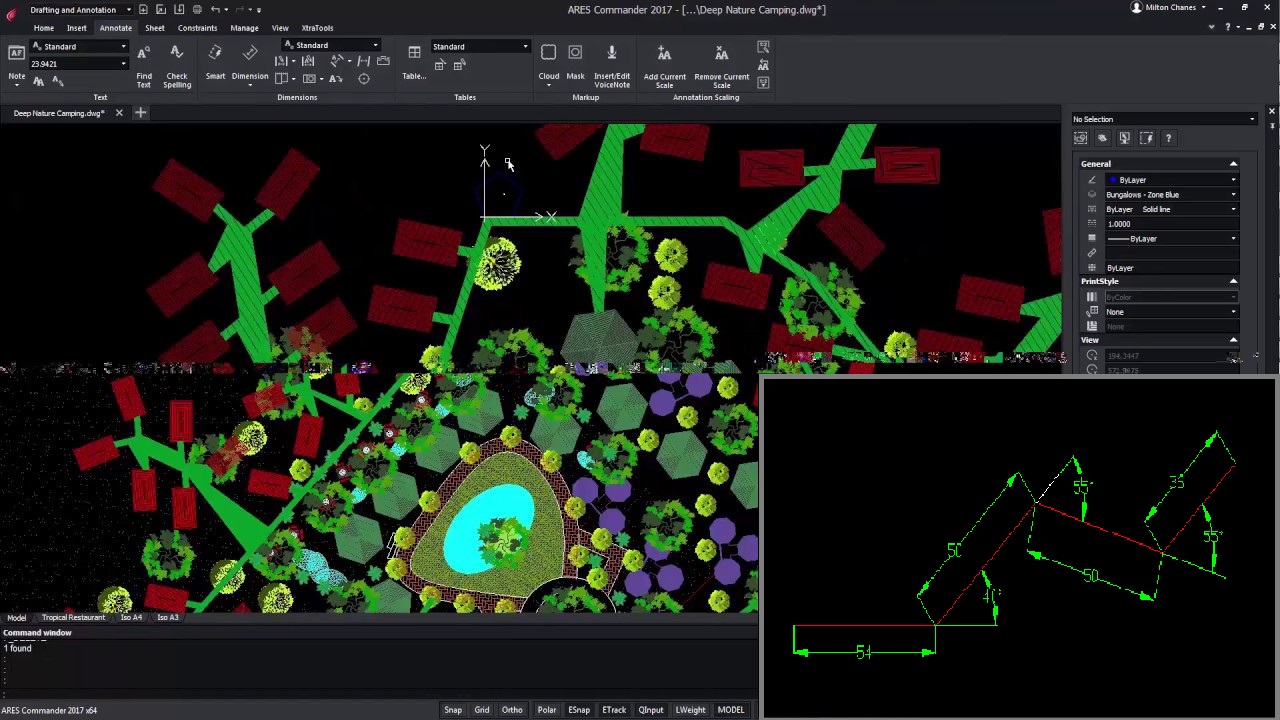
Amit Kumar explains how Relative Angles function in Coordinate Input “The reason I like this feature: User can create a line of required length at required angle This feature is extremely useful for civil survey drawings.” Read the full article on CADBlogbyAmitKumar. Learn more: Relative Coordinates in Angles with ARES Commander

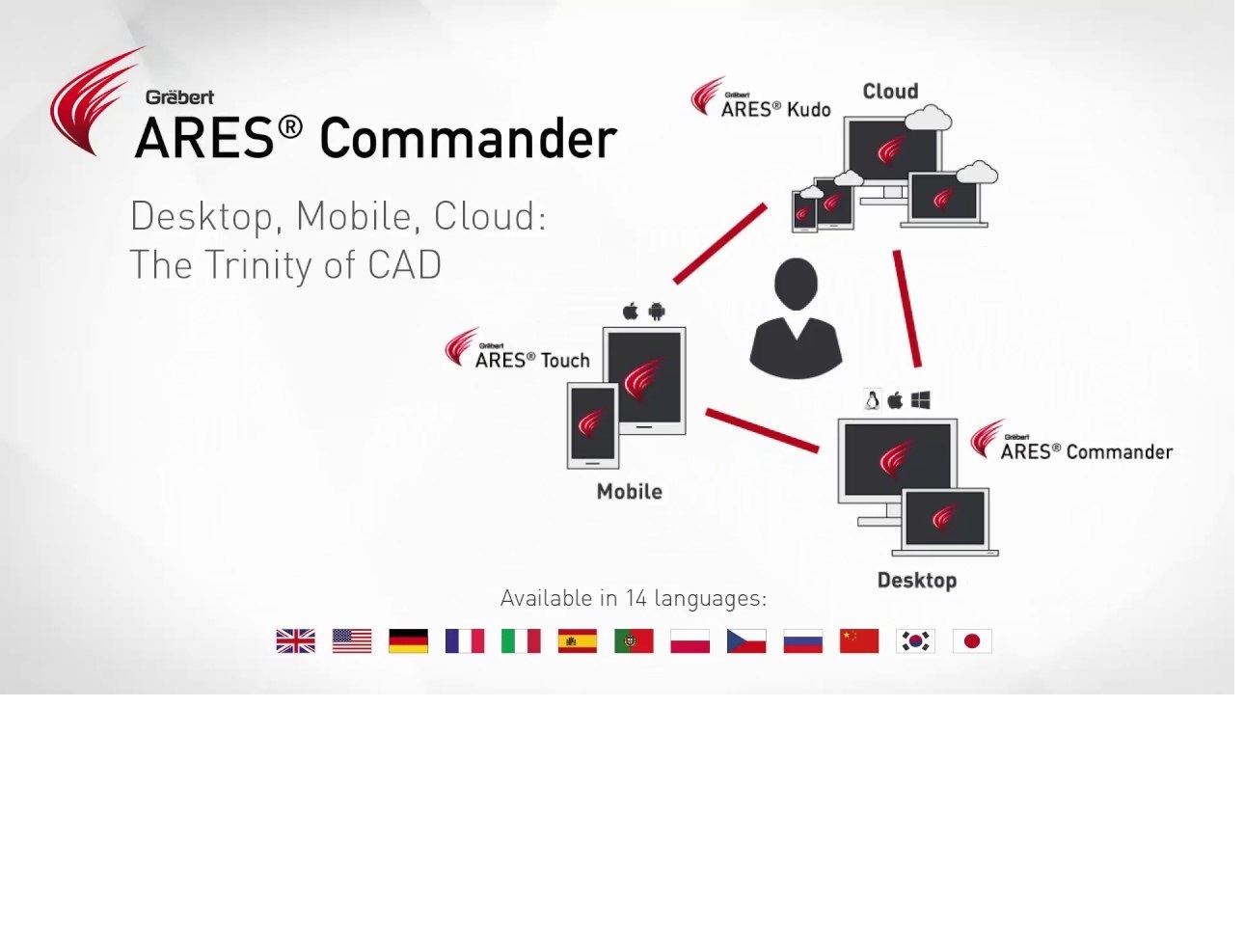
Machow2.com writes about ARES Commander’s pricing plan “ARES Commander is an industry leading CAD DWG German-based software that has recently been updated to become a truly multi-platform CAD solution which is an ideal choice for those that need to work on Windows, Mac and mobile devices off site. At just $250 per year, ARES Commander is also extremely competitive considering it’s almost as powerful as apps like AutoCAD but costs significantly less. ARES Commander offers three versions for desktop, mobile, and cloud which it calls The Trinity of CAD and one license is valid for all.” Read the full article on machow2.com here
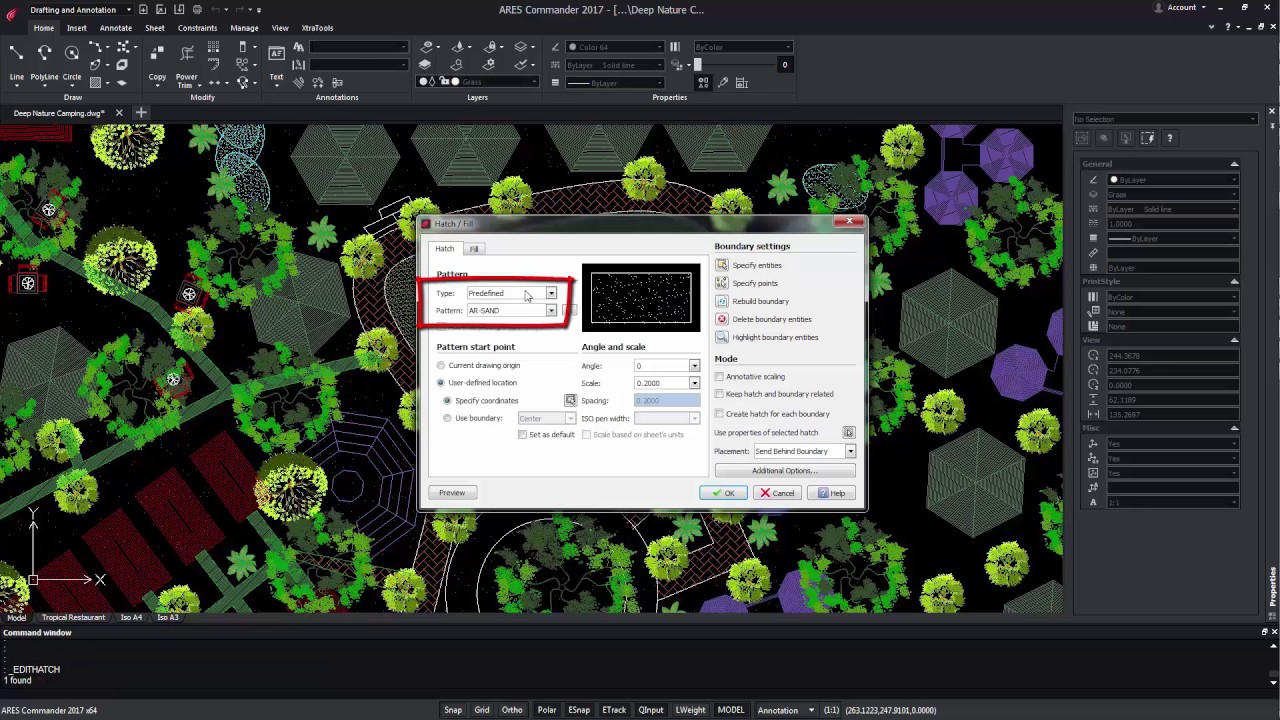
Trim and PowerTrim in Hatches and Gradients Unrivaled flexibility to edit the shape of your hatches and gradients You can now trim hatches and gradients with the TRIM and POWERTRIM commands. It’s never been easier to edit the shape of the areas containing hatches and gradients. Divided hatches and gradients maintain associativity and remain as one entity. ARES Commander offers the possibility to use TRIM with a hatch. For that, we only need a line, a polyline, an arc, etc., which serve as a cutting edge. Then select the TRIM command. Learning how to TRIM In this case, select the line, and after pressing OK select the side of the Hatch that we want to cut. Now, the POWERTRIM command also allows trimming the HATCH entities. To do this, select the command and press the pointer. By moving the pointer around the screen, ARES Commander will cut all the items
Graebert is a CAD developer with a novel solution. It offers its
DWG-compatible ARES software in three synchronized versions:
Commander for desktop computers, Touch for mobile devices, and
Kudo for browser-based use.
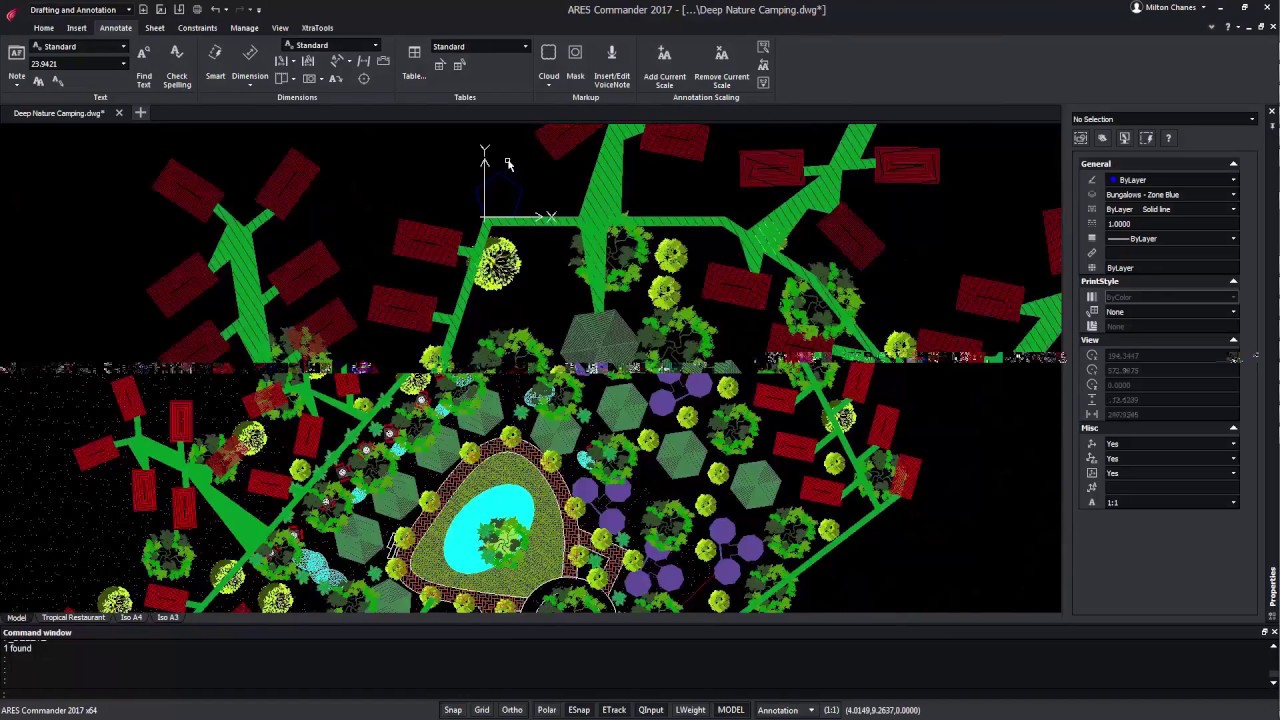
Relative Coordinates in Angles Use the “@” prefix to enter the angle from the last given segment You can now use the “@” prefix to enter relative angles just like you are already used to for relative distances. This unique ability simplifies significantly the coordinate input when you draw successive lines or polyline segments. ARES Commander is introducing in this version a small but innovative feature that can interestingly improve coordinates input. It is the possibility of adding polar coordinates with relative angles. Using the ”@” Command Let’s see how it works, In the video above, we are going to draw a pentagon with 5 equal sides of 5 meters and angles of 72 degrees. Obviously, we could have used the POLYGON command for that purpose but we just want to make a conceptual example to explain the new feature. Defining polar coordinates We start with a line and define
Multifunctional Grips Quick editing options appear when you fly over mid and end point grips Fly over entity grips and you will discover new contextual shortcut menus offering quick editing features that can vary based on the entity type: edit the length or stretch an entity from its end point grip, change the radius of an arc, insert a vertex on a polyline or convert an arc into a polyline. Working with Grips ARES Commander now gives us more options regarding the grips of entities. Grips are used to select the text and were available in the previous versions as well. It turns out that now, depending on the type of entity to be selected, we will have more variety of grips. In this dimension, for example, we could vary the position of the arrow by clicking on a grip. Positioning the pointer over a grip When positioning the pointer over
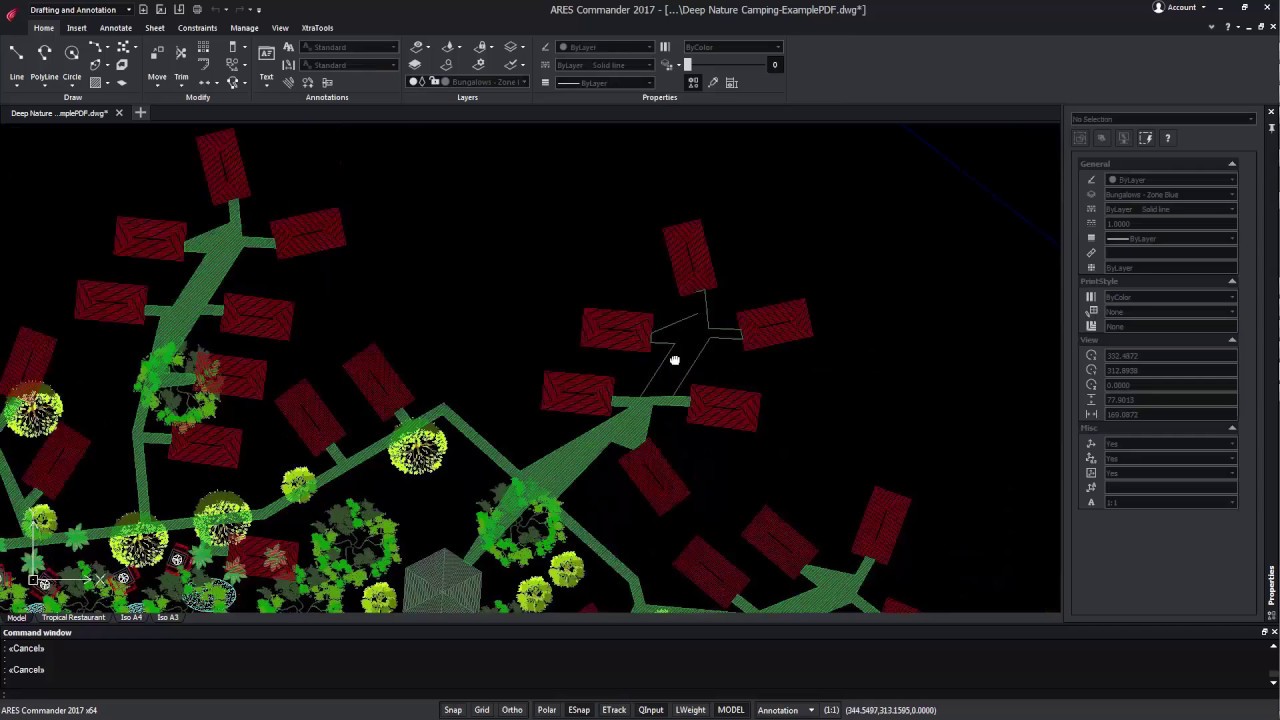
Polylines Editing Improvements Add vertex to midpoint, convert a segment to an arc or line and more New options in the command EDITPOLYLINE offer an increased productivity in the edition of polylines. You may convert an arc segment into a line and vice-versa, you may also add a vertex to the midpoint of a segment and change its position. Other new options include Taper and Reverse. ARES Commander offers new functions for editing polylines. Here we have a polyline composed of 2 segments. Among other things we can recognize it is a polyline from the aspect of the central grip. Selecting another entity When selecting another entity, the central grip is different, in this case, it is a square. This means it is a line. The central grip in lines can only be used to move them. Instead, by positioning the pointer over the central polyline grip, a contextual menu
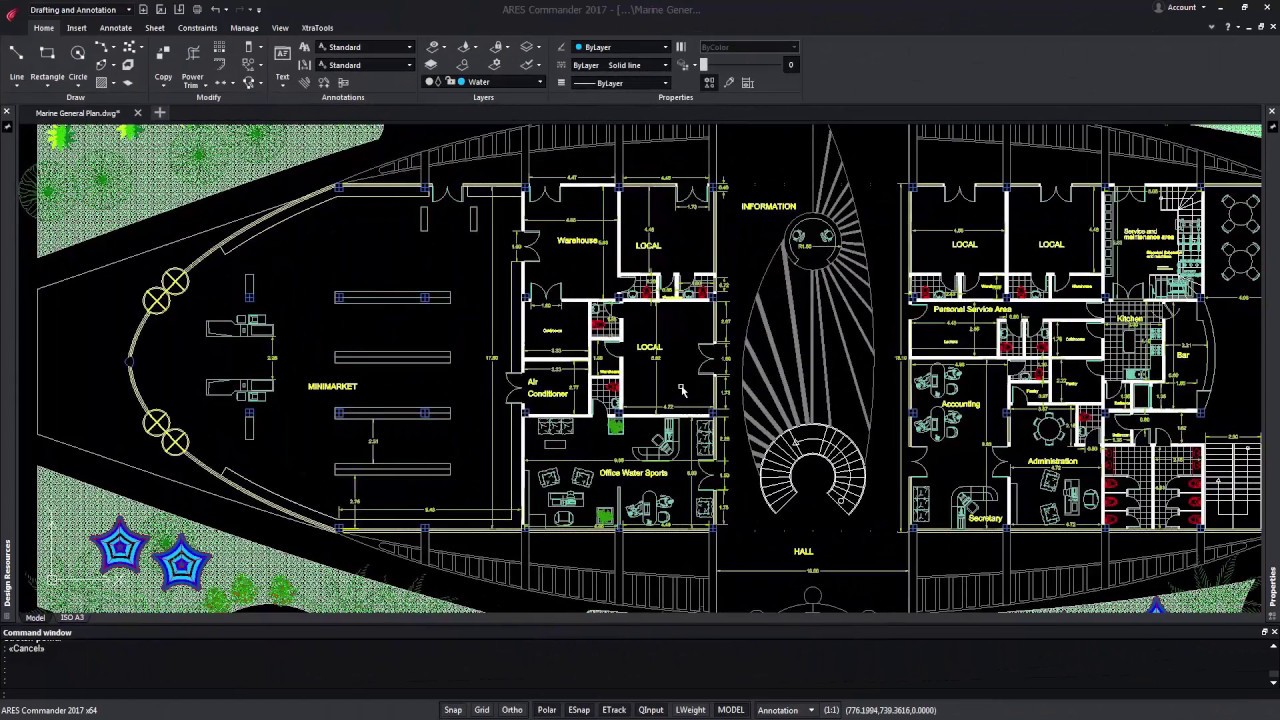
New “Trinity” Dark User Interface The new Dark UI is harmonizing the user interface across all the ARES CAD software and introducing new features The new Dark UI contributes to Graebert’s unique “Trinity” concept offering a seamless user experience across desktop, mobile, and cloud. Besides the fresh and modern look and feel you will enjoy enhancements such as auto-hiding palettes, command line completion, history for undo-redo and a welcome screen. The new ARES Commander is introducing a new user interface called the Dark UI. This Dark UI is not only giving a fresh and modern look to ARES Commander. It is also harmonizing the user interface across all the ARES CAD software to offer a smooth experience across desktop, mobile, and cloud. Indeed the same dark UI is used in ARES Touch for Android tablets and smartphones but also in the new iOS version for iPads and iPhones and the

Holiday Season is here! The Graebert Team would like to take this opportunity to say Thank-You to everyone who has been a part of the Graebert community in one way or the other. ”Merry Christmas and a very Happy New Year!” To learn more about ARES Commander, visit our Youtube Channel: GraebertTV
If you are using ARES Commander 2017 under Windows, we warmly recommend downloading the new setup we just released today (December 20, 2016). Why this hotfix? Shortly after the release of ARES Commander 2017, Microsoft released a patch that caused a display issue. You may have seen your graphic screen flickering inside ARES Commander 2017. The new setup is fixing this issue while we keep working on two other related but less critical issues. The two following remaining issues are known and will be fixed in January: In full-screen mode a few small gray artifacts on the side of the main application window under some graphics cards. The AppCast balloon shows under the dark UI white text, which is not readable. How to install the “hotfix”? You just need to go to Graebert’s official download page and download our latest setup from there: DOWNLOAD PAGE Will I need any product key?

Did you know that ARES Touch, our mobile DWG Viewer & Editor, is available for both Android and iOS?