
From Manual to Automatic: Creating CAD Blocks with AI
- 03/09/2026
- Posted by: Graebert
- Category: FeaturedProduct News
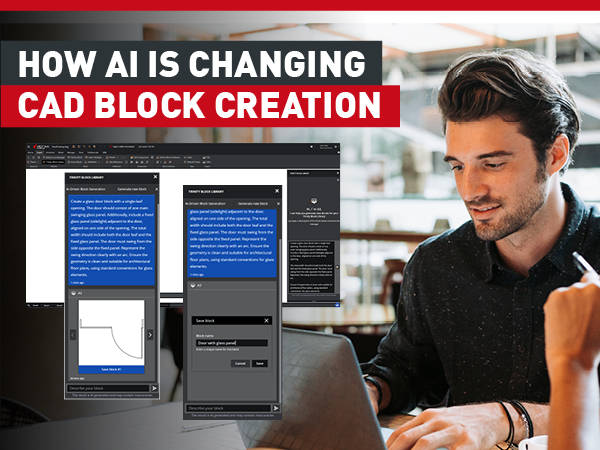

CAD blocks are essential for improving design efficiency, but they can be tedious to create manually. In the latest version of ARES, the world’s leading DWG-compatible CAD software, this capability has evolved significantly. Now users can create symbols and other blocks in CAD with less effort — and less time.
With the new AI-powered Block Generation feature in ARES 2027, you can automatically generate CAD block candidates simply by describing what you need in plain language—for example, “door swing,” “electrical outlet,” or “table.”
Watch this video to see how easy the process is in ARES 2027:
This article explains why creating CAD blocks can be time-consuming, shares best practices for making the process more efficient, and introduces the new AI-powered block generation feature available in ARES.
You can try this feature, and all the other capabilities in ARES — the world’s leading alternative for DWG-compatible CAD software — free for 30 days.
In This Article:
What Are CAD Blocks? Why Does Creating Blocks Take So Much Time?
Let’s start by looking at the basics of CAD blocks and why creating symbols often requires more time than expected.
A Block Lets You Treat Multiple Objects as a Single Component
A CAD block combines multiple drawing elements — such as lines, text, and shapes — into a single reusable component.
For example, if you frequently use objects like doors, electrical outlets, tables, or bolts in your drawings, you can save them as blocks instead of redrawing them every time.
Once created, a block can be reused not only within the same drawing, but also across multiple drawings. This helps reduce drafting time while maintaining drawing consistency and quality.
Blocks Are Convenient, but Creating Them Takes Time
Although blocks are extremely useful, creating them correctly involves several steps.
Users need to define items such as:
- Block name
- Insertion point (base point)
- Layer
- Linetype
- Scale.
Creating CAD blocks manually requires drawing the geometry, defining insertion points and layers, and managing block names. Mistakes in any of these settings can cause blocks to be inserted incorrectly, or fail to comply with company drafting standards.
When organizations follow internal CAD standards, even creating a simple symbol often requires additional checking and verification. As a result, repetitive block creation can consume a surprising amount of time.
For this reason, streamlining block creation is an effective way to improve overall drafting productivity.
Best Practices for Streamlining CAD Block Creation
Here are several ways to make CAD block creation more efficient.
Build a Library of Frequently Used Blocks
One of the most effective ways to improve efficiency is to create a library of commonly used blocks.
Examples include:
- Doors
- Windows
- Electrical outlets
- Furniture
- Equipment symbols.
Keeping these in a shared library allows users to insert them whenever needed. When the entire team uses the same library, drawing consistency also improves.
Think of blocks not as one-time creations, but as reusable assets.
Standardize Block Rules to Maintain Drawing Quality
To use blocks efficiently, it’s important to establish consistent standards, such as:
- Naming conventions
- Base point locations
- Layers
- Scale
- Line weights.
Without standardized rules, drawings become inconsistent and may require additional corrections later.
Divide Work Between Manual Tasks and Automation
Not every block needs to be created manually.
Tasks such as verifying design intent and ensuring drawing accuracy still require human expertise. However, repetitive block creation can be delegated to AI or automation tools.
For components with clearly defined meanings (such as electrical outlets, tables, or door swing symbols), AI can generate suitable candidates quickly and efficiently.
Clearly dividing responsibilities between people and AI leads to significant productivity improvements.
Generate CAD Blocks with AI in ARES
In ARES 2027, AI-powered block generation has been added to the Block Library, making creation dramatically easier. This is a feature Graebert is proud to have introduced to the CAD community.
The following sections explain how both ARES Commander (Desktop) and ARES Kudo (Cloud) simplify block creation.
This feature is especially useful for creating drawing elements that normally take considerable time, including:
- Furniture
- Vehicles
- Trees
- Equipment symbols.
As a result, you can dramatically reduce the effort required to create CAD symbols from scratch.
Create CAD Symbols from Plain Text
In both ARES Commander and ARES Kudo, AI can generate CAD symbols directly from simple text descriptions.
For example, you can enter a prompt such as”Door swing,” “Electrical outlet,” or “Table,” and the AI will generate multiple candidate symbols based on your prompt.
For the best results, describe the desired characteristics of your symbol using natural language, including the following:
- Shape
- Orientation
- Purpose
- Display direction.
After the AI delivers the candidates, you can then choose the one that best matches your needs.
The selected symbol can be saved as a block, given a name, and reused throughout the drawing.
After insertion, you can:
- Adjust the scale
- Edit the geometry
- Refine the symbol using the block editing tools in ARES Commander or ARES Kudo.
This means AI-generated blocks are not limited to their initial form — you can customize them to match your company’s drafting standards or project requirements.
Quickly Create and Reuse High-Quality Blocks
AI-assisted block generation enables you to quickly create project-specific blocks that can be edited and reused later.
This reduces the need to:
- Search through block libraries
- Copy blocks from previous drawings.
Using consistently generated blocks also helps maintain uniformity across an entire project.
The result is faster drafting without sacrificing drawing quality.
Allow Designers to Focus on Design
By automating block generation, designers spend less time on repetitive tasks.
Instead of creating symbols manually or searching through libraries, they can focus on higher-value activities such as:
- Design development
- Drawing review
- Quality checking.
For companies considering a new CAD platform, ARES Commander and ARES Kudo offer not only cost advantages but also significant productivity gains.
Summary: AI CAD Block Creation
What Are CAD Blocks?
- Blocks combine multiple drawing objects into a single reusable component.
- While highly useful, creating blocks manually can be time-consuming.
How to Improve CAD Block Efficiency
- Build and reuse libraries of frequently used blocks.
- Standardize block naming and drafting rules.
- Separate manual work from AI-powered automation.
How ARES Commander and ARES Kudo Help with CAD Block Creation
- Generate CAD symbols simply by describing them in plain language.
- Quickly create, edit, and reuse high-quality blocks.
- Free designers to focus on engineering and design rather than repetitive drafting tasks.
ARES is a high-quality, affordable DWG-compatible CAD solution.
Try ARES free for 30 days and experience AI-powered CAD block generation for yourself.