
Can an AI Assistant Really Help CAD Users?
- 25/08/2025
- Posted by: Graebert
- Category: FeaturedProduct NewsTips & Tricks
AI can’t solve all of our problems — not yet, anyway — but it can offer a helping hand throughout the workday. Graebert invites new and experienced users to explore the capabilities of its CAD-savvy AI assistant in ARES Commander 2025 — and now, in the cloud version ARES Kudo as well.
There’s nothing the tech world loves like a new buzzword. Currently, we’re overwhelmed with pronouncements about the life-changing potential of artificial intelligence (AI). Every day, companies unveil new AI-enhanced products and tools that promise to boost efficiency and turn drudgery into delight. And in some cases, this turns out to be true — but in others, the marketing claims are better developed than the products themselves. Therefore, a bit of skepticism is in order!
When you’re evaluating whether such a tool would improve your workflows, look for specifics about its capabilities, and consider how they would apply in your case. Here, we’ll peek over the shoulders of three different types of CAD users to see how the new AI assistant from Graebert helps them each day — and how it could help you, too.
Meet A3, the Convenient CAD Expert
Earlier this year, Graebert launched ARES AI Assist, one of the many new features in its DWG-based desktop CAD solution, ARES Commander 2025. ARES AI Assist (A3) is a CAD-specific tool powered by OpenAI technology, and trained to help ARES users work more comfortably and efficiently. A3 can be a teacher, an industry expert, a handbook, a translator, a calculator — even a collaborator.
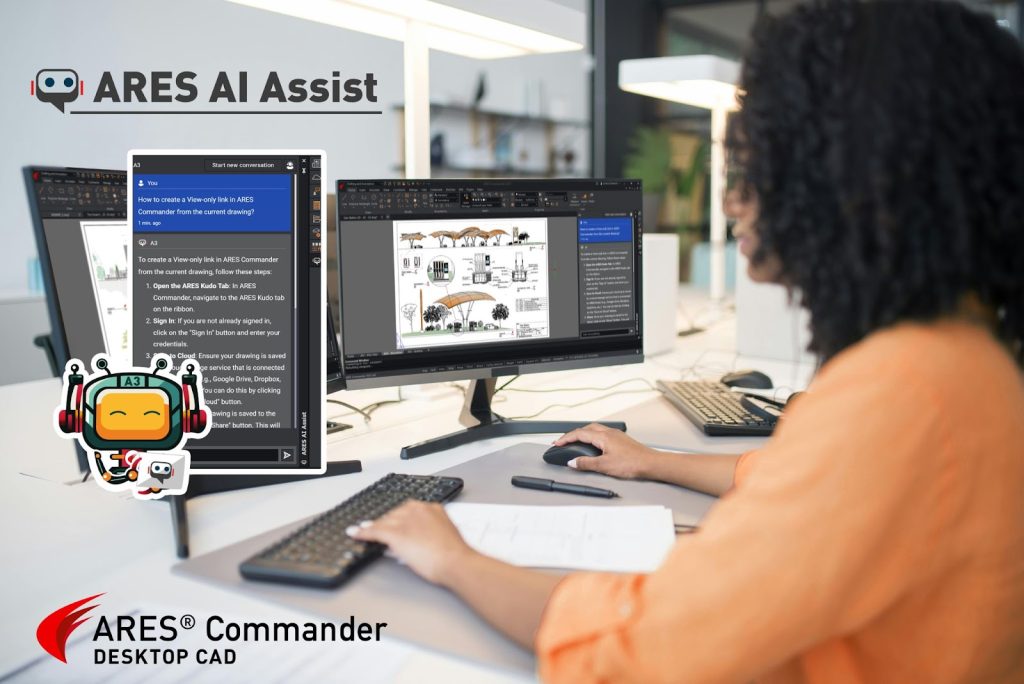
ARES AI Assist (A3) is specifically trained to help CAD users work — and learn — more efficiently.
Although it is a powerful tool, A3 has no learning curve: The palette is loaded by default in ARES Commander, and users simply type their questions at the prompt, using normal phrasing as if they were talking with a colleague. A3 can converse in English, Spanish, French, German, Japanese, and many other languages.
A3 can help new users become familiar with the software, locate features, and learn how to apply them. But as we’ll see, they’re not the only ones who benefit from an on-call assistant! When more experienced CAD users are changing jobs, or migrating to ARES from a different program, A3 is a trusty sidekick that makes the transition easier. And even grizzled ARES veterans will find their workday goes faster when they can handle routine tasks like translations and calculations without leaving their current project.
Click to watch an introduction to A3 on Graebert’s YouTube channel.
For New CAD Users: Readily Accessible Guidance
Jim is a new CAD user who wants to make a good impression at work, but he often feels out of his depth. With the help of free Graebert Academy courses and videos on Graebert’s YouTube channel, he is learning quickly, but his intimidating new boss doesn’t want employees to spend much time on non-billable activities — and that includes training!
The other CAD users in Jim’s department are very busy, so he doesn’t want to interrupt their work every time he has a question. (And besides, he’d prefer that they didn’t know just how little he knows.) Flipping through a dusty binder or digging through a massive Help file whenever he’s stuck would take too much time, he worries. So, what’s a newbie to do? Ask A3 instead!
For example, when he wants to bring a PDF file into ARES Commander, Jim simply types “Where is the PDF import?” at the “Ask me anything” prompt in the A3 palette — and immediately receives an explanation of which command to use. In addition to providing written instructions, A3 also visually emphasizes the PDF Import feature in the ribbon, applying yellow highlights so Jim can quickly see which ribbon tab to select and exactly where to click. Jim finds this process much faster than hunting through all the icons, and there’s no head-scratching involved.

In addition to providing written instructions, A3 visually highlights locations in the user interface.
And if Jim is still uncertain after he reads A3’s response, he can continue the conversation, asking follow-up questions to get more details or a different type of answer. It’s just like talking with a knowledgeable coworker — except this one always has the time to give Jim a hand.
For Users Switching CAD Solutions: A Smoother Transition
Now we’ll look at a different type of CAD user. Maria has many years of experience, but only with AutoCAD; before she started her new job in a big AEC firm, she had never worked with ARES. So when she wants to learn about capabilities that are unique to ARES Commander — such as the ARES Trinity collaboration features or BIM drawings automation features — she asks A3. For example, she types, “How can I create a view-only link in ARES Commander from the current drawing?” and immediately receives step-by-step instructions to guide her through the process.

stomize her user interface, arranging things in a more familiar way so she can work more efficiently. She asks about changing the background color, adding a command to the ribbon, and importing tool palettes that she had created in AutoCAD — and A3 explains how she can quickly make these adjustments.
In addition to learning new software, Maria is also learning the ways of a new industry. Since she previously worked in product manufacturing, there are many AEC terms and concepts that are new to her. Whenever she feels unsure about something, Maria can turn to A3 for explanations of general concepts, and even for industry-specific advice. She feels more confident about her work when she can ask A3 for tips such as, “Suggest methods to reinforce a bearing wall when space is limited.”
For ARES Experts: A Quicker Way to Handle Everyday Tasks
Tomo is too modest to call himself an expert, but he is recognized throughout his company as a “superuser” who knows everything there is to know about ARES Commander. When he first hears about A3, Tomo shrugs; it might be nice for new users, but he certainly doesn’t need any help. But when he glances at the A3 Cheat Sheet posted in the breakroom, Tomo realizes that the new tool can do more than he thought — including conversions, calculations, and translations. Now that’s a kind of help he can use!

Tomo’s company regularly transfers files between branches located in Japan and in the U.S., so he frequently needs to convert units between metric and imperial, and to translate text between English and Japanese. Of course, he has separate software tools to perform those chores, but to use them, he must leave his ARES Commander interface dozens of times each day. Once he switches to A3 for his conversion and translation tasks, those distracting little detours are eliminated — replaced with a streamlined workflow that never breaks his rhythm.

Click to download the A3 Cheat Sheet.
A3 Arrives in ARES Kudo
Now, you can benefit from A3’s assistance anywhere with an Internet connection. Graebert has just released A3 in ARES Kudo, its online CAD software that runs entirely in your Internet browser. With ARES Kudo, you can access your CAD work from any device and any location — creating, editing, and validating files whether you’re at home, in the office, or on the move. And wherever you go, A3 will be right there to lend a hand.

First released in ARES Commander, A3 is now available in ARES Kudo as well.
Try A3 for Yourself
Now that you’ve seen how Jim, Maria, and Tomo make use of A3, you’re ready to try it too: Simply open ARES Commander or ARES Kudo and type your question into the A3 palette. Note that the number of conversation threads allowed per day ranges from two to ten, depending on your license type.
To start a free trial of ARES CAD software, simply create your free Graebert account and then download the ARES Commander software or visit the ARES Kudo portal. Once your trial license is activated, you’ll enjoy free 30-day access to all three components of the ARES Trinity of CAD software: ARES Commander, ARES Kudo, and ARES Touch. And you’ll see how A3 can make a difference in your workflows, no matter what kind of CAD user you are!
