STAY TUNED!
Subscribe to our newsletter and get the 600+ pages eBook Inside ARES:


The Commenting Palette allows commenting on DWG drawings synchronized by the Cloud Storage Palette of ARES Commander. You may add a general comment to the drawing or link your comment to selected entities. Your colleagues will see your comments and be able to answer them. It gives you an interactive and productive way to improve collaboration around the drawing.

ARES Kudo offers you a full set of 2D DWG editing features with familiar command names. You can find in them the menu or enter them at the command line.
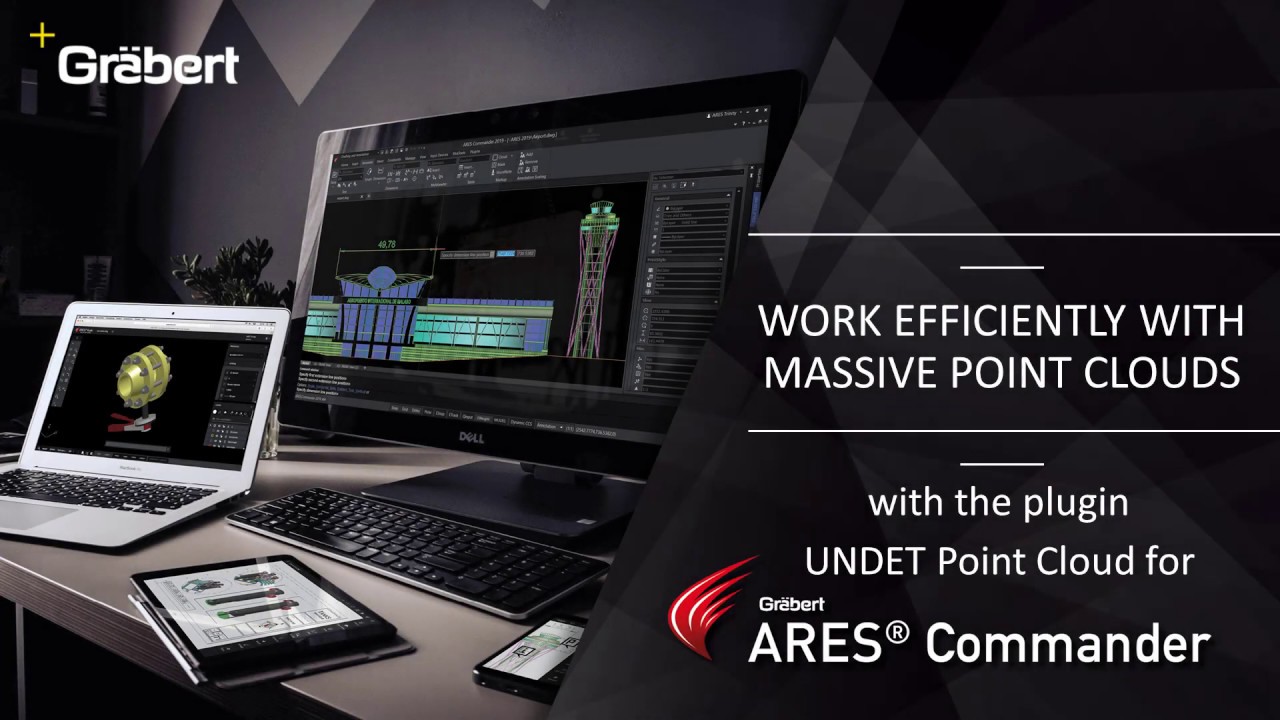
Use Point Cloud Data in ARES Commander The UNDET Point Cloud Plugin for ARES Commander lets you import and handle point cloud data directly inside the ARES CAD Software. Project Management + Undet Indexer – Allows to bring in numerous file types from different scanner vendors. *.E57, *.LAS, *.LAZ, *.PTS, *.DP, *.FLS, *.FPR, *.LSPROJ, *.FWS, *.CL3, *.CLR, *.ZFS, *.RSP, ASCII / NEZ (X,Y,Z/i/RGB). So you can bring in point clouds derived from any technology or application such as Airborne LiDAR, UAV/UAS/Drones, Mobile Mapping Systems, Terrestrial Scanners, Handheld Scanners or Photogrammetry. + Open – Open Undet projects (load point cloud to CAD environment). + Close – Unload point cloud Clipping Box Management + Create, resize, turn on/off Undet Clipping Box – Undet Clipping Box allows rapid point cloud slicing, from bigger chunks to the dollar-bill slices. Color Management + Point Cloud Coloring Options – Enables rendering in natural colors, by intensity, or by
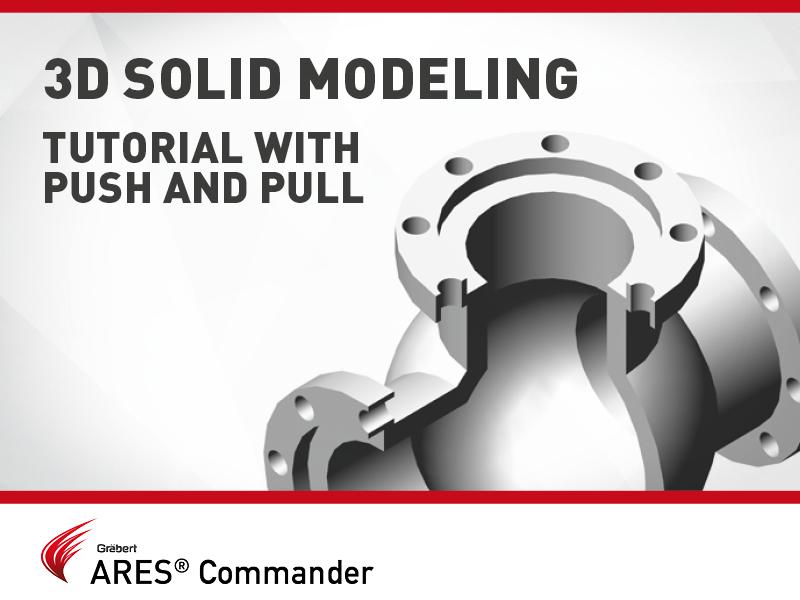
In this video, we will see in action the command Push and Pull of ARES Commander, as well as other functions to model this 3D drawing.
Robert Graebert in discussion with Allen Saakyan at the Congress On the Future of Engineering Software (COFES) event
The new Custom Block Editor of ARES Commander helps you to create smarter blocks. In this video we show how to use grips and parametric actions such as Move, Scale, Stretch, Rotate, Pattern, or Mirror. You can also create custom blocks with different states having elements that are hidden or shown. Combining multiple of these grips and actions allows you to create much smarter blocks. One custom block may replace tens of the blocks you currently use which will significantly increase your productivity.
In continuation of our first tutorial on custom blocks, we would like to introduce further features for customizable blocks with a second tutorial. At first, we focus on creating a customizable block that can be mirrored after insertion by clicking on a special handle and later, to create two different variants of a block using the visibility state.
Kilian Ruess, Senior Solutions Architect from Amazon Web Services interviewed Robert Graebert, CTO of Graebert GmbH. Watch the interview to learn how Graebert CAD Software scales its business CAD solution to match demand using Amazon Web Services (AWS) Auto Scaling and how it implements session draining based on Amazon Simple Notification Service (SNS) and AWS. You can read the script of the interview below:
Custom blocks are blocks for which you can define rules and constraints that allow you to quickly change their size, shape, and appearance.
In this video, we will learn how to use the “Visibility” parameter in order to change between the 6 types of doors that can be seen here.

Did you know that ARES Touch, our mobile DWG Viewer & Editor, is available for both Android and iOS?