STAY TUNED!
Subscribe to our newsletter and get the 600+ pages eBook Inside ARES:

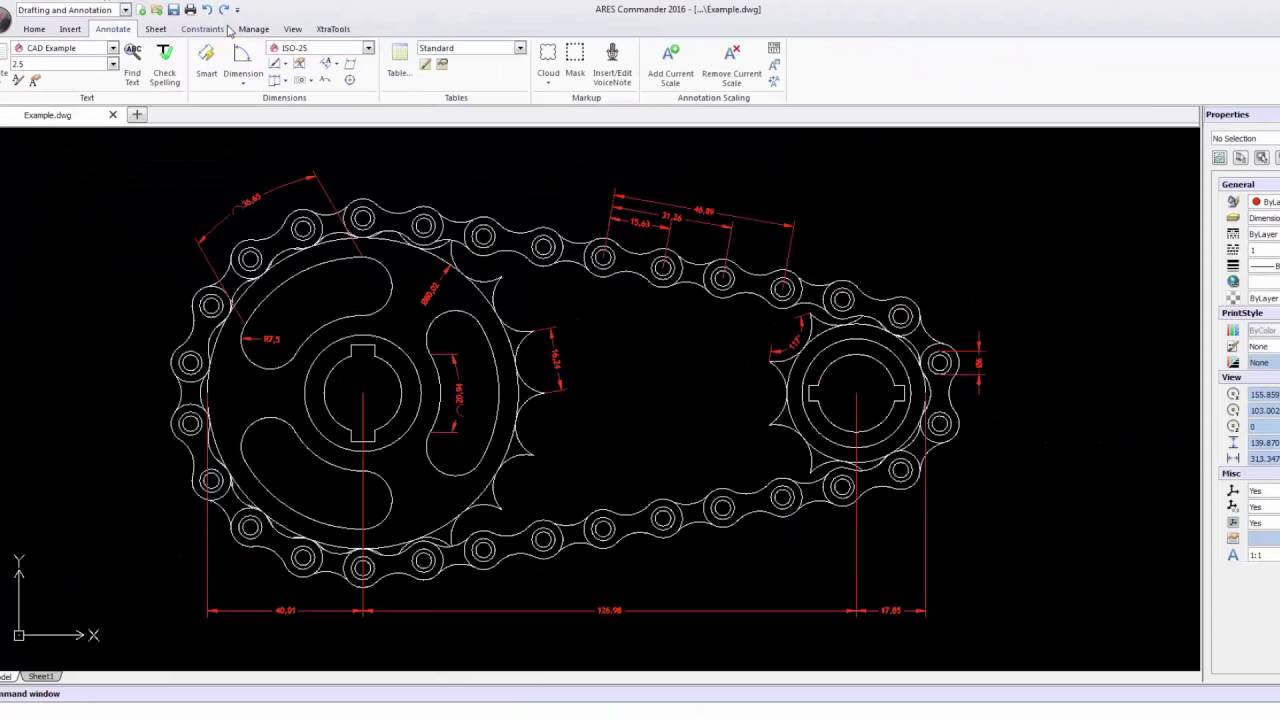
Amit Kumar from CADBlogbyAmit lists down features in Dimension Palette “The Dimension palette appears when you insert or select a Dimension so you can change the properties and formatting of Dimension text. You can change the tolerance, precision, and formatting in the palette without going to the Properties palette.” Read the full article on CADBlogbyAmit here
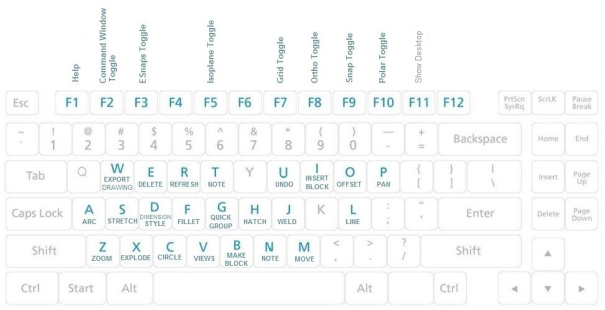
Amit Kumar from CADblogbyAmit writes about ARES Commander Function Keys “You probably know about Function keys and you might be using some of them. But we’re going to take an expedition to all these keys and I’m going to convince you that using them is going to make your work much faster. We all want to go faster when creating CAD drawing and we better.” Read the full article on CADBlogbyAmit here
Amit Kumar Uncovers the One Key Shortcuts for ARES Commander “ARES Commander is available for Windows®, Mac® OS X and several Linux distributions. You probably know many of the Key Board aliases and you might be using some of them. I will give you a list of all the keyboard aliases for ARES Commander. And I’m sure by using this your speed will be 2 times faster. “ Read the full article on CADBlogbyAmit here.

February 8-11, 2015 Hall A-B, North 300 Level Phoenix Convention Center Phoenix, Arizona, United States
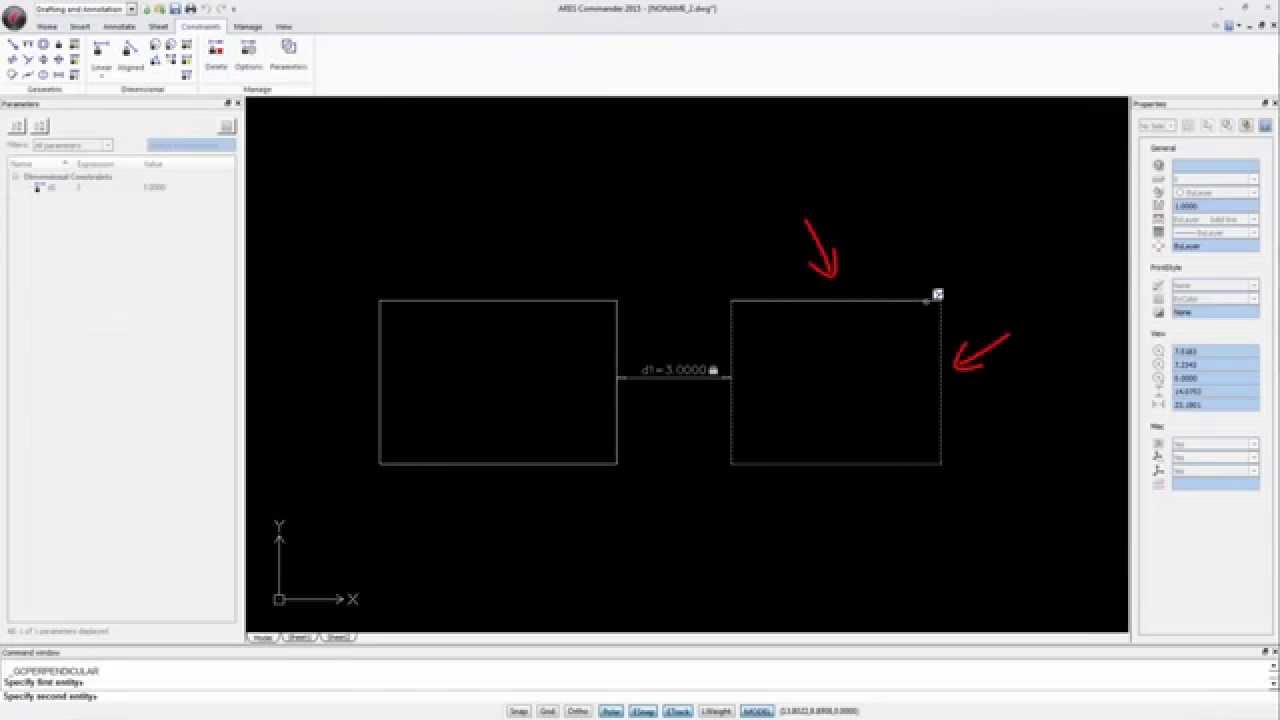
Try 2D Constraints in your DWG files for free – Get a free trial of ARES Commander on https://www.graebert.com. Powered by Dassault Systèmes’ CDS solver, ARES Commander 2015 allows you to define geometric or dimensional constraints to add intelligence to your drawings and keep the design intent while modifying your drawings. Fixing constraints in DWG. 1 00:00:09,60 –> 00:00:12,400 ARES Commander 2015 is getting even smarter 2 00:00:12,580 –> 00:00:19,20 thanks to the tools that allow us to assign parameters to “parts” of the drawing or the drawing in general. 3 00:00:19,340 –> 00:00:23,740 In this example, we have a mechanical part containing various constraints, 4 00:00:23,900 –> 00:00:27,419 which are assigned to different elements of a drawing 5 00:00:28,320 –> 00:00:30,360 By changing this value 6 00:00:30,780 –> 00:00:33,560 or this value, you change the drawing. 7 00:00:34,300 –> 00:00:39,800 The CONSTRAINT we have here allows us to determine the

Learning QUICK MODIFY command 1 00:00:08,380 –> 00:00:14,840 ARES Commander 2015 brings us a new tool to quickly modify the objects we have in our drawing. 2 00:00:17,260 –> 00:00:21,520 This tool we find here in this drop-down menu. 3 00:00:22,70 –> 00:00:23,890 It is called “Quick Modify”. 4 00:00:24,640 –> 00:00:27,720 With this single command, we can combine commands known as 5 00:00:27,740 –> 00:00:30,860 Copy, Move, Rotate and Scale. 6 00:00:32,320 –> 00:00:34,320 Select the command. 7 00:00:35,300 –> 00:00:38,500 Note that here in this area of the drawing 8 00:00:38,920 –> 00:00:42,140 there’s a living room that doesn’t contain any furniture. 9 00:00:42,260 –> 00:00:47,420 However here in this other area we have another living room with furniture. 10 00:00:47,820 –> 00:00:51,480 What we’re going to do is copy the furniture and then rotate it. 11 00:00:51,840 –> 00:00:54,800 Select the entities of this room. 12 00:00:56,420

Amit Kumar from CADblogbyAMit works with the Clean Command in ARES Commander “ARES Commander’s Clean command removes unused references from the drawing. You can remove Block definitions, EntityGroups, Layers, defined drafting styles (such as LineStyles, TextStyles, DimensionStyles, and RichLineStyles), and other references as long as they are not referenced by other definitions or entities in the drawing file.” Read the full article on CADBlogbyAmit here.
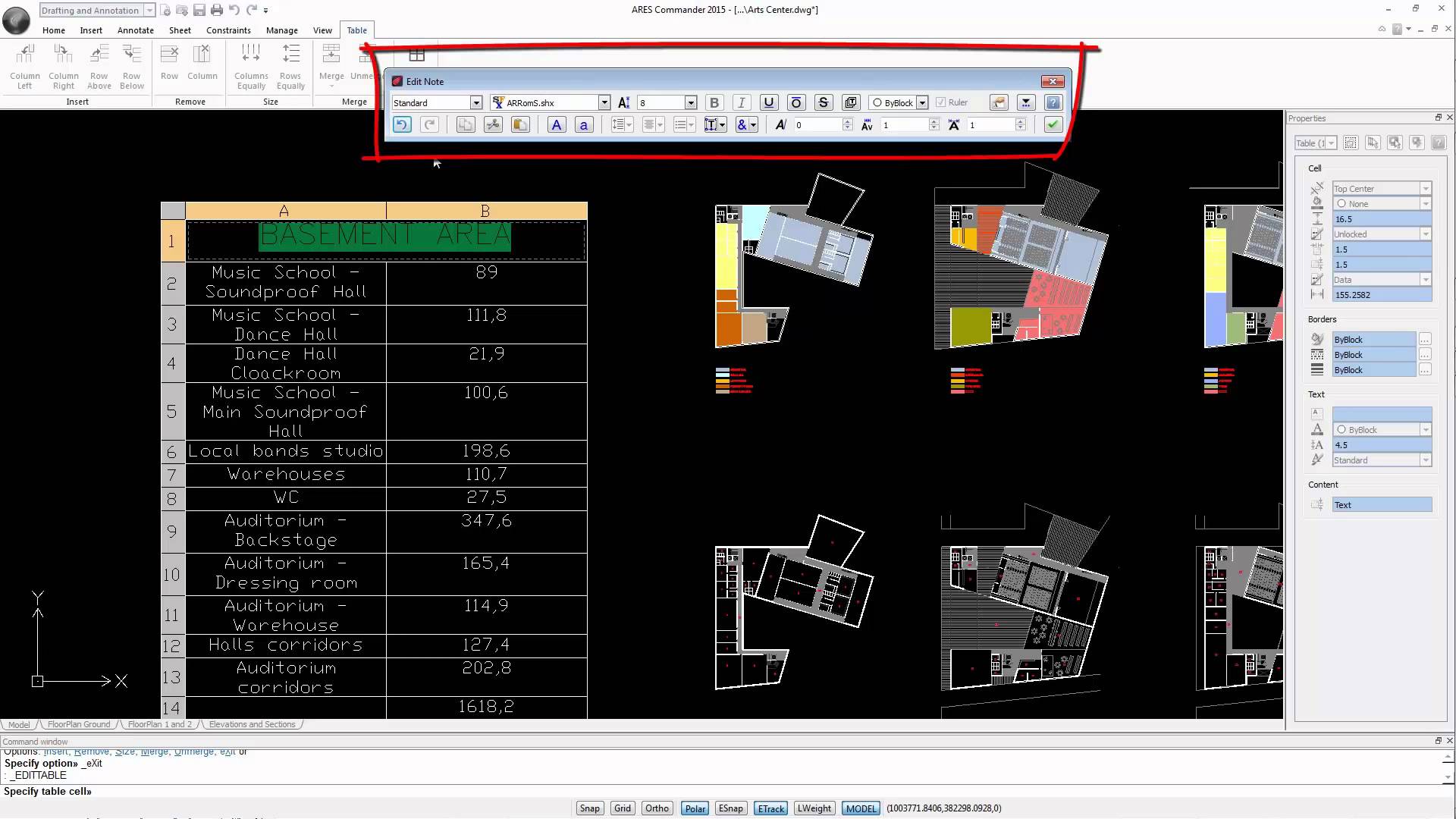
Editing tables interactively Interactive Table Editing is one of the new features in ARES Commander 2015. Get a free trial of this dwg-based CAD software on https://www.graebert.com. See how easy you can create and edit tables directly in your dwg drawings. 1 00:00:08,520 –> 00:00:14,379 ARES Commander 2015 gives us the ability of editing tables interactively. 2 00:00:14,549 –> 00:00:18,70 Thanks to the table editing tools and text editing, 3 00:00:18,70 –> 00:00:21,690 that are combined to help us improve the appearance of tables. 4 00:00:22,000 –> 00:00:25,259 Today, we will not talk today about the existing table options, 5 00:00:25,380 –> 00:00:28,720 when using the command INSERT TABLE. 6 00:00:29,360 –> 00:00:32,659 But about what we can do when we edit an existing table 7 00:00:32,800 –> 00:00:35,360 or import a table from another software 8 00:00:35,360 –> 00:00:38,570 such as Excel or other similar software 9 00:00:38,570 –>
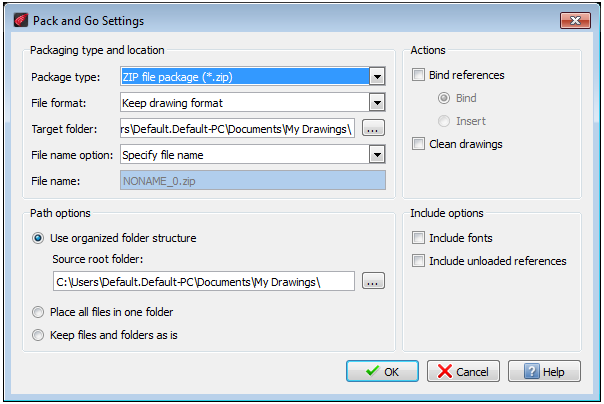
Amit Kumar from CADblogbyAmit talks about PackAndGo “ARES Commander Offers a feature PackAndGo to create a package containing the current drawing and its dependent files such as References, referenced images, referenced PDF files, font files, font mapping files, PrintStyle files, and Print Configuration files.” Read the full article on CADBlogbyAmit here.
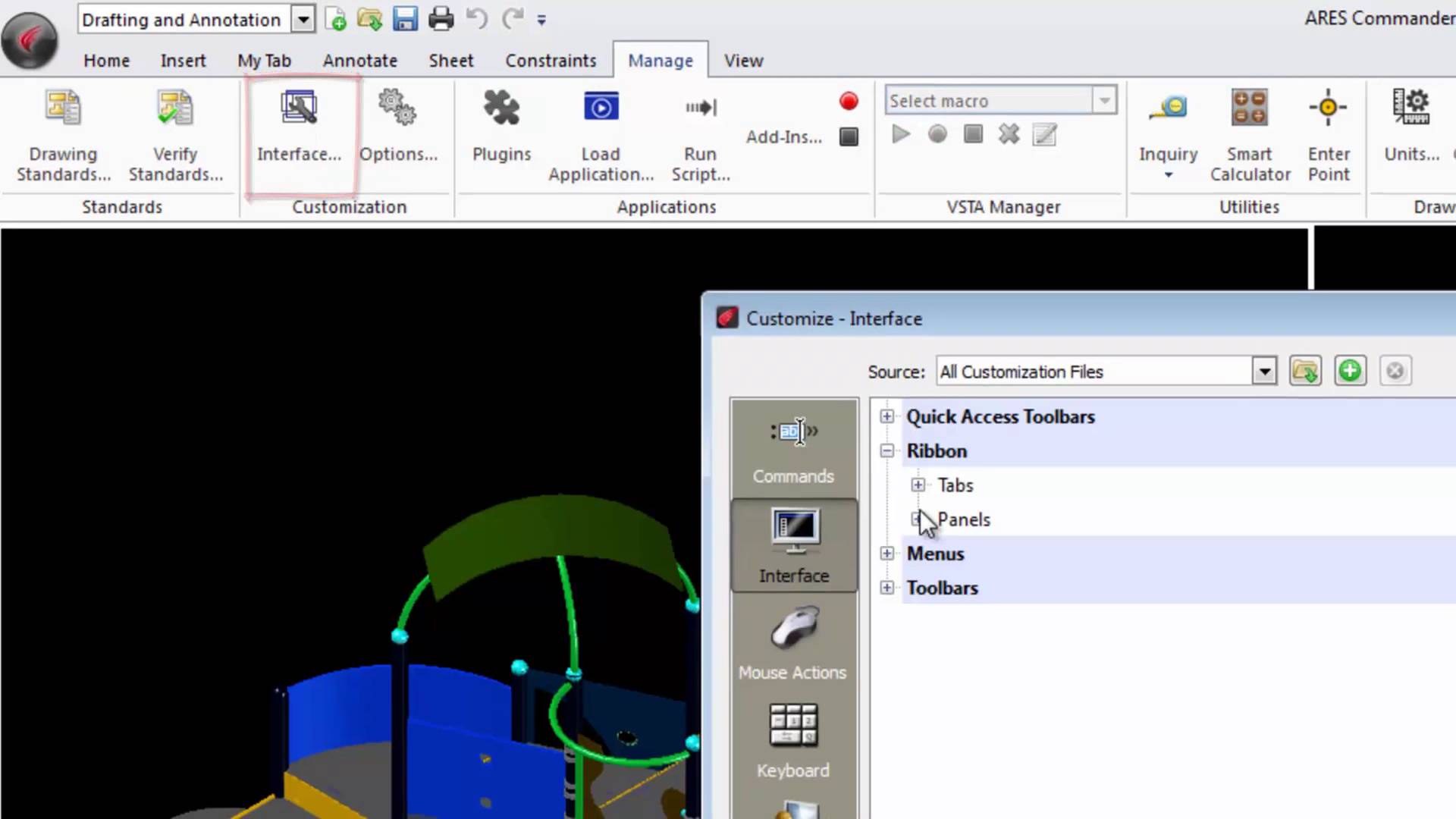
Working with Commands Grouped in Panels ARES Commander allows you to add or modify panels in the Ribbon according to your needs. 1 00:00:08,920 –> 00:00:13,840 The Ribbon allows access to commands that are grouped in panels. 2 00:00:14,420 –> 00:00:17,80 The panel group is part of a tab. 3 00:00:17,460 –> 00:00:23,140 Ares Commander 2015 allows us to change the distribution of the panels and tabs, 4 00:00:23,140 –> 00:00:28,300 so we can customize the organization of the Ribbon according to our taste. 5 00:00:28,300 –> 00:00:31,40 At the moment the Ribbon is showing its default appearance 6 00:00:31,120 –> 00:00:33,980 with the Workspace “Drafting and Annotation”. 7 00:00:34,140 –> 00:00:39,860 If we go to the tab “MANAGE” and select “INTERFACE” in the “CUSTOMIZATION” section, 8 00:00:40,530 –> 00:00:46,719 we can go to the options of the Ribbon where all the 2D and 3D tabs are displayed. 9 00:00:48,760

Did you know that ARES Touch, our mobile DWG Viewer & Editor, is available for both Android and iOS?